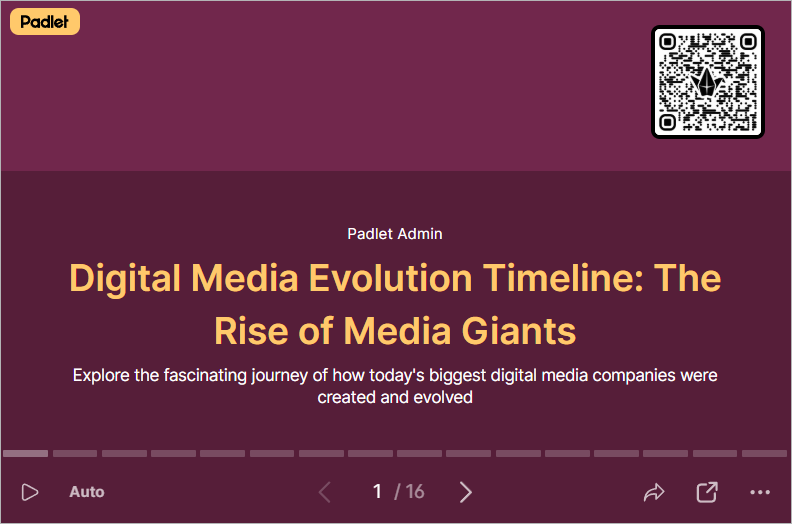
Padlet Help Guides
Padlet for Schools includes overview information about Padlet, how to instructions to help creating Padlets, and instructions on how to customise your settings and share settings.
Padlet Professional Development Courses are online training sessions offered by Padlet to help users learn how to use the platform effectively.
The Padlet Gallery provides example Padlets. The examples can be copied and used like templates to speed up the creation process.
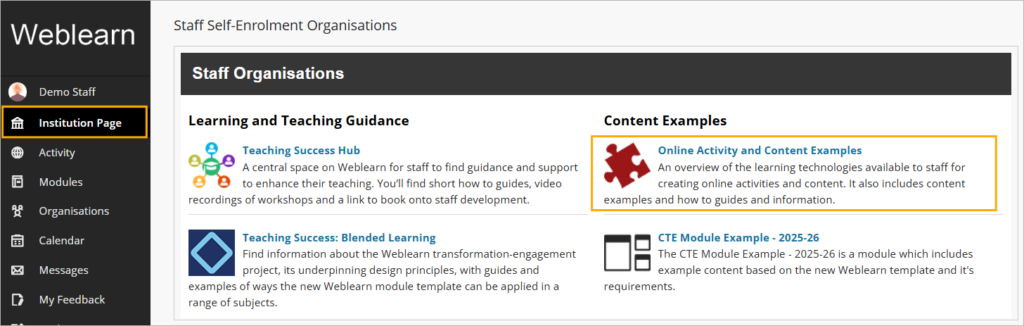
To view more Padlet examples and examples of online activities created using other TEL tools, add yourself to the Online Activity and Content Examples organisation via the Institution page inside Weblearn.
Default Settings in the London Met Account
Visitor Edit Settings
The default visitor settings in the London Met account have been configured so that staff can share a Padlet with students without needing to adjust any sharing options. By default, students are permitted to post and comment on the Padlet.
If you would like to update the settings and set the Padlet to view only, see the Visitor permissions instructions.
Privacy Settings
All Privacy settings are switched off by default. If you would like to use any of the privacy settings please be aware:
- Require visitors to log in: will not work because students do not have accounts on Padlet.
- Show in School dashboard: will make the Padlet visible to all London Met staff members who have a Padlet account.
Learn more about Padlet Privacy settings
Embed Padlet in Weblearn
A Padlet can be added to an Ultra Document either as the full Padlet Board, an embedded Preview (thumbnail), or as a Slideshow.
If the Padlet needs students to scroll vertically, it is not recommended to use the Embed Board option as this can cause usability issues.
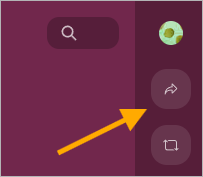
To get the embed code, open the Padlet in the full view and then click on the ‘Share’ icon
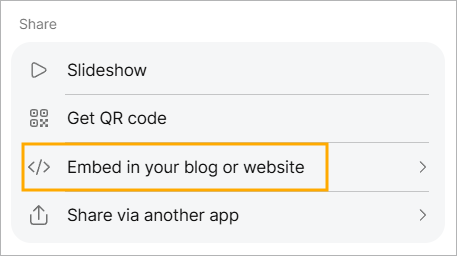
Under the Share section click on ‘Embed in your blog or website’
Click on the ‘Copy embed code’ for your chosen embed option
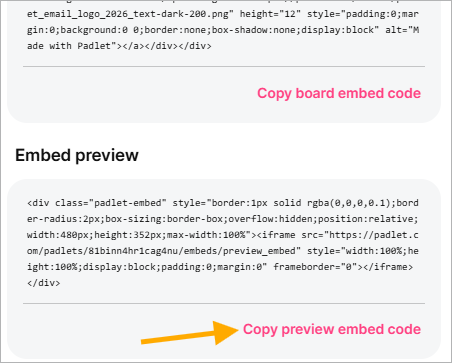
Go to your Weblearn module and open the Ultra Document
On the document, click on ‘Edit’ and then click on the plus in the location where you would like to embed the Padlet
Click on the ‘HTML’ content block
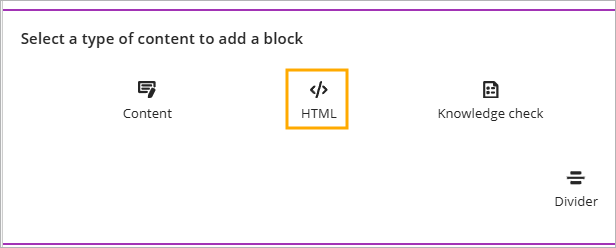
Paste the copied code into the HTML box and then save the document
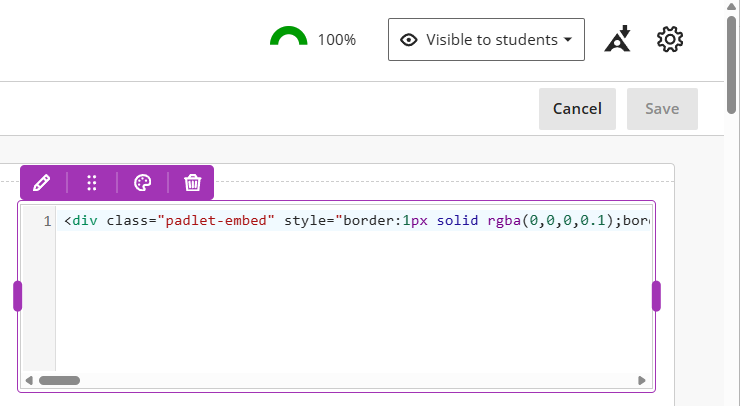
Embedded Boards will display the full board inside the module.
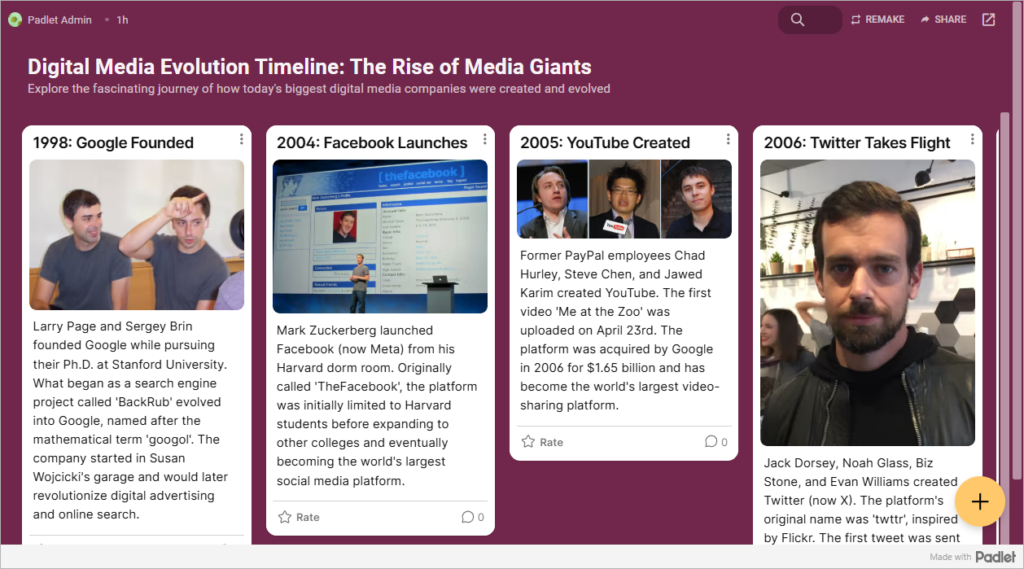
Embedded Previews will display a thumbnail of the Padlet and open in the full browser window when clicked.

Embedded Slideshows will display one Padlet post at a time. Students can choose to play the slideshow or navigate through at their own pace.
Students cannot add posts or comments to slideshows.