
Weblearn Update – September 2024
Upcoming updates include:
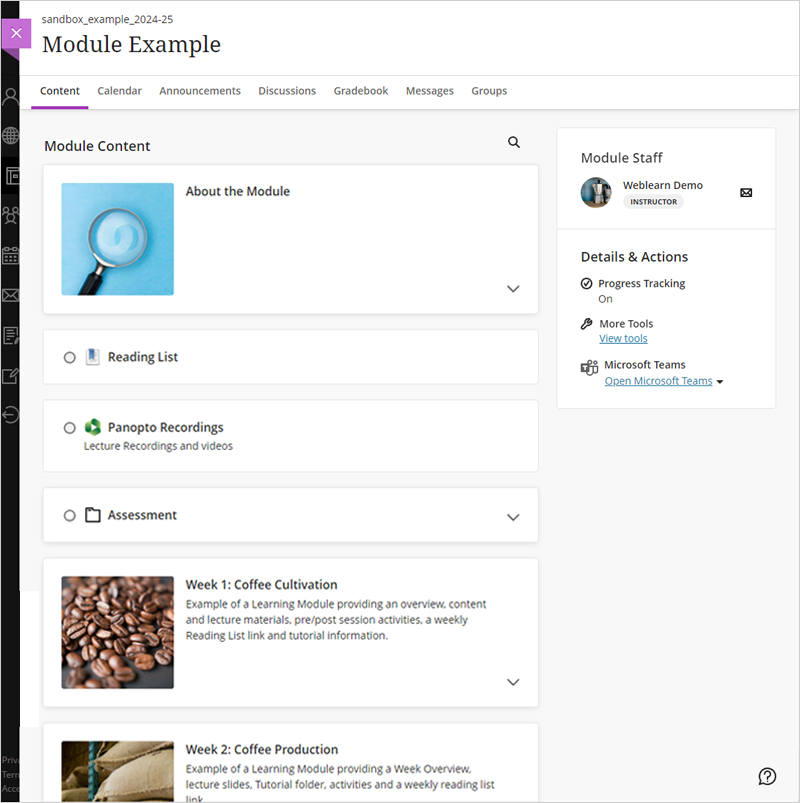
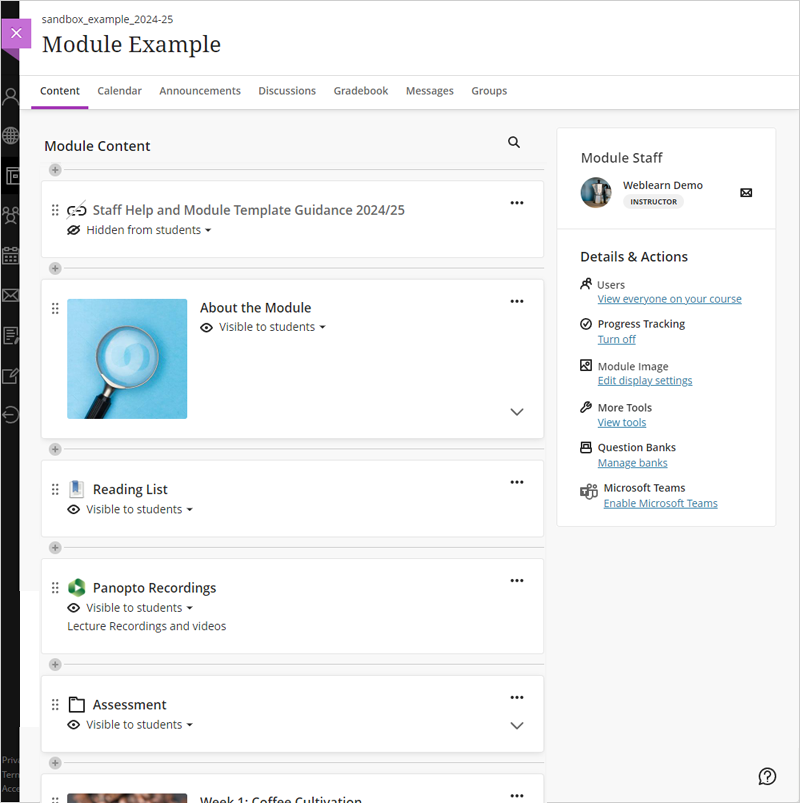
- New Weblearn module layout
- Add MCQs (Knowledge Check) to Ultra Documents
- Student Activity Log
- Gradebook – Overview tab
- Turnitin Originality reports for Weblearn Assignments
- AI Conversation – Socratic Questioning
New Weblearn module layout
Release date: 5-6 September
The new Weblearn module layout provides a clearer and more defined look and feel for students, and easier to use add and move content options for staff.
Student View
Staff View
Add MCQs to Ultra Documents with Knowledge Check
Release date: 5-6 September
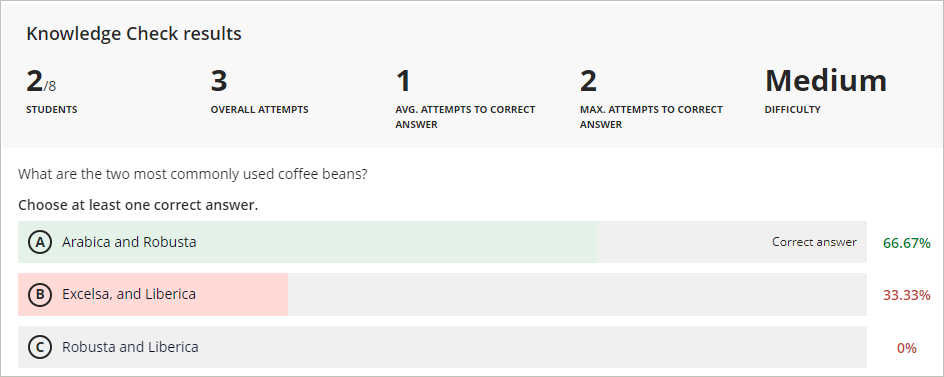
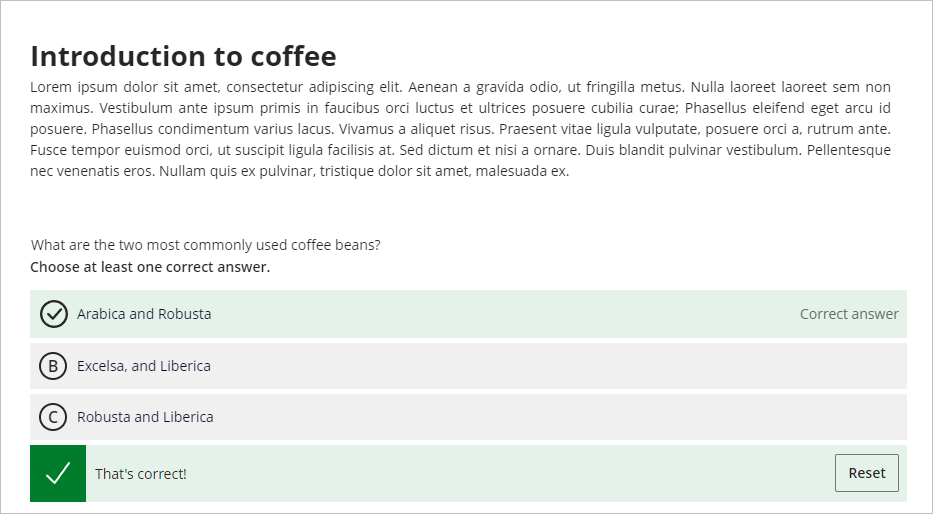
‘Knowledge Check’ allows you to add multiple choice questions to Ultra Documents and create engaging, interactive content. Instructors can view the question results which display detailed metrics.
Students have unlimited attempts to answer the question. They can select an answer and receive immediate feedback on whether their answer is correct or incorrect.
Student Activity Log
Release date: 5-6 September
The Student Activity Log shows the past 140 days of student activity within a module including access dates for the following:
- Module access
- Assessment started, draft saved, submitted and auto-submitted
- Turnitin assignment link (LTI item access) access
- Discussion activity
- Journal access
Note: the log is not updated in real time and it can take up to an hour for the data to display.

Gradebook – Overview tab
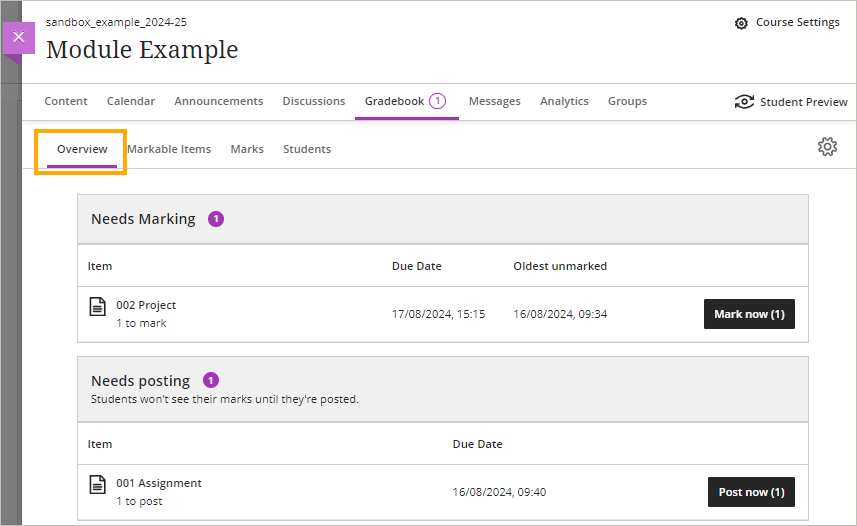
The new Gradebook Overview page provides quick access to submissions which need marking or are ready to be posted to students.
Originality Reports for Weblearn Assignments
Turnitin Originality Reports can now be embedded in Weblearn Assignments, allowing instructors to create online submissions that can accept multiple files and produce a similarity report for each text based file.
Blackboard Guide: Using Turnitin for Assignments

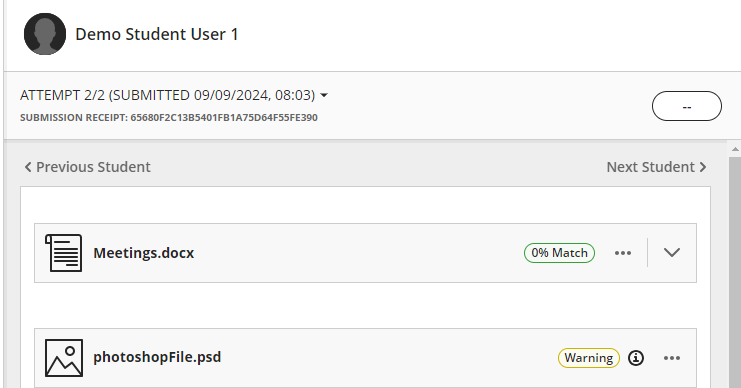
Each submitted file be processed by Turnitin, and the Similarity Match will be shown as a ‘pill’.
The image below shows the ‘0%’ match for a PowerPoint file, to see the match for the Word document, instructors need to click on the tab for the document.

If a submission file (eg an image or a .zip file) can’t be processed by Turnitin, the pill will display a warning message.

If the submission contains elements like inline text or images, all files will be rendered on one tab and the ‘pill’ will show next to each inline document.
AI Conversation
AI conversation is a new Participation and Engagement tool that allows instructors to provide a Socratic questioning exercise guided by AI. AI Conversation lets students explore their thoughts on a topic and are not meant to confirm or deny any student input.
Blackboard Guide: AI conversation
Instructors can set up an AI conversation with an open ended question as a formative exercise.

Students provide answers and the AI chatbot will create follow on questions to lead the student to reflect further on the question.
