Categories
Uncategorised

Weblearn Update: August 2026

Weblearn Update: August 2026

The June Weblearn Update includes:

  • New Gradebook Grid View
  • Improved Weblearn Navigation
  • New Weblearn Content Editor
  • Panopto Quizzing Tool
  • Duplicate items on module content page

New Gradebook Grid View

Release date: 6 August 2026

View the full information and overview videos: New Gradebook

The Gradebook will be updated to improve the overall experience, making key features easier to find and use.

The four Gradebook tabs will be replaced with two views, the List View and the Grid View.

  • List View: a direct replacement for the ‘Markable Items’ tab
  • Grid view: access all mark and student information without the need to switch between Marks, Student and Overview tabs

There are no changes to marking Weblearn or Turnitin assignment once you’ve accessed an assignment through the new List or Grid views.

Improved Weblearn Navigation

Release date: 6 August 2026

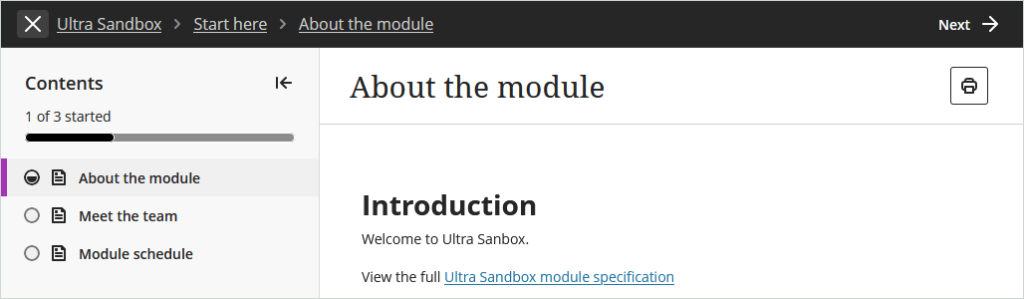
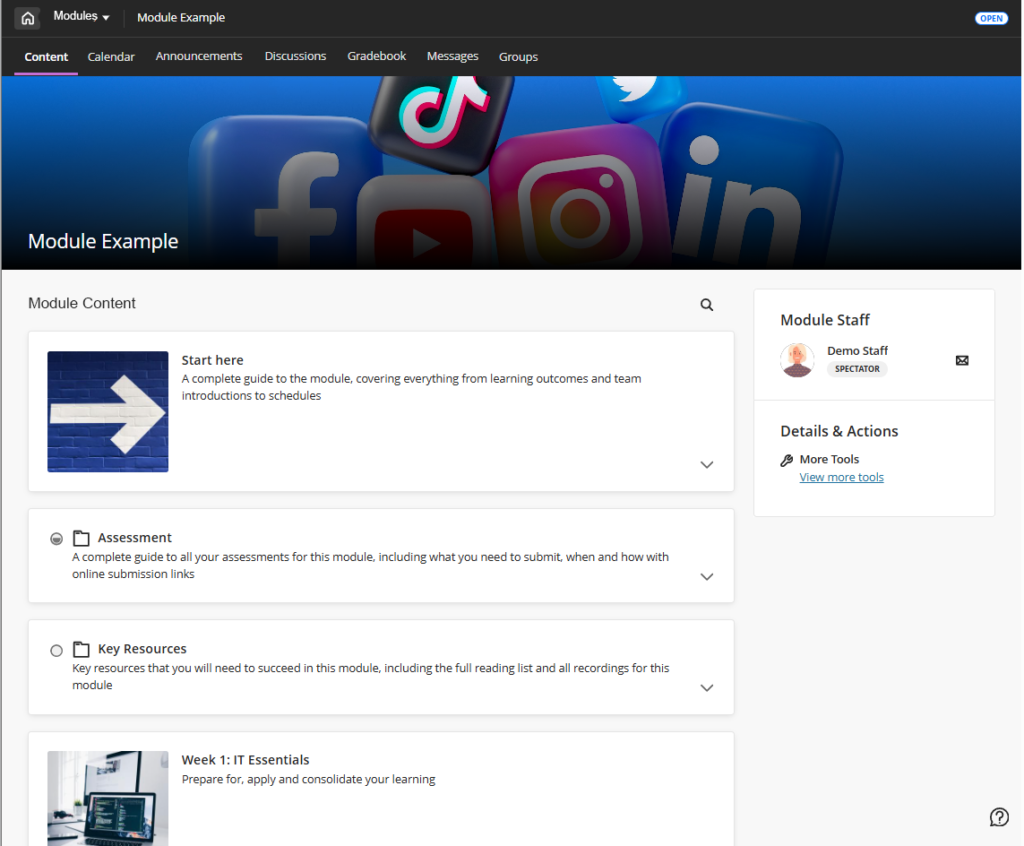
The Weblearn navigation is changing to create a simplified and more efficient user experience.

  • Content panels to pages: Documents, discussions, assessments, tests will open as full pages.
  • Breadcrumb trails: Instead of opening in a ‘panel’ that doesn’t use all of the screen space, content opens in a full page view with a breadcrumb trail at the top to get back to the starting point.
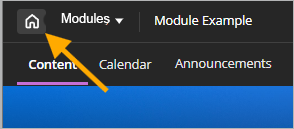
  • Home button: will consistently return users to the Modules page.

New Weblearn Content Editor

Release date: 6 August 2026

View more information: New Content Editor (Beta)

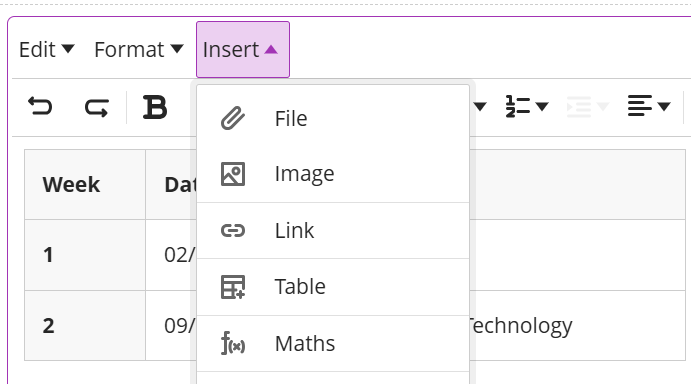
Blackboard is introducing a new Content Editor. An early ‘Beta’ version of the content editor will become available in August, the full replacement of the current content editor is expected by Jan 2027.

The new content editor provides an improved menu, table edit options and additional list types. Further functionality will appear before the full release of the final version.

Panopto Quizzing Tool

Release date: Already available on Weblearn

View the full information and instructions: Panopto Quizzing Tool in Weblearn

The Panopto Quizzing Tool integrates Panopto quizzes or video viewing progress with the Weblearn Gradebook, making it easy to use video for formative tasks and measure how students have engaged with the video content.

Quizzing tool links can be created in:

  • Learning Modules
  • Content Page (e.g. for Welcome Video)

Example: Students can take an interactive Panopto Quiz in a Learning Module and the results will be displayed in the Weblearn Gradebook after they completed the video quiz.

Duplicate items on course content page

Release date: 6 August 2026

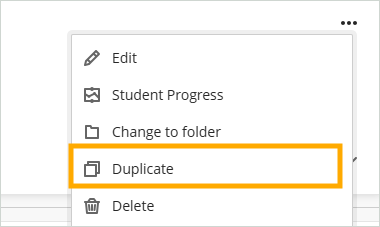
Instructors can now duplicate items on the Module Content page. The duplicate retains all content and settings from the original content.

The duplicate option will not include integrated items such as the reading list or Panopto Video links.

Categories
Uncategorised

Weblearn Update: May 2026

Weblearn Update: May 2026

The May Weblearn Update includes:

  • Redesigned groups management experience
  • Module switcher now includes a search option

Redesigned Groups experience

Release date: 11 May 2026

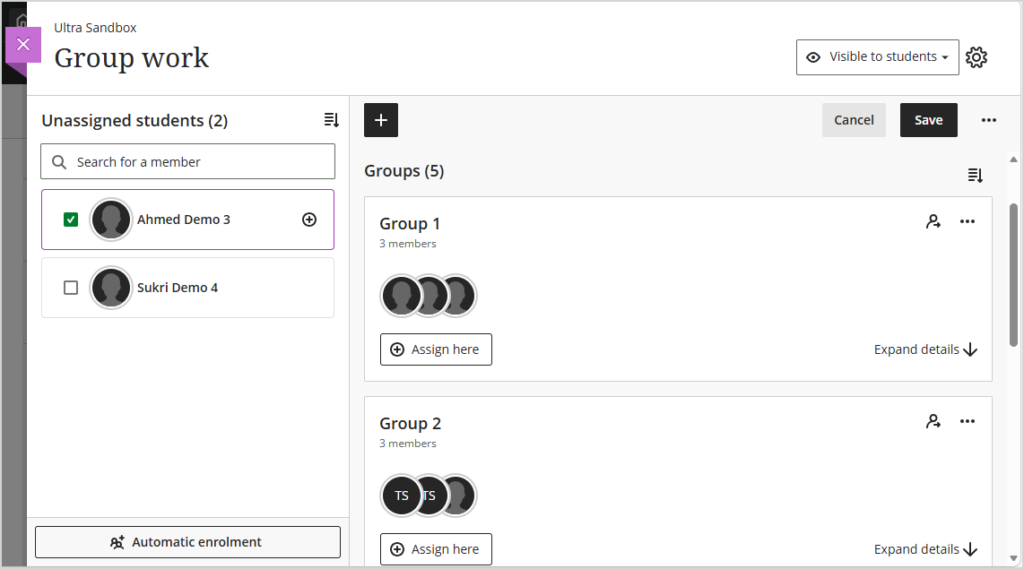
The groups page has been redesigned to make creating groups and assigning students quicker, more user friendly and flexible. The improvements include:

  • Better use of screen space
  • More flexibility to add and remove students from groups
  • Search option to help find and add students to groups more easily
  • Sorting options for unassigned students and groups
  • More options to define self-enrolment groups

View the Groups help page

Module switcher now includes a search option

Release date: 7 May 2026

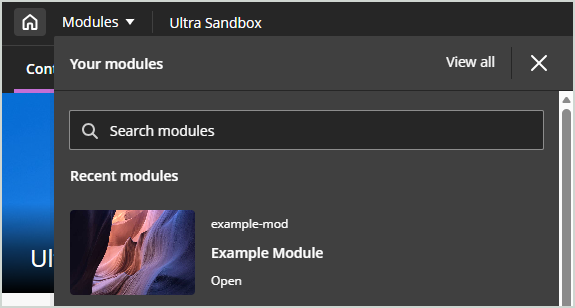
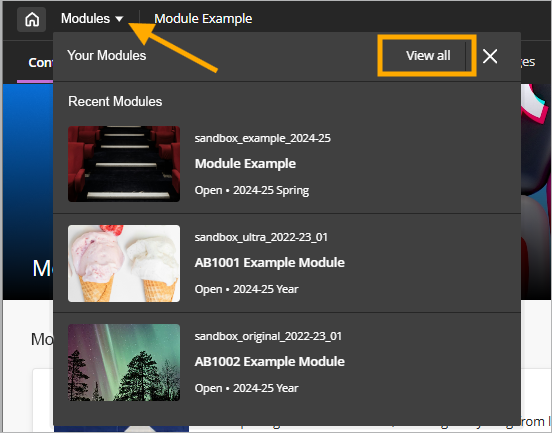
Additional navigation improvements have been added to the module switcher. You can now access the following options from inside a module:

  • Return to the main Modules page by using the ‘View all’ option
  • Use the search to quickly find and access other modules
  • Access your recently accessed modules
Categories
Uncategorised

Weblearn Update: April 2026

Weblearn Update: April 2026

The April 2026 Weblearn update includes:

  • Weblearn Assignments: specify assignment submission type
  • Group Assignments: adjust marks for individual students
  • Discussions: multiple due dates and participation requirements
  • AI Conversation: use message limits

Weblearn Assignments: specify assignment submission type

Release date: 2 April 2026

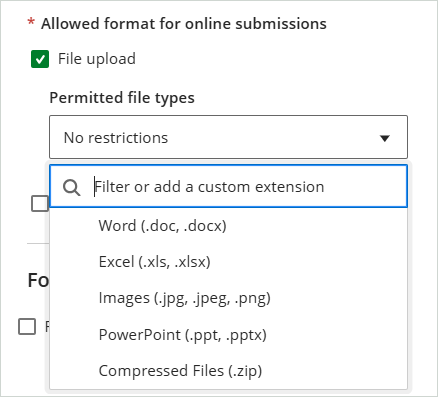
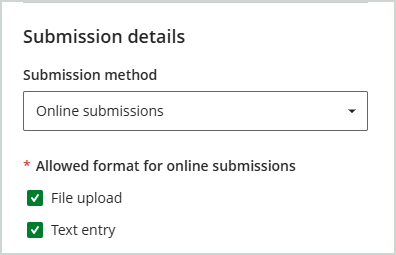
Instructors will be able to specify if students can upload files only, or use the content editor to enter text and/or insert video submissions, or select both options.
Note: future improvements will include the option to specify the expected file type.

File upload option

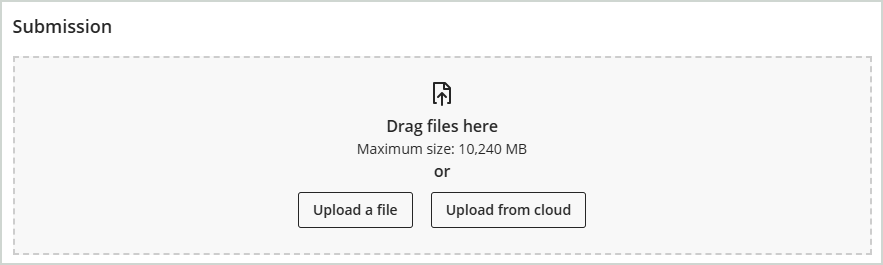
The new design of the file upload area makes it clearer to students where they can upload their files.

And once they have uploaded, they can view and check their files before submitting.

Text entry option

The ‘Text entry’ option does not include an option for students to upload files. Using the Text entry option will allow students to:

  • Enter text into the content editor
  • Embed videos from Panopto using the ‘More Tools’ option

Group Assignments: adjust marks for individual students

Release date: 2 April 2026

Instructors can now adjust marks for individual students within group submissions. The group submission options now include:

  • Overall mark (applied to all students within the group)
  • Overall feedback (visible to all students within the group)
  • Ability to adjust mark for individual student (only the adjusted mark can be seen by the student)
  • Add individual feedback for each student

Discussions: multiple due dates and participation requirements

Release date: already available on Weblearn

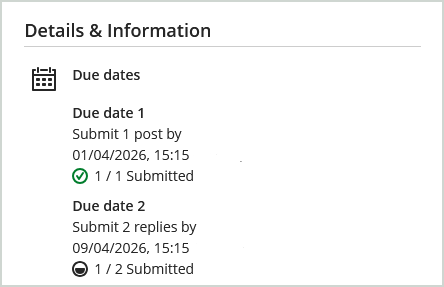
Marked discussions can now include multiple due dates with specified participation requirements. For example, students can be required to add a discussion post by due date A, and then post two replies by due date B.

The discussion requirements and the students progress is displayed to students on the discussion page under the ‘Details & Information’ area.

AI Conversation: use message limits

Release date: 2 April 2026

Instructors can now set message limits in AI conversations to help set expectations for participation. Students will see an indicator letting them know how many responses they have before they the conversation will end.

Categories
Uncategorised

Weblearn Navigation Changes

Weblearn Navigation Changes

Release date: 8 January 2026

As part of the January release on Weblearn, the Weblearn navigation is changing to create a simplified and more efficient user experience..

What’s changing?

  • A cleaner layout on the Base Navigation menu
  • Modules open in full screen mode
  • New module switcher to navigate between modules
  • New ‘Home’ button

Full Screen Mode

Modules will open in full screen maximising the screen real estate and creating a cleaner look and feel.

Home Button

The ‘Exit (X)’ button has been replaced with a ‘Home’ button which will return users to the main Weblearn menu reducing navigation errors where users accidently click the X and leave the module.

Module Switcher

The new module switcher allows you to navigate between your recently accessed modules more quickly, or return to your full list of modules by selecting the ‘View all’ option.

Categories
Uncategorised

Weblearn update: November 2025

Weblearn update: November 2025

Included in the November update:

  • Automatically send messages to students when a mark is posted
  • Ally PDF Quick Fixes
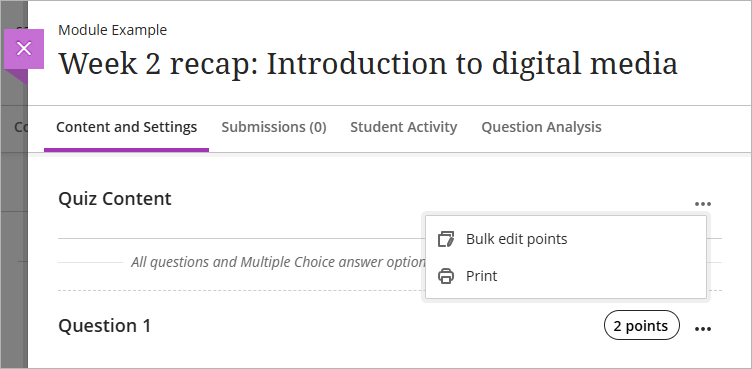
  • Bulk change question points in tests
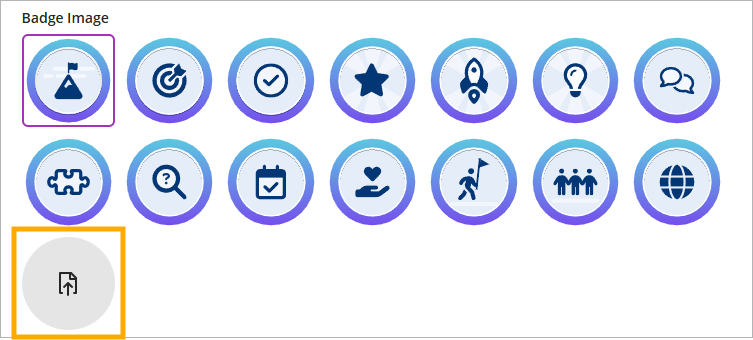
  • Generate or upload custom Achievement badges

Automatically send messages to students when a mark is posted

Release date: 6 September 2025

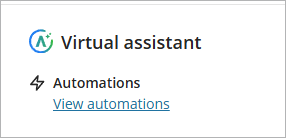
The new Virtual Assistant allows instructors to automatically send messages to students based on the performance criteria for assessment tools.

The automation options currently include:

  • Send congratulatory message: Send a congratulatory message when students achieve a high score.
  • Send supportive message: Send a supportive message when students do not achieve a specified score.

The messages are fully customisable allowing instructors to provide additional help and support or information about reassessment opportunities where appropriate.

Ally PDF Quick Fixes

Ally has introduced a new PDF Quick Fixes feature. The feature allows you to easily apply OCR (Optical Character Recognition) to a PDF. Applying OCR adds a hidden text layer, making the content accessible without changing its appearance.
See Anthology Ally PDF Quick Fixes in Action

Bulk change question points in tests

Instructors can now update the point values for test questions using new bulk editing options.

The bulk update options include:

  • Select all questions at once, with the option to deselect specific questions if desired.
  • Select specific questions
  • Select questions by question type
  • Select questions by type and select specific questions.

Generate or upload custom Achievement badges

Instructors now have three new options for customising Achievement badge: AI-generated images, choose from a selection of stock images from Unsplash, and manual image uploads.

  • Unsplash: Instructors can search from a section of stock images from Unsplash
  • Badge Image Upload: Instructors can also upload custom-designed badge images for use in Achievements.
  • Generate images: Instructors can enter keywords to generate badge images using the AI Design Assistant.
Categories
Uncategorised

Microsoft Education

Microsoft Education

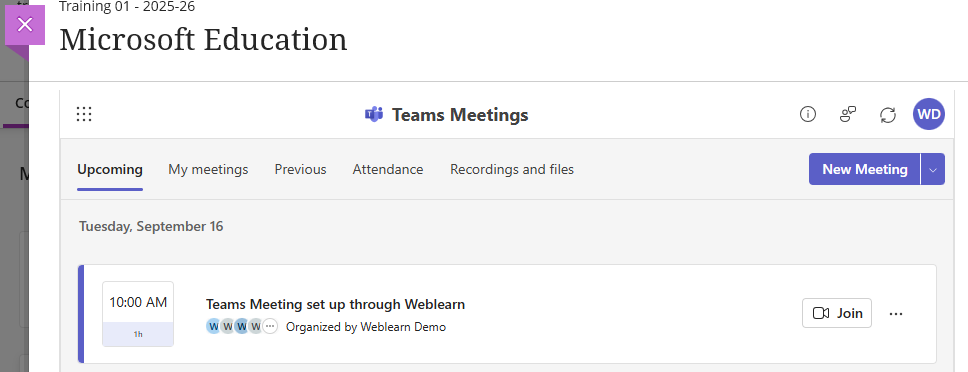
Microsoft Education is now available on Weblearn, replacing the previous Teams Meeting integration. The new Microsoft Education tool includes option to:

  • Create a MS Teams meeting
  • Share a Class Notebook (OneNote)
  • Share a Collaborative document
  • Upload an editable document to Weblearn

The option to create a team is still available if needed.

Access Microsoft Education

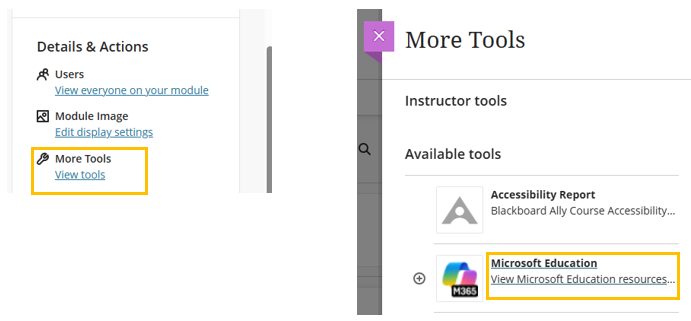
MS Education is located under ‘More Tools’ in the ‘Details & Action’ menu of your Weblearn module. Both staff and students can access the tool and available options from this location.

Note: There is no direct link on the Details & Action menu of the module, but a link can be added to the module content page when needed.

To access MS Education go to the ‘Details & Actions’ menu > click More Tool: ‘View tools’ > click ‘Microsoft Education: View Microsoft Education Resources’

Once users click on the Microsoft Education link, they will see the options available to them.

Microsoft Teams meeting

The new integration automatically creates a group for the module cohort that can be used to send invites to online meetings to students.

Users can access the meeting through the Microsoft for education link, their personal Outlook calendar, or a meeting link added to the module.

Class Notebook

A class notebook is a One Note document that is available to all students on the module cohort and contains:

  • A collaborative space for notes that all users can edit
  • A content library for documents shared by instructors
  • A Teacher only section only visible to instructors
  • Private student notebooks where students can edit their own contents and share with an instructor, but can’t view other students’ notebooks

Students can access the Class Notebook through Microsoft Education tool or a link added to the module.

Class Notebooks can be used for collaborative learning and formative activities such as development e-portfolios or similar.

Share Collaborative documents

Word, Excel and PowerPoint files can be added to a module as Collaborative documents that can be edited by all students.

Create a link from ‘More Tools’ in the location where you want to add the document

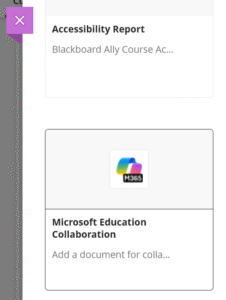
Select Microsoft Education Collaboration and select the type of document you want to add.

Students can access and edit the document for shared content creation, group work, tutorial tasks or any other collaborative activities suitable for a module.

Categories
Uncategorised

Weblearn update: September 2025

Weblearn update: September 2025

Included in the September update:

  • New Microsoft Education integration with Weblearn (replaces the Microsoft Teams Weblearn integration)
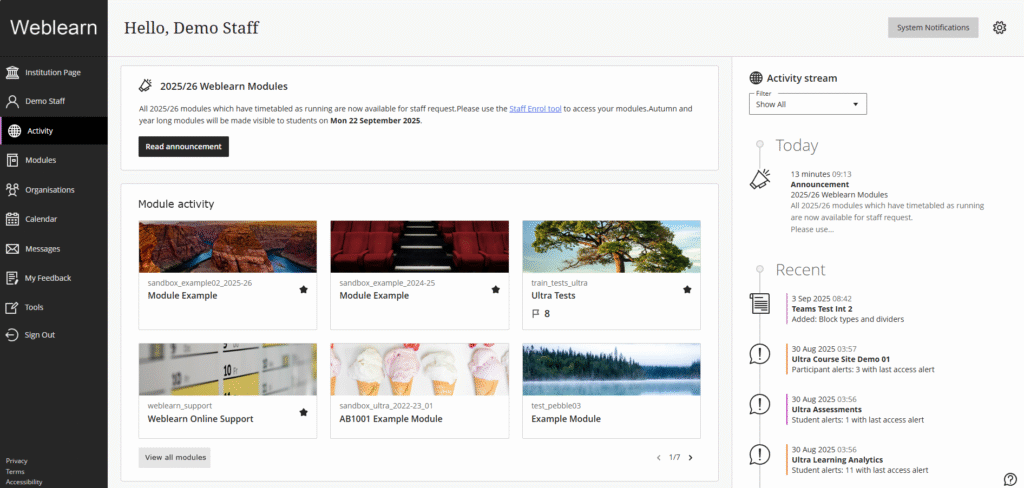
  • New Activity page for staff
  • Block styling options for Documents – available date confirmed
  • Start of year resources for students

New Microsoft Education integration with Weblearn

Release date: September 2025

The Microsoft Teams integration with Weblearn will be replaced with a new Microsoft Education integration. The ‘Microsoft Teams’ link available under the Details and Actions menu will change to ‘Microsoft Education’.

Note: During the switchover period Microsoft Teams will be unavailable in modules on Weblearn.

Existing meetings set up using the current integration will continue to work after the change.

New Activity page for staff

Release date: 4 September

Blackboard have updated the Activity page for instructors to improve usability and efficiency. Previously, this page only displayed the activity stream—a chronological list of module updates and upcoming events. This update streamlines module oversight, making it easier and more efficient to access modules, view system wide announcements and module updates.

Block styling options for Documents

Release date: 4 September

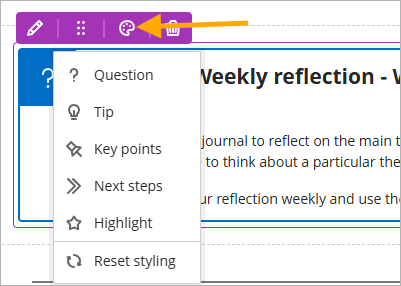
Instructors will have the ability to enhance the visual appearance of content using the content styling blocks.

The style options include: 

  • Question
  • Tip
  • Key points
  • Next steps
  • Highlight 

To style a block, click on the style icon in the menu.

Start of year resources for students

The student resources page for staff contains up-to-date start of year slides and videos for Weblearn, IT essentials and online submission.

Staff can adapt or reuse any of the resources provided.

Student Resources – Learning Technology Support

Categories
Uncategorised

Weblearn update: July 2025

Weblearn update: July 2025

New updates on Weblearn include:

  • Block styling options for Documents
  • Table of Contents in Learning Modules for students
  • Document layout suggestions
  • Add captions to image blocks in Documents
  • Messages options can be updated in modules
  • Auto-generate AI Conversations
  • File Restrictions on Weblearn

Block styling options for Documents

Release date: Postponed – new date planned for September

Instructors will have the ability to enhance the visual appearance of content using the content styling blocks.

The style options include: 

  • Question
  • Tip
  • Key points
  • Next steps
  • Highlight 

To style a block, click on the style icon in the menu.

Table of Contents in Learning Modules for students

Release date: Thursday, 7 August

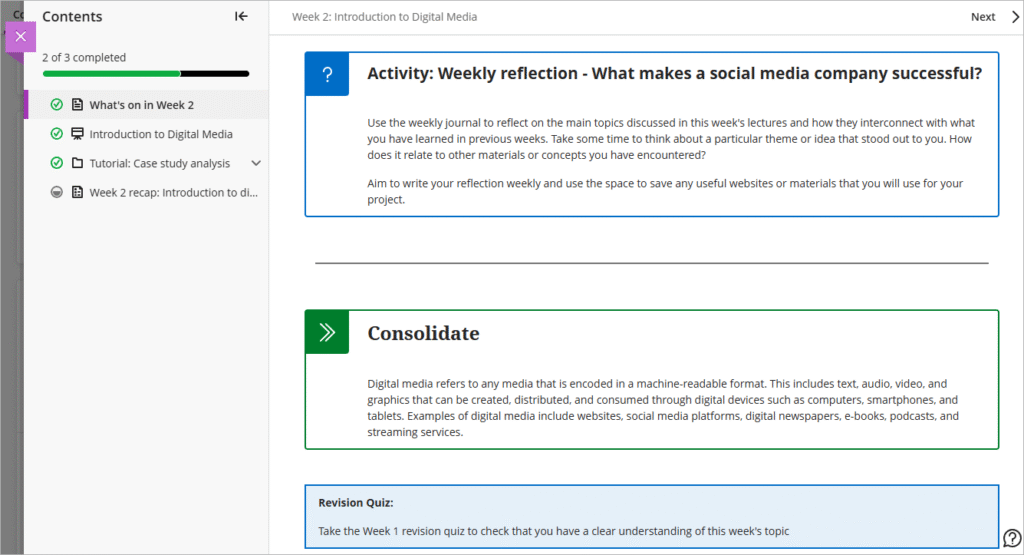
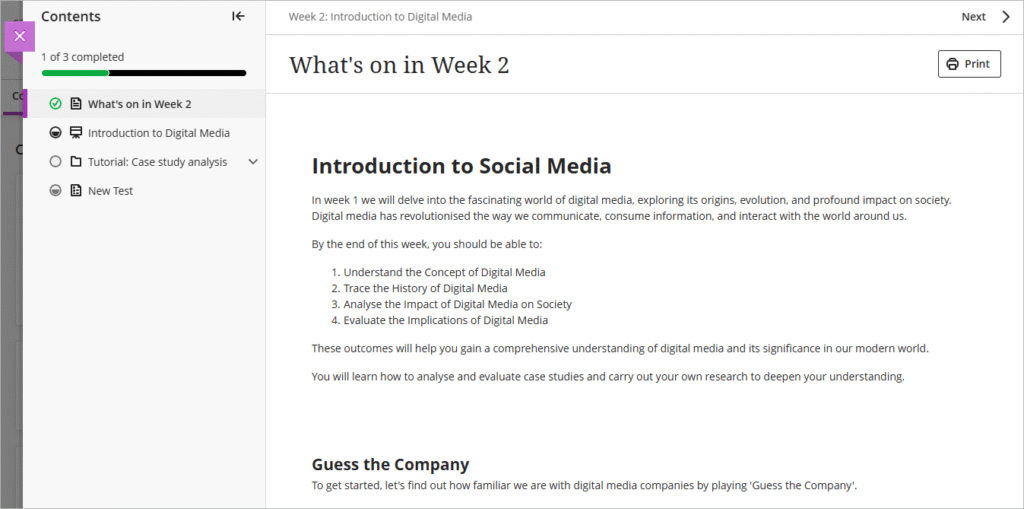
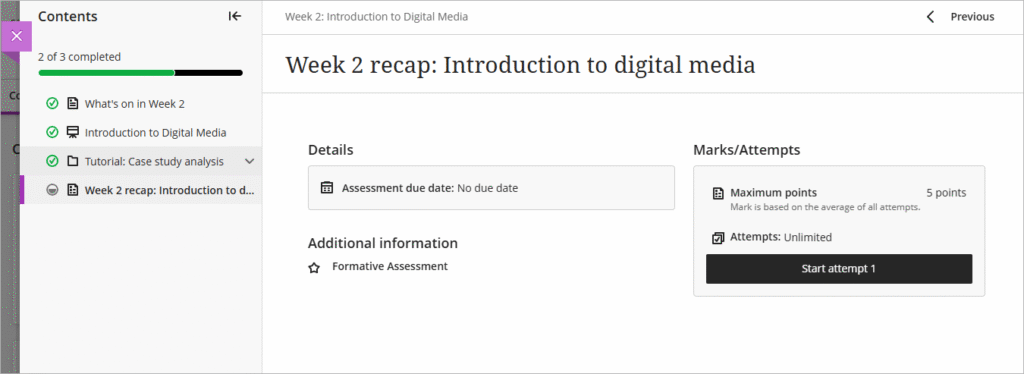
To enhance usability and assist with navigation, a table of contents has been added to the Learning Module and Folder view for students making navigation, orientation, and progress tracking more intuitive.

As part of this update, assessments now open in the full panel, rather than the small side panel, making viewing assessment more constant and easier to view.

Document layout suggestions

Release date: already available on Weblearn

The new Layout Suggestion Tool uses the AI Design Assistant to help design more engaging documents for students. The tool offers the following features:

  • Layout Suggestions: The Design Assistant suggests structured layouts and automatically adds helpful headings to improve readability.
  • Images: Instructors include AI-generated images or select stock images from Unsplash.
  • Knowledge Checks: Instructors can include automatically generated multiple-choice questions based on the document’s content.

Add captions to image blocks in Documents

Release date: already available on Weblearn

You can now add captions to images using the document image block options.

Messages options updated in modules

Release date: Monday, 18 August

Instructors will have the flexibility to customise messaging options within their modules. Where appropriate, they can enable student-to-student messaging, allowing learners to communicate with each other directly through the module.

Messages Options:

  • Learners can message anyone in their module
  • Learners can only message staff and learners in their groups
  • Learners can only message staff
  • Learners can only reply to messages

The message options can be changed via the Module Settings area.

Auto-generate AI Conversations

Release date: already available on Weblearn

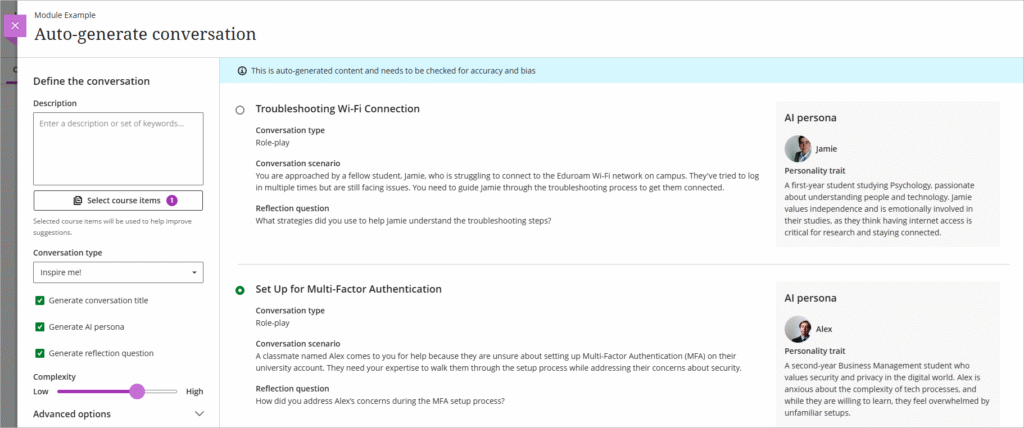
Auto-generate AI Conversations based on module content. The generator will auto-generate:

  • Conversation title
  • AI persona
  • Reflection question

You can choose form role play or socratic questioning conversation types.

File Restrictions on Weblearn

Video files over 50MB and files which exceed 1GB in size cannot be uploaded to Weblearn.

All video files should be stored on Panopto, the London Met video platform.

Large files can be uploaded to OneDrive and then shared via a link added to Weblearn.

Categories
Uncategorised

Weblearn update – April 2025

Weblearn update – April 2025

The April 2025 Weblearn update includes:

  • Indicator if student has or has not reviewed feedback
  • Replace Feedback column with actionable Results column in student Gradebook
  • Print Ultra Documents

Indicator if student has or has not reviewed feedback

Release date: Thursday, 3 April 2025

You will now be able to check if a student has accessed their feedback for a Weblearn assignment.

To view the indicator go to the Gradebook and click on the ‘Students’ tab

Next, locate the student in the list and click on their name

On the student overview page you will be able to see the ‘Reviewed’ or ‘Not reviewed’ status for the students submission.

Hover the mouse pointer over the ‘Reviewed ‘ status to see the time and date that the student accessed the feedback.

Enhancements to student access for assessment results

Release date: Thursday, 3 April 2025

To make it clearer and easier for students to access their assessment results, the ‘Feedback’ column in the student view of the Gradebook has been replaced with a ‘Results’ column, featuring a clear indicator for students to ‘View’ their results.

The current view shows the ‘Feedback’ column with a purple speech bubble icon to indicate feedback is available.

The new view shows the ‘Results’ column with a ‘View’ button to access the results.

Print Ultra Documents

Release date: Thursday, 3 April 2025

Instructors and students can now print Ultra Documents or save them to PDF.

  • Knowledge check content blocks print with all the question and answer options visible.
  • All other blocks print as displayed outside of editing mode.
Categories
Uncategorised

Weblearn update – March 2025

Weblearn update: March 2025

New and improved for March 2025:

  • Copy banners between modules
  • New student submission review page for tests

Copy banners between modules

Release date: 6 March 2025

Instructors who would like to reuse module banners across multiple modules can now copy banners from module to module.

To copy a banner:

  1. Click on the plus sign (+) inside the module you want to copy the banner into
  2. Select copy content
  3. Locate and select the module where the banner currently exists
  4. Click on ‘Settings’ and then click on the checkbox next to the banner
  5. Click on ‘Start copy’

New student submission review page for tests

Release date: 6 March 2025

The current student submission review page includes a large top section where the submission attempt information is displayed.

The new student submission review page has consolidated the Test attempt information to make better use of the screen real estate.