More screen space when grading Weblearn Assignments
Image block
Release date: 6 February 2025
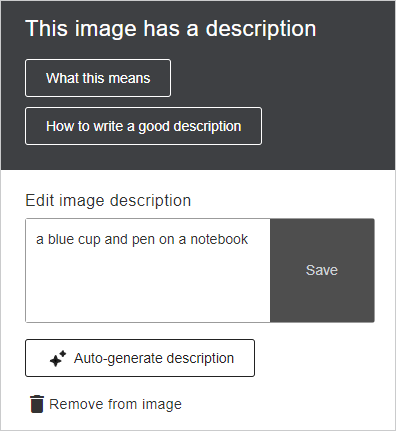
You can now use the ‘Image’ block to add images to Ultra Documents.
The image block allows you to:
Upload images or use the AI Design Assistant to generate images, or select images from Unsplash
Resize and set the height of images
Adding images via the image block reduces white space around images
Change folders to learning modules
Release date: 6 February 2025
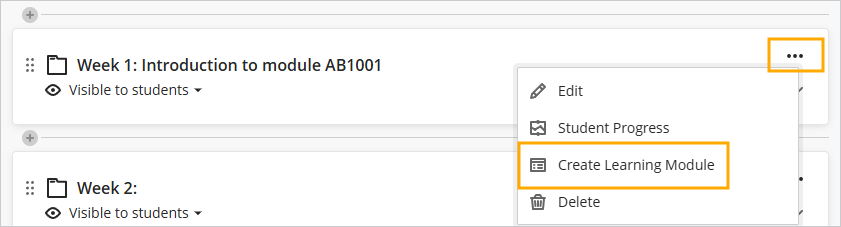
A learning module is a content container which provides an enhanced user experience for students which is preferable for use over folders for most module content groupings.
To change a folder to a learning module, click on the three dots for the folder and then select ‘Create Learning Module’
Improvement to rendering of uploaded files
Release date: 6 February 2025
Files uploaded to modules will now retain their original formatting. Files uploaded previously would be rendered and sometimes lose the original formatting. The improved rendering means that files can now be viewed by students in their original format.
More screen space when grading Weblearn Assignments
Release date: 6 February 2025
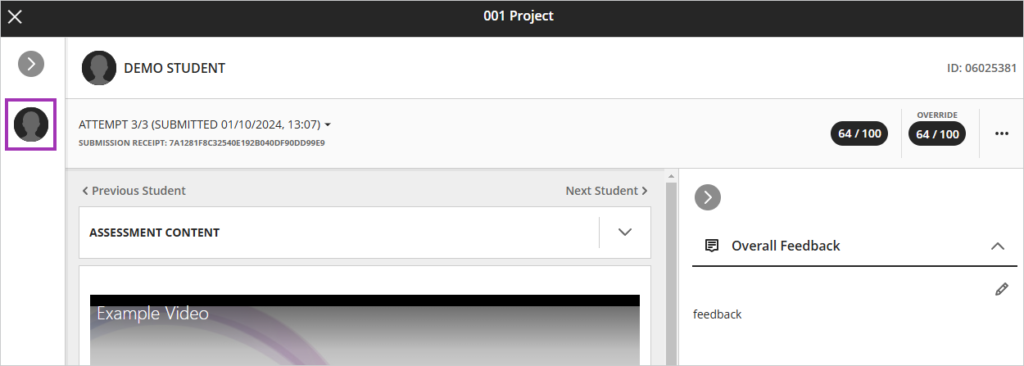
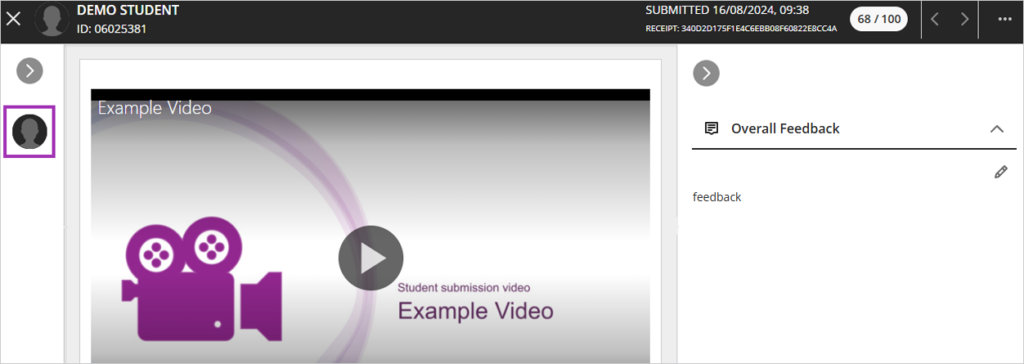
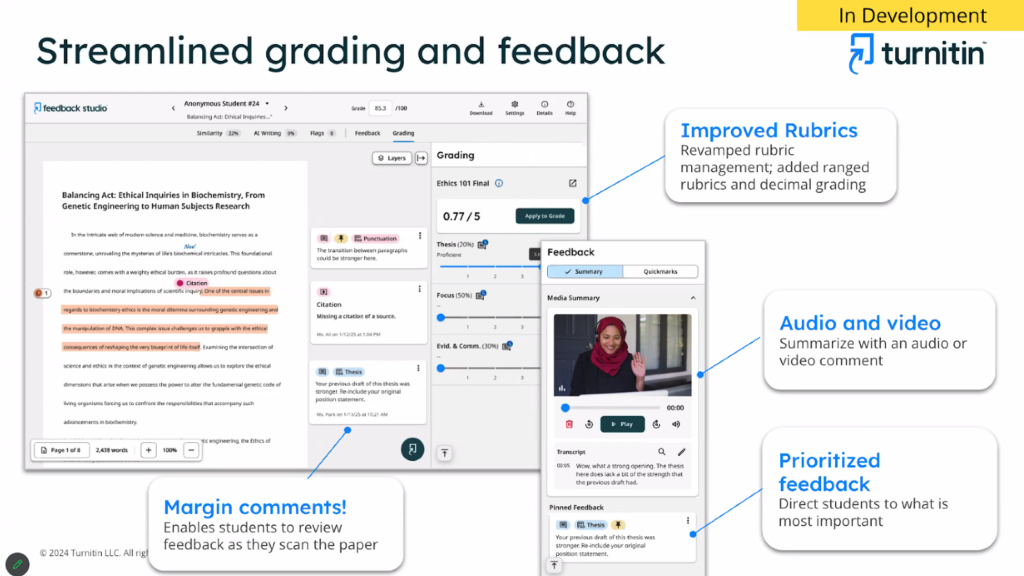
The current view of the submission grading page uses the top section of the screen to display the submission details.
The new view has consolidated the submission details into top most section of the screen to free up more screen space when marking student submissions.
There will be no significant changes noticeable to staff and students in the December Blackboard system update. The update will mainly focus on performance improvements and core and security.
Weblearn maintenance: 4 Jan 2025
Saturday 4 January 2025, 2am to 8am
Weblearn will be undergoing database maintenance work on Saturday 4 January between 2am to 8am.
During this time Weblearn will be unavailable to students and staff.
Ultra Documents – check accessibility score and fix broken weblinks
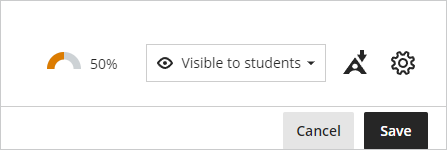
Open the document in Edit mode and then wait a couple of seconds – the accessibility percentage gauge will then be displayed next to visibility options at the top of the document.
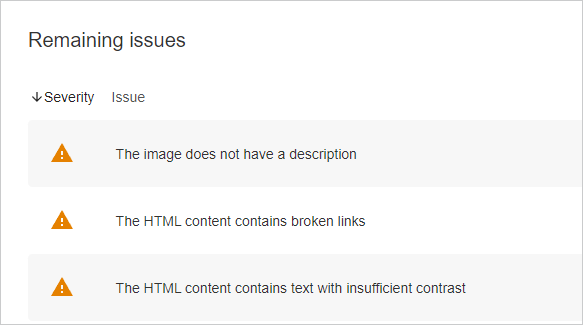
Simply click on gauge to open the report to review and fix the accessibility issues.
Broken weblinks will show as ‘The HTML content contains broken links’
Download Option for Student Activity Log
Release date: 7 November 2024
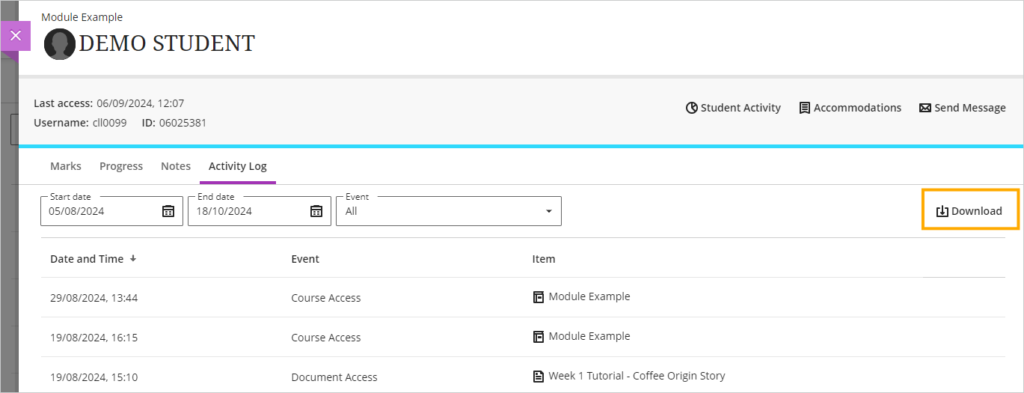
The student activity log is now available to be downloaded.
Note: the Student Activity Log shows the past 140 days of student activity.
To access the log:
Open the Gradebook page in the module
Click on the ‘Students’ tab
Select the student you would like to view the log for
Click on the ‘Activity log’ tab
Modules unavailable to students show as ‘Locked’
Release date: 7 November 2024
Modules which are not available for student access currently show as ‘Private’ on Weblearn. To make the status clearer to students the status is being updated and will show as ‘Locked’
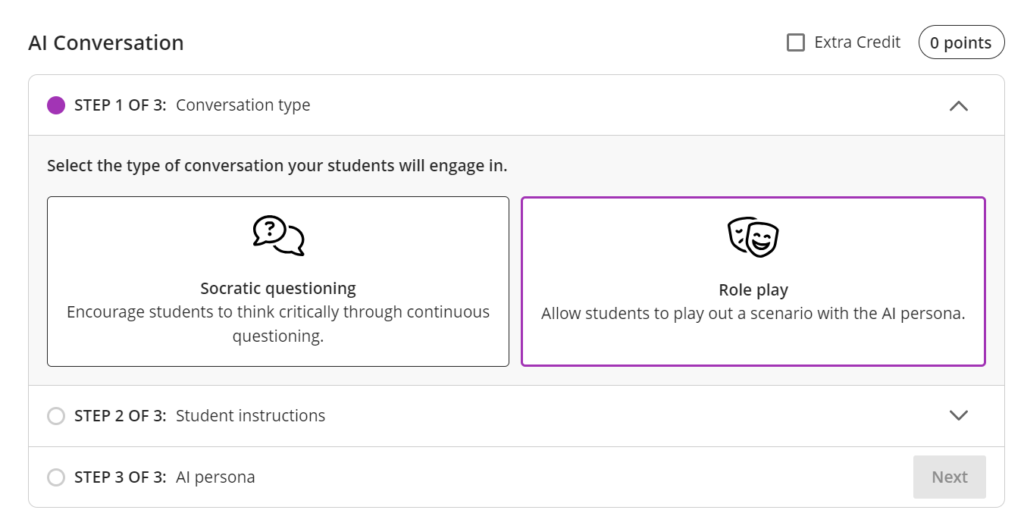
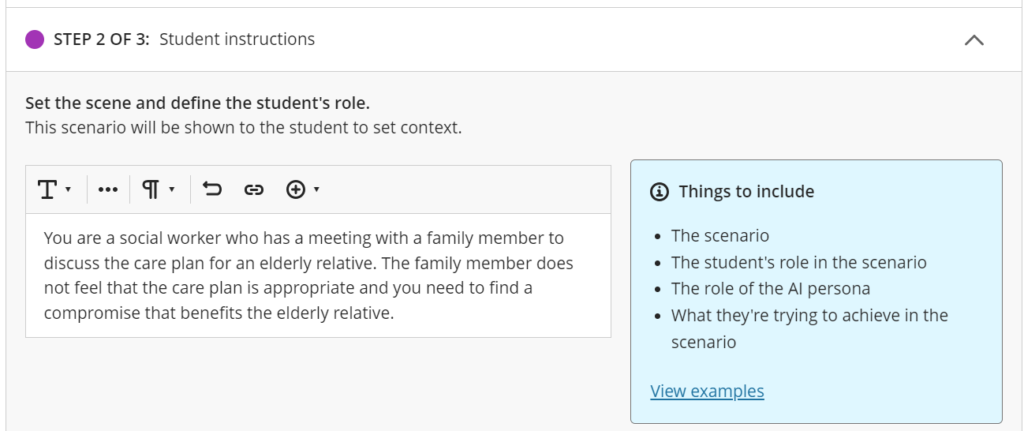
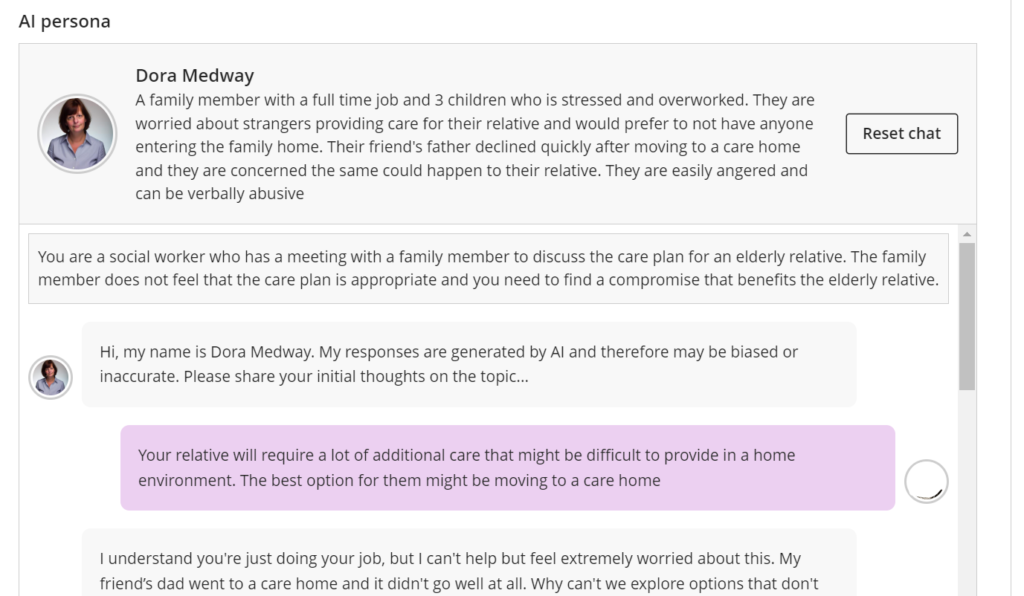
Role Play option added to AI Conversation
AI Conversations provide active learning opportunity to encourage critical thinking on a set topic. Engaging with AI Conversations and learning how to critically evaluate the conversation responses can support the development AI literacy.
The new Role Play option provides an opportunity for students to apply knowledge in a simulated environment.
The instructor defines a role play scenario where the student interacts with an AI persona to gain practical experience in a safe environment for experimentation.
The AI persona can be customised by editing the name, image and ‘personality traits’ . The instructor selects the complexity of the responses to suit the learner cohort.
Once the role play has been set up, the preview chat can be used to check the AI responses based on the provided scenario before releasing it to students.
Auto-generate Question Banks with the Design Assistant
Release date: 3 October
The AI Design Assistant allows you to automatically generate test questions based on selected items of module content, short descriptions, learning objectives or topics. The October release includes the option to be able to create banks of reusable questions using the design assistant.
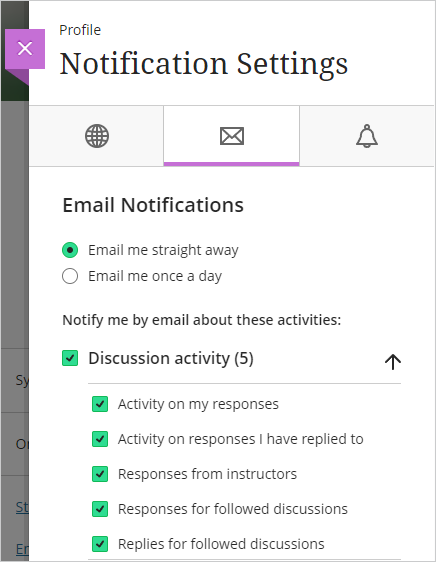
Email notifications for followed discussions
Release date: 3 October
Students and lecturers can now choose to receive immediate email notifications for Discussion activity.
Turnitin Originality reports for Weblearn Assignments
AI Conversation – Socratic Questioning
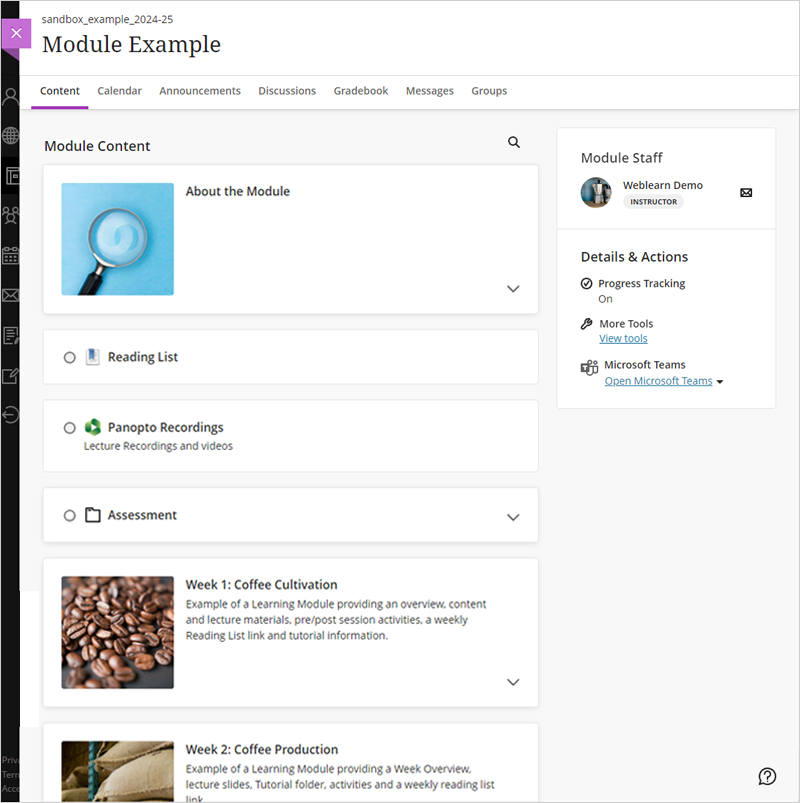
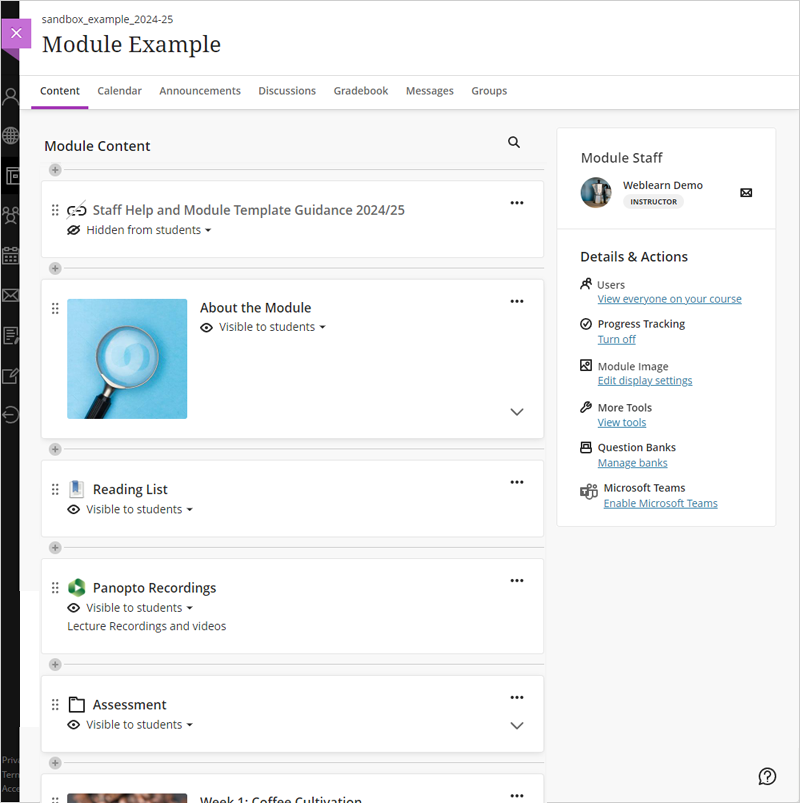
New Weblearn module layout
Release date: 5-6 September
The new Weblearn module layout provides a clearer and more defined look and feel for students, and easier to use add and move content options for staff.
Student View
Staff View
Add MCQs to Ultra Documents with Knowledge Check
Release date: 5-6 September
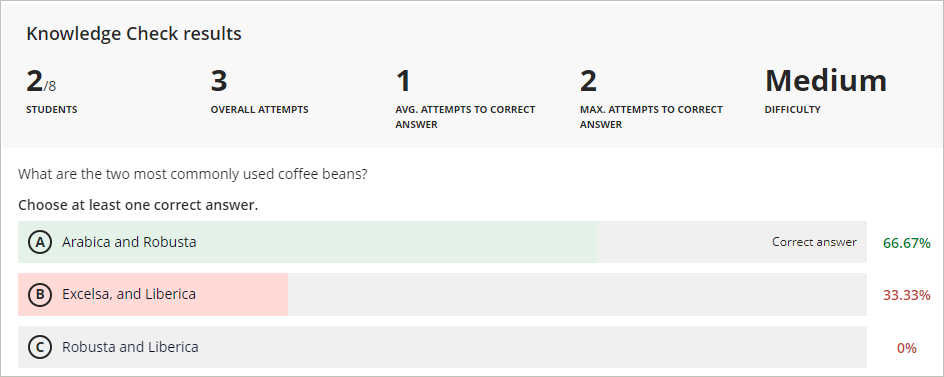
‘Knowledge Check’ allows you to add multiple choice questions to Ultra Documents and create engaging, interactive content. Instructors can view the question results which display detailed metrics.
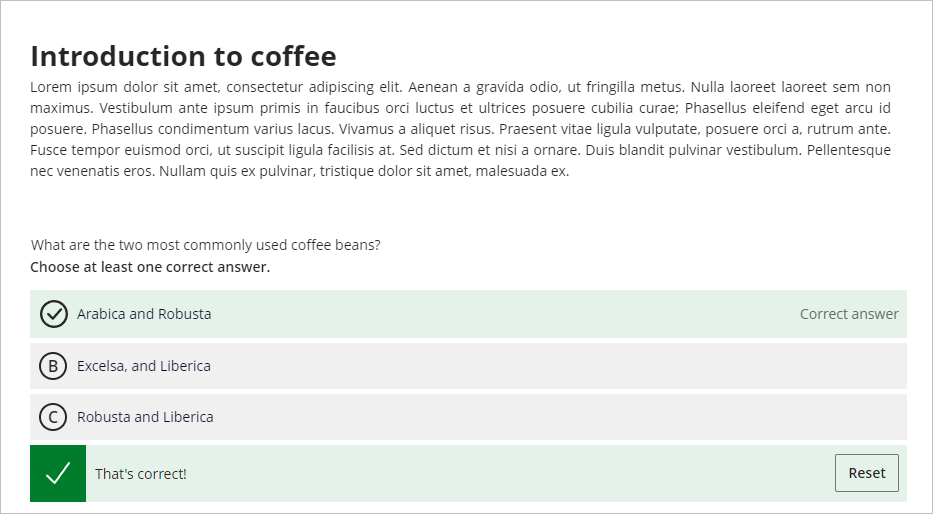
Students have unlimited attempts to answer the question. They can select an answer and receive immediate feedback on whether their answer is correct or incorrect.
Answer the question in the student view
Student Activity Log
Release date: 5-6 September
The Student Activity Log shows the past 140 days of student activity within a module including access dates for the following:
Module access
Assessment started, draft saved, submitted and auto-submitted
Turnitin assignment link (LTI item access) access
Discussion activity
Journal access
Note: the log is not updated in real time and it can take up to an hour for the data to display.
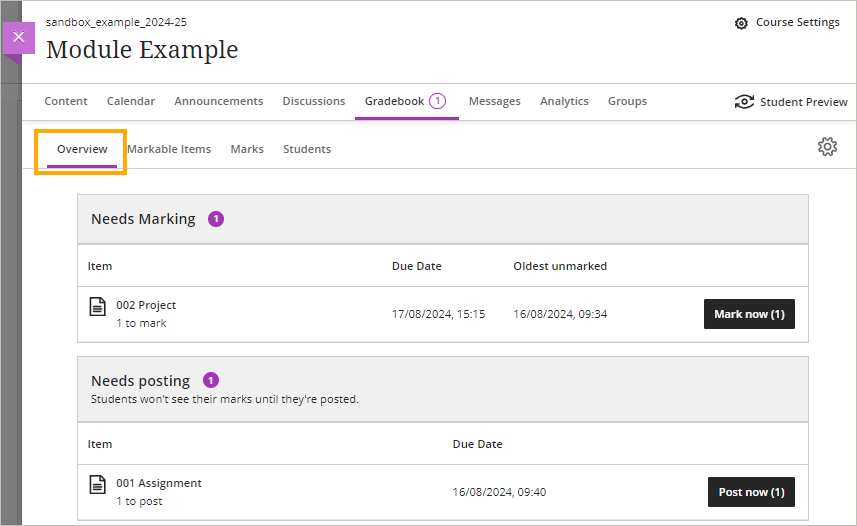
Gradebook – Overview tab
The new Gradebook Overview page provides quick access to submissions which need marking or are ready to be posted to students.
Originality Reports for Weblearn Assignments
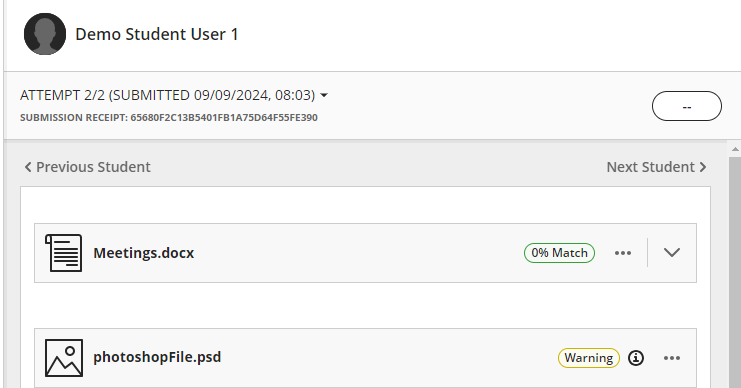
Turnitin Originality Reports can now be embedded in Weblearn Assignments, allowing instructors to create online submissions that can accept multiple files and produce a similarity report for each text based file.
Each submitted file be processed by Turnitin, and the Similarity Match will be shown as a ‘pill’.
The image below shows the ‘0%’ match for a PowerPoint file, to see the match for the Word document, instructors need to click on the tab for the document.
If a submission file (eg an image or a .zip file) can’t be processed by Turnitin, the pill will display a warning message.
If the submission contains elements like inline text or images, all files will be rendered on one tab and the ‘pill’ will show next to each inline document.
AI Conversation
AI conversation is a new Participation and Engagement tool that allows instructors to provide a Socratic questioning exercise guided by AI. AI Conversation lets students explore their thoughts on a topic and are not meant to confirm or deny any student input.
Blackboard have redesigned the Ultra Documents to improve content design and presentation.
Documents will use ‘blocks’ which can be resized and positioned to create a more interesting layout.
The block types include:
Content block: add content using the content editor
HTML block: embed HTML content such as a Padlet
File upload block: upload files from your computer
Cloud upload block: upload files from OneDrive
Content Collection block: reuse files already uploaded to the module
Convert a file block: upload a file form your computer which will be converted into a Document Block. Supported file types include PDF, PowerPoint and Word.
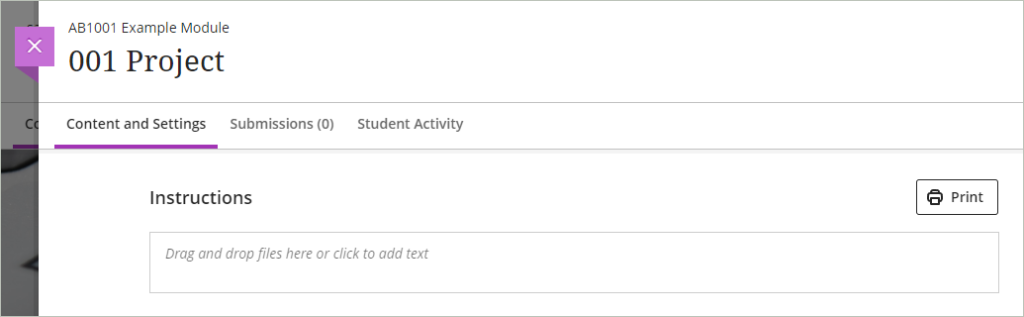
Adding assessment instructions to Weblearn assignments has been made clearer and easier.
Print Tests
Release date: Already available on Weblearn.
Copies of Tests can be downloaded from the ‘Content and Setting’ page using the new ‘Print’ option. You can choose to either download the questions only, or include the correct answers on the downloaded file.
Note: if you have added a Question Pool to the test, the Pool cannot currently be included in the download.
Multiple performance criteria in release conditions
Release date: 6-8 May
Release conditions determine when students can view module content. Release conditions are on the content’s visibility setting on the module content page. Currently, you can set:
Which module members or groups have access;
When the module content is accessible, visible, and hidden;
When student performance is necessary for completing an assignment or scoring.
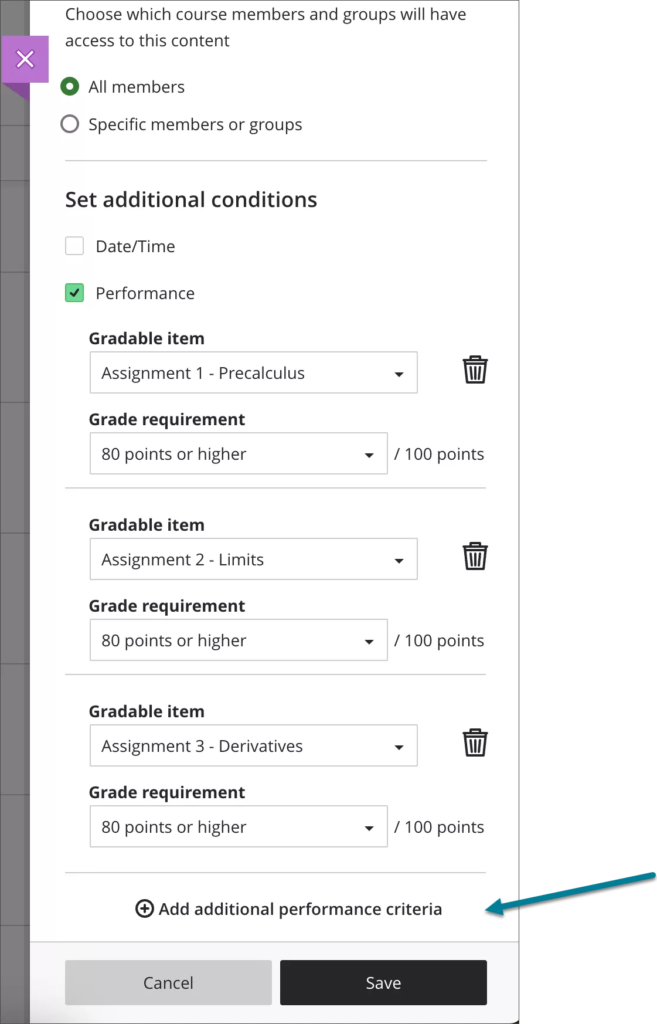
Instructors can now set more than one performance criteria per content item.
Image 1. Release condition panel with additional performance criteria selected
The new Design Assistant is now available on all Ultra modules on Weblearn. The Design Assistant creates suggested content based on information provided by instructors and can be used to generate
A content generation link or button will appear on all Weblearn tools for which the design assistant has been enabled. The design assistant uses Microsoft AI to generate content based on a module’s title and any description provided by the instructor.
The instructor clicks on an ‘auto-generate’ link, reviews the suggested content and decides whether it is appropriate to use for their module delivery.
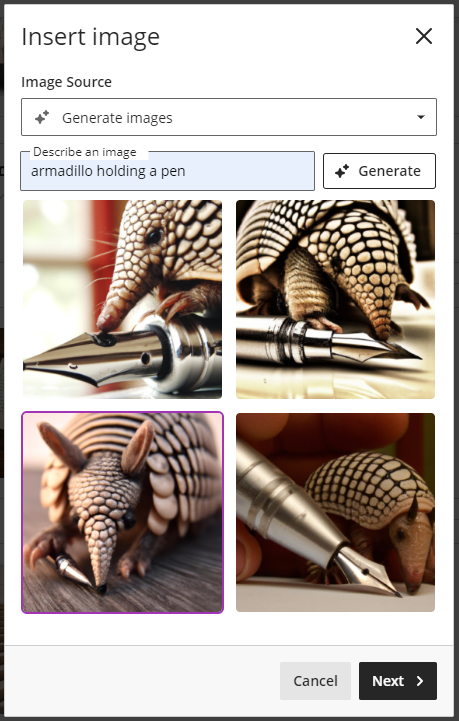
Example of a prompt to generate an AI image using the Design Assistant:
Staff responsibility
The Design Assistant can generate suggested content that is potentially inappropriate for the module’s level or desired learning outcomes.
Staff must review all AI generated content for suitability before including it as module content and ensure that any content with potential issues is either edited after the auto-generation or not used for the module.
Data Privacy for Microsoft AI
The Ultra Design Assistant, Bing Chat and the Windows 11 co-pilot tool are all using Microsoft AI (Azure OpenAI) to answer your prompts.
An important benefit of generating AI images or test questions through the Ultra Design Assistant is data privacy. The data you enter as prompt and the output generated through the design assistant is private to the user who created it and will not be shared with anyone else.
If you are using a free AI generator, your data will commonly be used to train the AI and any input you provided might be included in a response to other users.
Bing Chat for users who log in with a London Met staff account (not available to students)
Copilot available Windows 11 staff machines
Generate AI images
AI images can be generated for a Learning Module thumbnail or added to an Ultra document through the content editor.
To start generating an AI image
Add as Learning Module Thumbnail: click on the ‘Add image’ option in the edit panel of the Learning Module
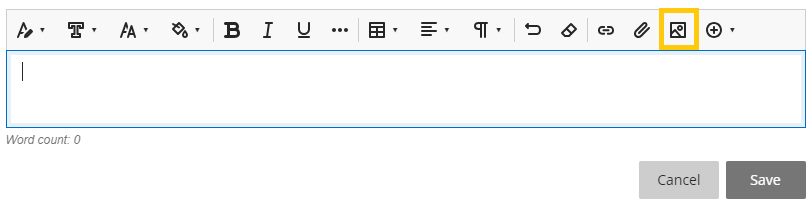
Add through Text Editor: open a Content Editor on an Ultra Document. Click on the image icon on the toolbar.
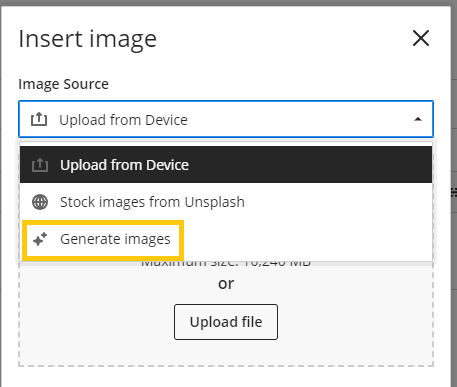
Click on the ‘Image Source’ dropdown and select ‘Generate images’
Enter a prompt in the ‘Describe an image’ box and click on ‘Generate’. If you don’t like the created images, try clicking ‘Generate’ again or change the prompt to get new images.
Click on the image you want to use and then click the ‘Next’ button
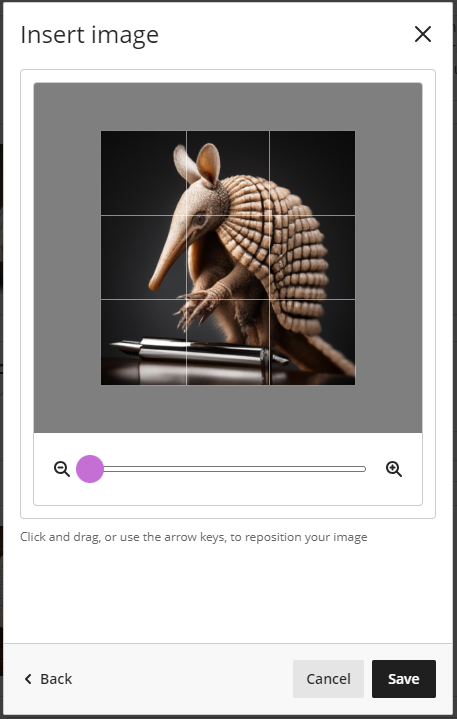
Define the position or image ratio (Ultra document only) as needed and click ‘Save’ to add the image
Generate Test Questions and Question Banks
The Design Assistant allows Instructors to create question for different levels of complexity and specified question types based on prompts or module information provided. Instructors can
auto-generate Test Questions for a Test where questions will be created based on the module’s title and any prompts added by the instructor
auto-generate Question Banks from an Ultra Document where questions will be created based on the content of the Ultra Document
Auto-generate Questions for a Test
Create a new Test or open a Test in edit mode
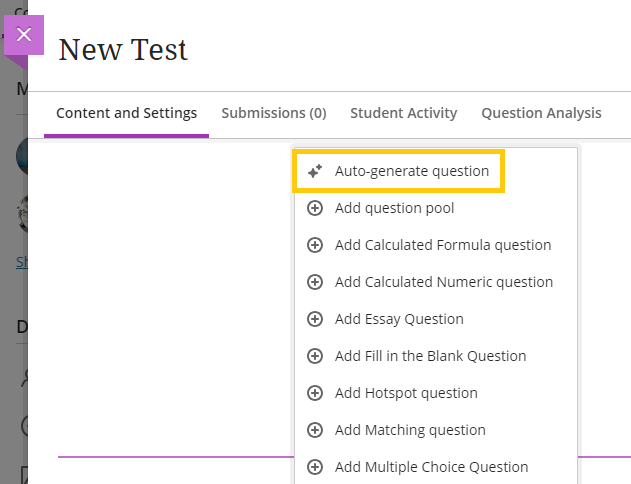
Click on the Plus (+) button to create a new question and select ‘Auto-generate question’
Define the Question
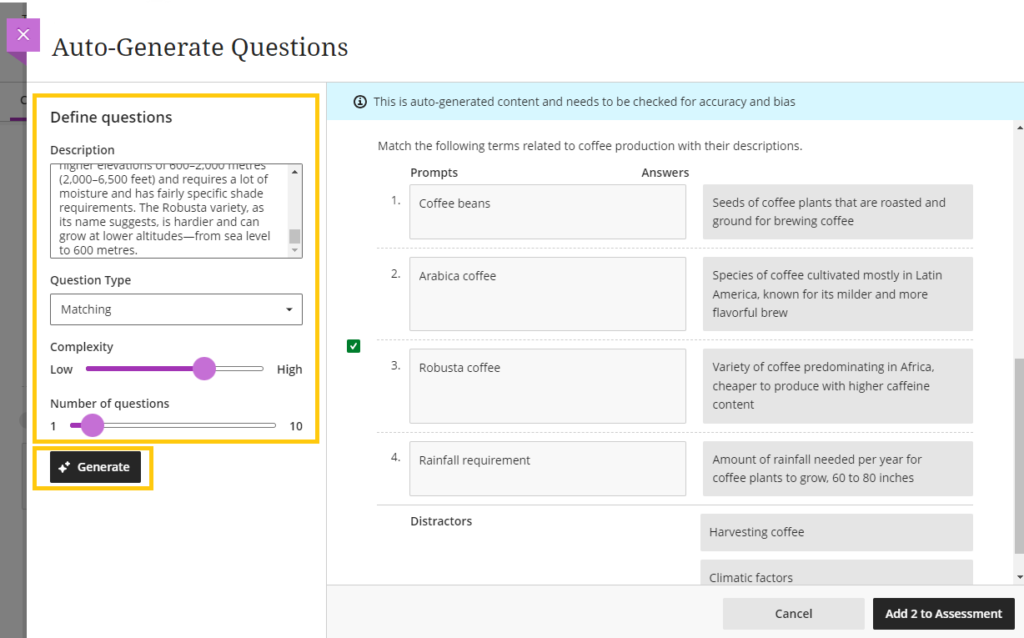
Add text in the ‘Description’ input to provide a prompt for question generation. Note: The pasted text can includes paragraphs or pages of text without images. If too much text is pasted an error messages stating that questions can’t be generated will appear and you’ll need to shorten the text. Testing descriptions with 700 words of text worked successfully.
Select a ‘Question Type’ from the dropdown menu or use ‘Inspire me!’ to get a random selection of question types
Drag the slider under ‘Complexity’ to specify the complexity level of the question
Drag the slider under ‘Number of questions’ to specify the desired number of questions
Click the ‘Generate’ button and wait until the questions are generated
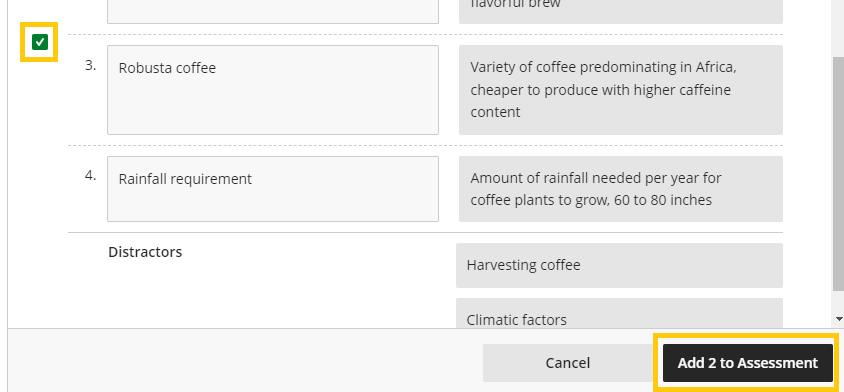
Review the questions and select the ones you want to use (you can edit question if needed once they have been added to the test)
Click ‘Add to Assessment’
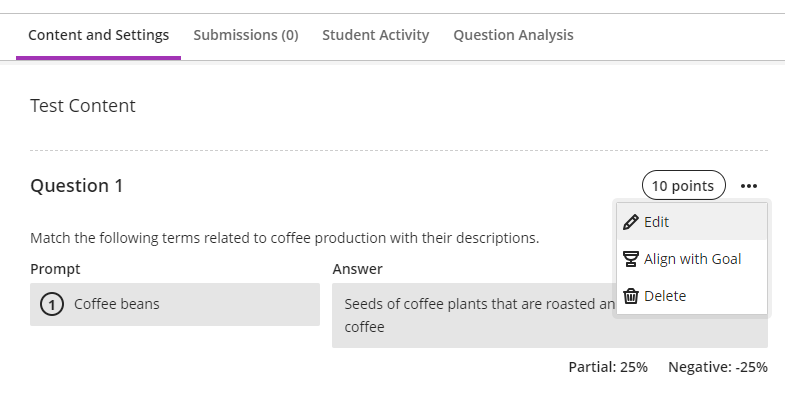
The questions will now appear in the Test and you can edit them as needed.
Auto-generate Question Banks
Once you have created an Ultra Document with content, you can create a Question Bank from the document and then use the questions in test(s) you create on the module. This is particularly useful to create revision and formative quizzes for the module.
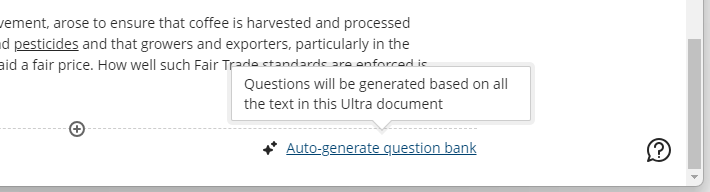
Open a document with content and scroll to the bottom of the page. Click on ‘Auto-generate Question Bank’ link
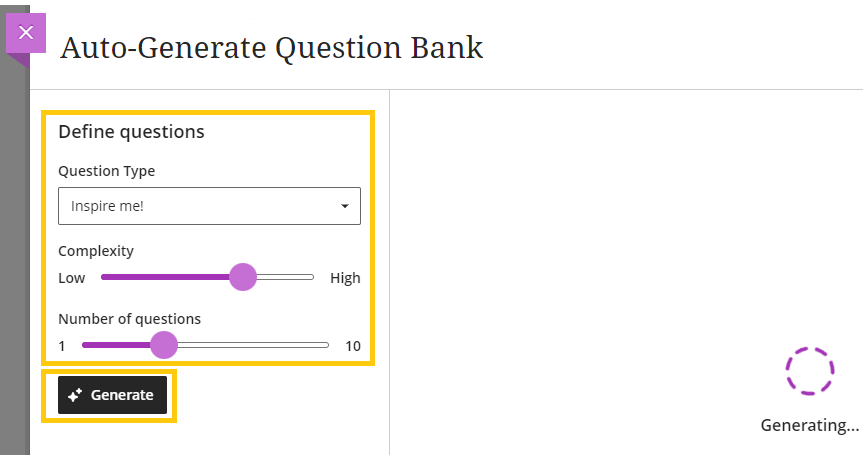
Define the query by selecting the ‘Question Type’ and specifying the ‘Complexity’ and ‘Number of Questions’
Click on ‘Generate’
The questions will be generated based on the text available on the Ultra Document.
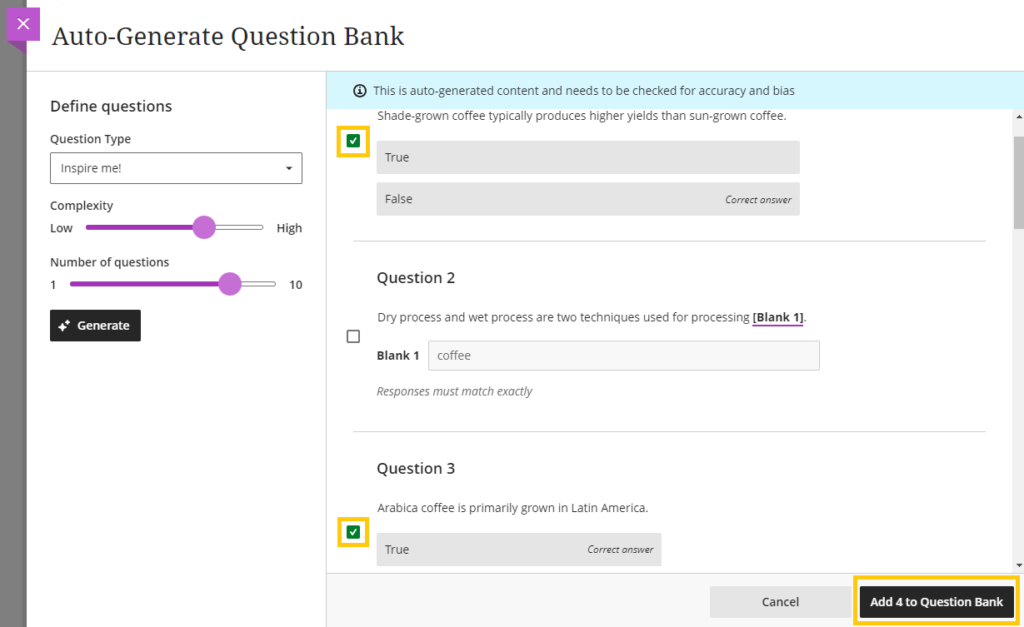
Review the suggested questions and select the ones you want to add to the question bank
Click ‘Add to Question Bank’ button
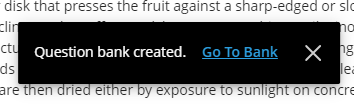
A pop-up with a link to the question bank appears. Click on ‘Go to Bank’ to check all questions. Alternatively you can access the Question Bank later from the ‘Question Bank’ link under ‘More tools’ on the content page of the module.
Edit the title or individual question as needed
You can now add the questions to any test.
Create a new Test or open a Test in edit mode.
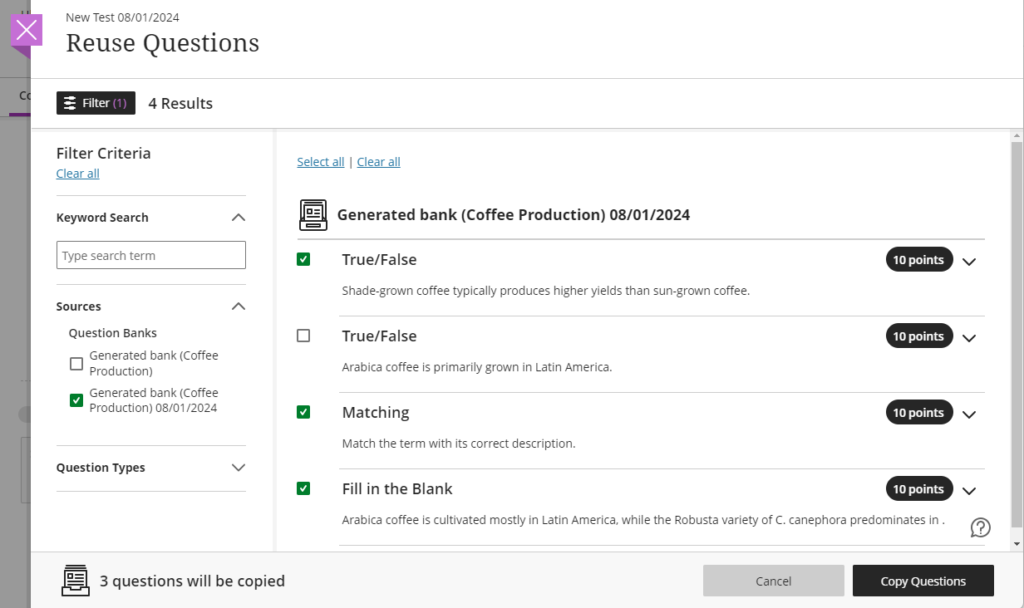
Click on the Plus (+) button and select ‘Reuse Question’
Select the Questions from the Question Bank you want to include in the test and click the ‘Copy Questions’ button
Generate Journal or Discussion prompts
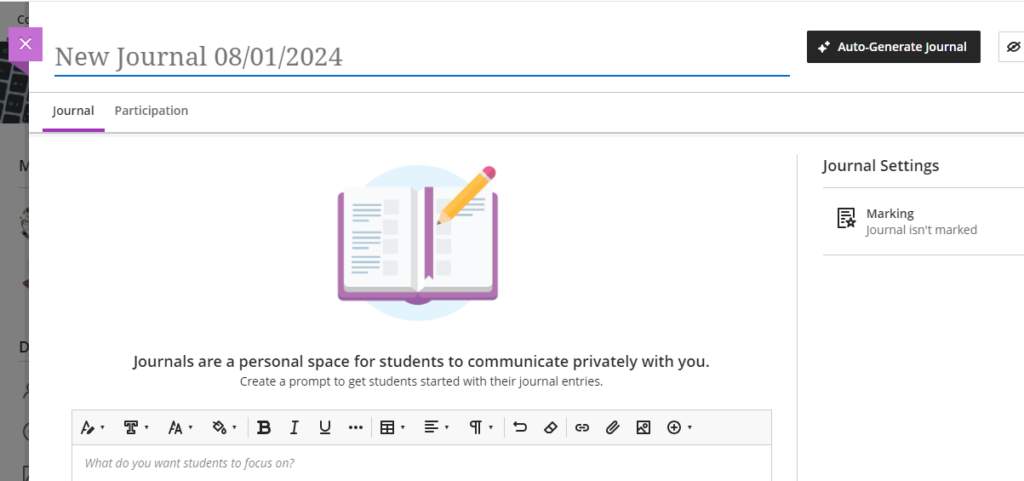
You can use the Design Assistant to create a Journal or Discussion prompt based on a topic description and levels of cognition and complexity.
Open the Journal or Discussion tool and click on the ‘Auto-generate’ button
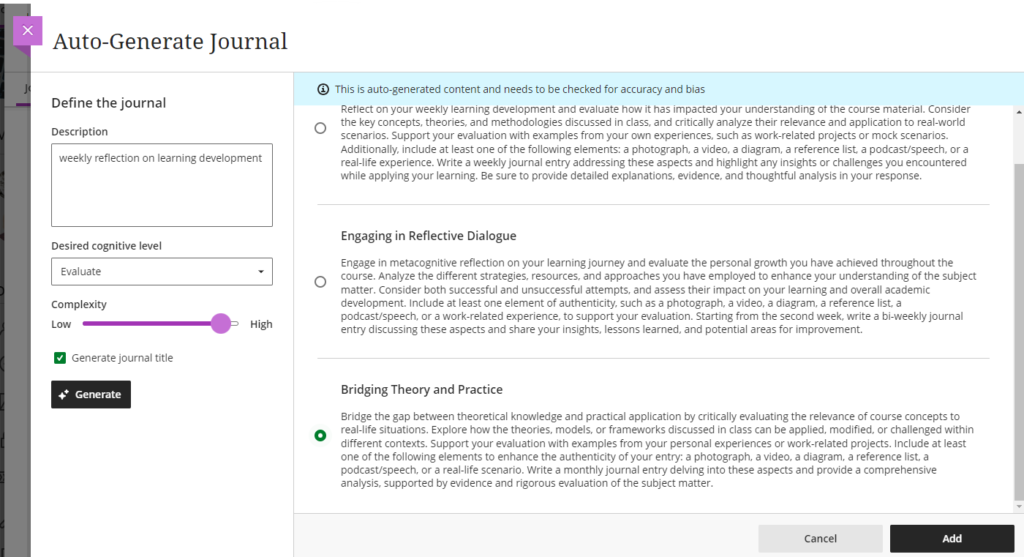
Add a description for the topic of the Journal or Discussion
Set the cognitive level of the discussion
Select the Complexity of the generated prompts
Click on ‘Generate’ to create suggested prompts
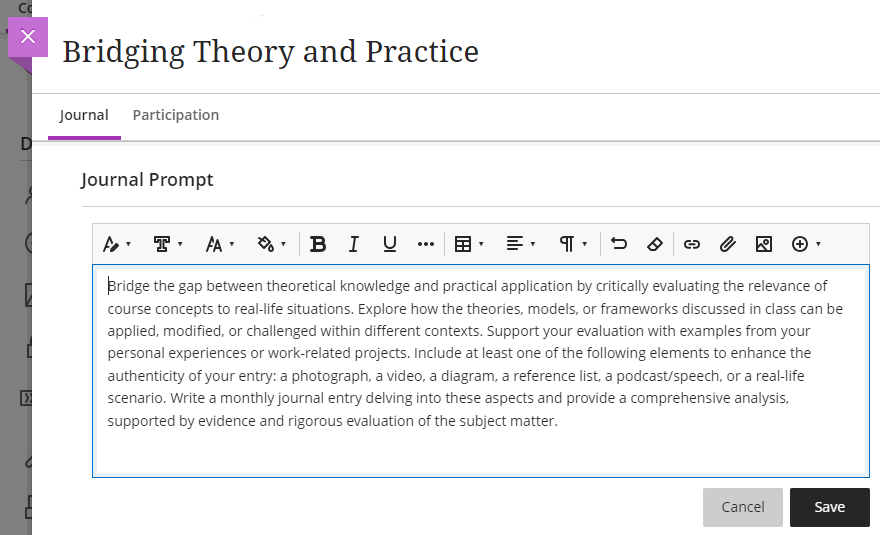
Select the suggested prompt you want to use and click on ‘Add’. You’ll be able to edit the selected prompt once the Journal or discussion has been generated.
If none of the prompts suit your module delivery, try changing the cognitive level and/or complexity and click on ‘Generate’ again or click ‘Cancel’ to stop the auto generation.
Once you click ‘Add’, the Journal or Discussion will be created and you can edit the title or prompt as required.
Make sure that you are familiar with the Online submission guidelines and the location in your module(s) where students should find their online submission points
Original modules: Online Submission content area
Ultra modules: Assessment component folder added to the Assessment folder
Are you using the right assessment tool for your purpose?
Check the Select Assessment tool guide to find out what tools are available at London Met.
Creating Weblearn and Turnitin Assignments in Ultra
Check out the guides if you’re new to online assessment in Ultra or need a reminder on how to set up groups and assignments.
Training sessions for Ultra modules, Original modules or a Panopto refresher are available for sign up at vletraining.eventbrite.co.uk
Ultra Session Recordings
If you can’t find a suitable time to attend a session or would like to review a session you have attended previously, the following session recordings are available on Panopto (login required)