Ultra Design Assistant
The new Design Assistant is now available on all Ultra modules on Weblearn. The Design Assistant creates suggested content based on information provided by instructors and can be used to generate
How does it work?
A content generation link or button will appear on all Weblearn tools for which the design assistant has been enabled. The design assistant uses Microsoft AI to generate content based on a module’s title and any description provided by the instructor.
The instructor clicks on an ‘auto-generate’ link, reviews the suggested content and decides whether it is appropriate to use for their module delivery.
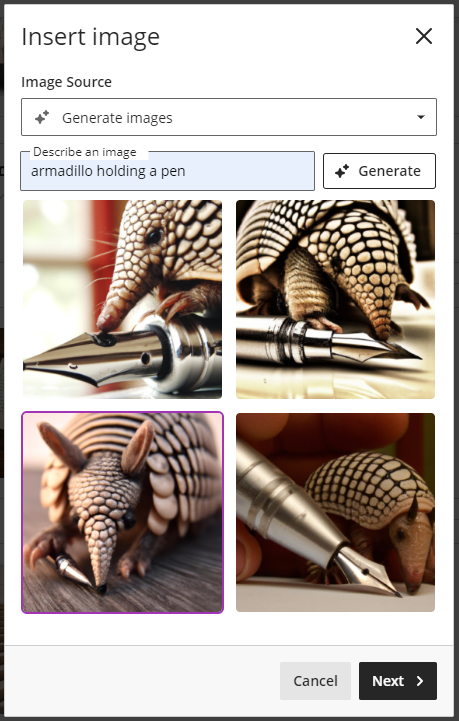
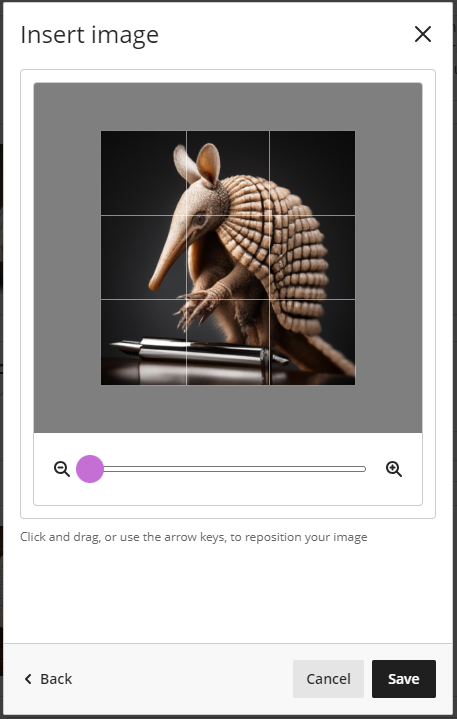
Example of a prompt to generate an AI image using the Design Assistant:

Staff responsibility
The Design Assistant can generate suggested content that is potentially inappropriate for the module’s level or desired learning outcomes.
Staff must review all AI generated content for suitability before including it as module content and ensure that any content with potential issues is either edited after the auto-generation or not used for the module.
Data Privacy for Microsoft AI
The Ultra Design Assistant, Bing Chat and the Windows 11 co-pilot tool are all using Microsoft AI (Azure OpenAI) to answer your prompts.
An important benefit of generating AI images or test questions through the Ultra Design Assistant is data privacy. The data you enter as prompt and the output generated through the design assistant is private to the user who created it and will not be shared with anyone else.
If you are using a free AI generator, your data will commonly be used to train the AI and any input you provided might be included in a response to other users.
The Microsoft AI (Azure OpenAI) data privacy article explains how your data will be protected. This applies to the use of
- Weblearn Design Assistant using Microsoft AI
- Bing Chat for users who log in with a London Met staff account (not available to students)
- Copilot available Windows 11 staff machines
Generate AI images
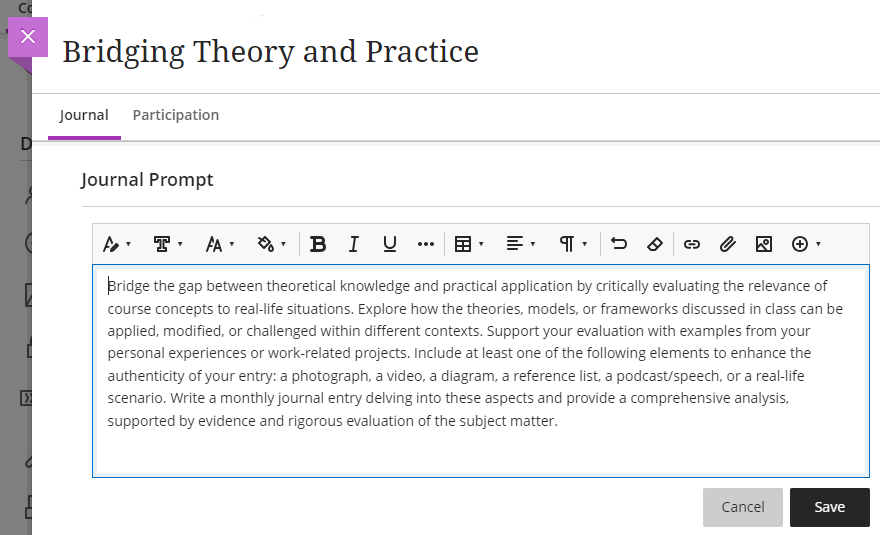
AI images can be generated for a Learning Module thumbnail or added to an Ultra document through the content editor.
- To start generating an AI image
- Add as Learning Module Thumbnail: click on the ‘Add image’ option in the edit panel of the Learning Module

- Add through Text Editor: open a Content Editor on an Ultra Document. Click on the image icon on the toolbar.
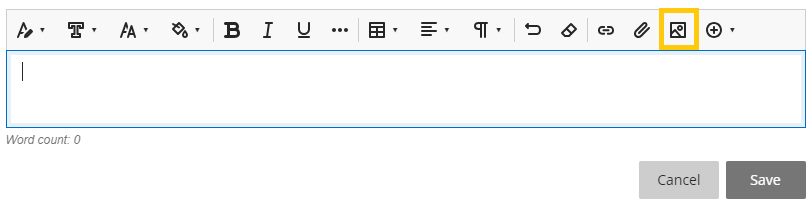
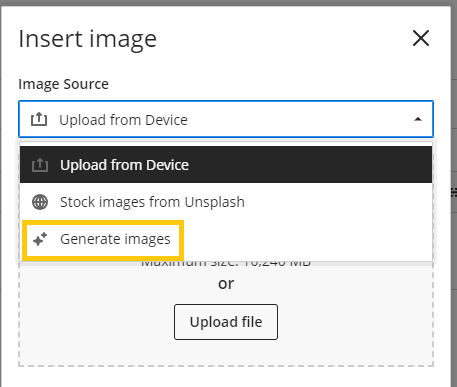
- Click on the ‘Image Source’ dropdown and select ‘Generate images’
- Enter a prompt in the ‘Describe an image’ box and click on ‘Generate’. If you don’t like the created images, try clicking ‘Generate’ again or change the prompt to get new images.
- Click on the image you want to use and then click the ‘Next’ button
- Define the position or image ratio (Ultra document only) as needed and click ‘Save’ to add the image
Generate Test Questions and Question Banks
The Design Assistant allows Instructors to create question for different levels of complexity and specified question types based on prompts or module information provided. Instructors can
- auto-generate Test Questions for a Test where questions will be created based on the module’s title and any prompts added by the instructor
- auto-generate Question Banks from an Ultra Document where questions will be created based on the content of the Ultra Document
Auto-generate Questions for a Test
- Create a new Test or open a Test in edit mode
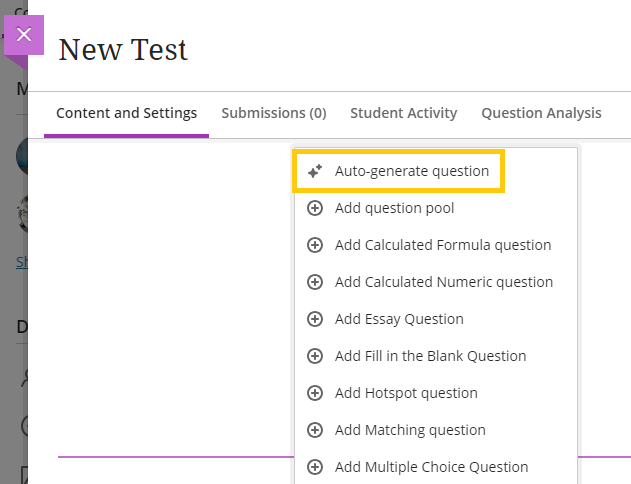
- Click on the Plus (+) button to create a new question and select ‘Auto-generate question’
- Define the Question
- Add text in the ‘Description’ input to provide a prompt for question generation.
Note: The pasted text can includes paragraphs or pages of text without images. If too much text is pasted an error messages stating that questions can’t be generated will appear and you’ll need to shorten the text. Testing descriptions with 700 words of text worked successfully. - Select a ‘Question Type’ from the dropdown menu or use ‘Inspire me!’ to get a random selection of question types
- Drag the slider under ‘Complexity’ to specify the complexity level of the question
- Drag the slider under ‘Number of questions’ to specify the desired number of questions
- Click the ‘Generate’ button and wait until the questions are generated
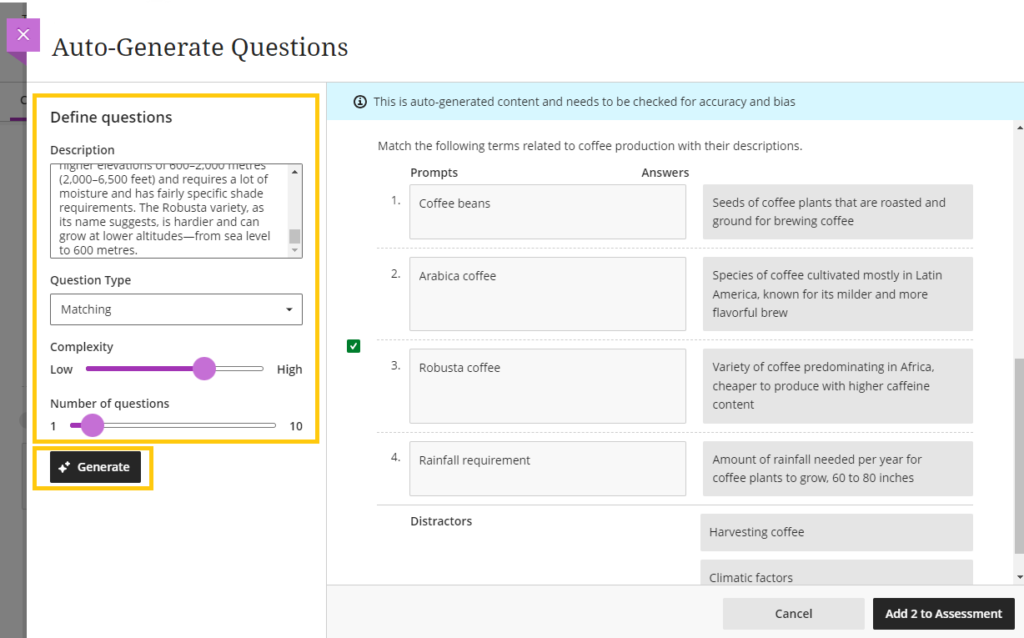
- Review the questions and select the ones you want to use (you can edit question if needed once they have been added to the test)
- Click ‘Add to Assessment’
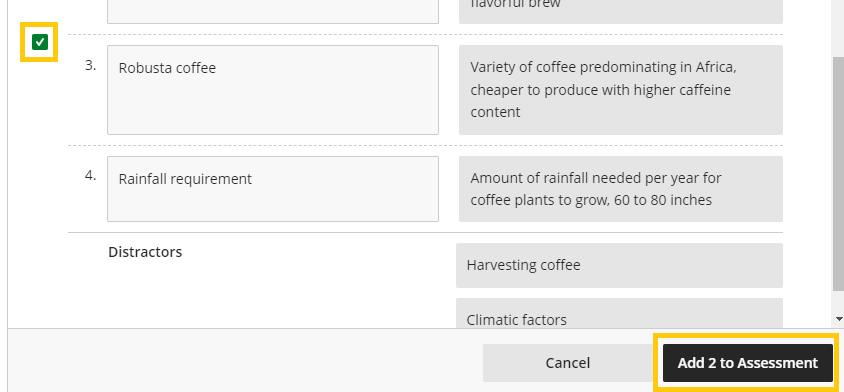
The questions will now appear in the Test and you can edit them as needed.
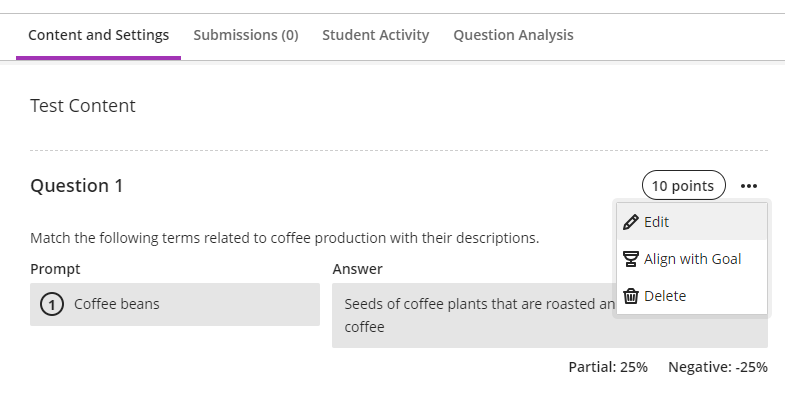
Auto-generate Question Banks
Once you have created an Ultra Document with content, you can create a Question Bank from the document and then use the questions in test(s) you create on the module. This is particularly useful to create revision and formative quizzes for the module.
- Open a document with content and scroll to the bottom of the page. Click on ‘Auto-generate Question Bank’ link
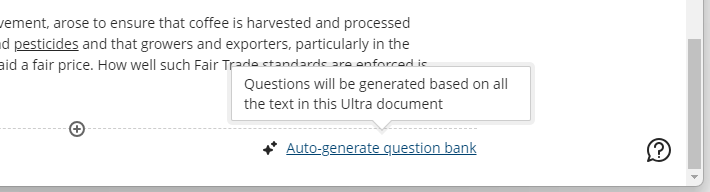
- Define the query by selecting the ‘Question Type’ and specifying the ‘Complexity’ and ‘Number of Questions’
- Click on ‘Generate’
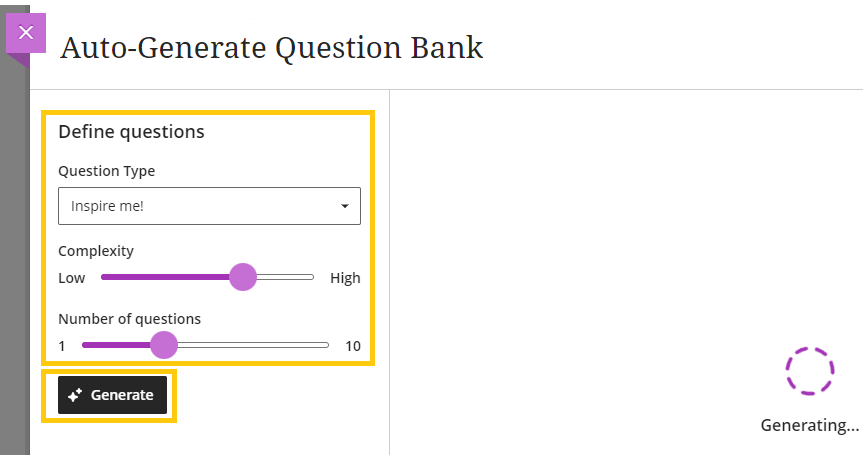
The questions will be generated based on the text available on the Ultra Document.
- Review the suggested questions and select the ones you want to add to the question bank
- Click ‘Add to Question Bank’ button
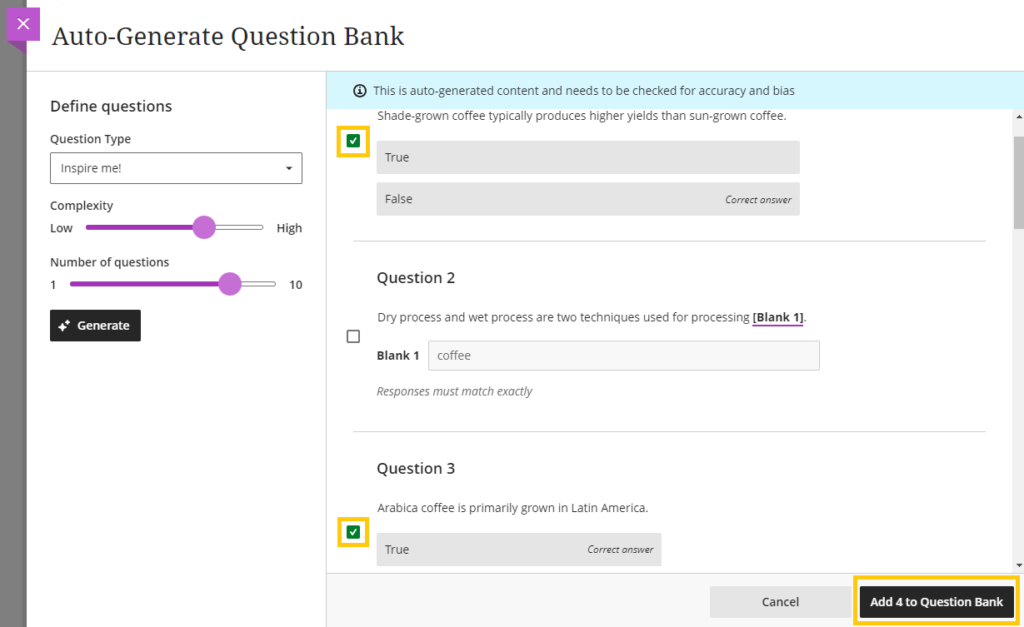
- A pop-up with a link to the question bank appears. Click on ‘Go to Bank’ to check all questions. Alternatively you can access the Question Bank later from the ‘Question Bank’ link under ‘More tools’ on the content page of the module.
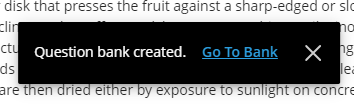
- Edit the title or individual question as needed

You can now add the questions to any test.
- Create a new Test or open a Test in edit mode.
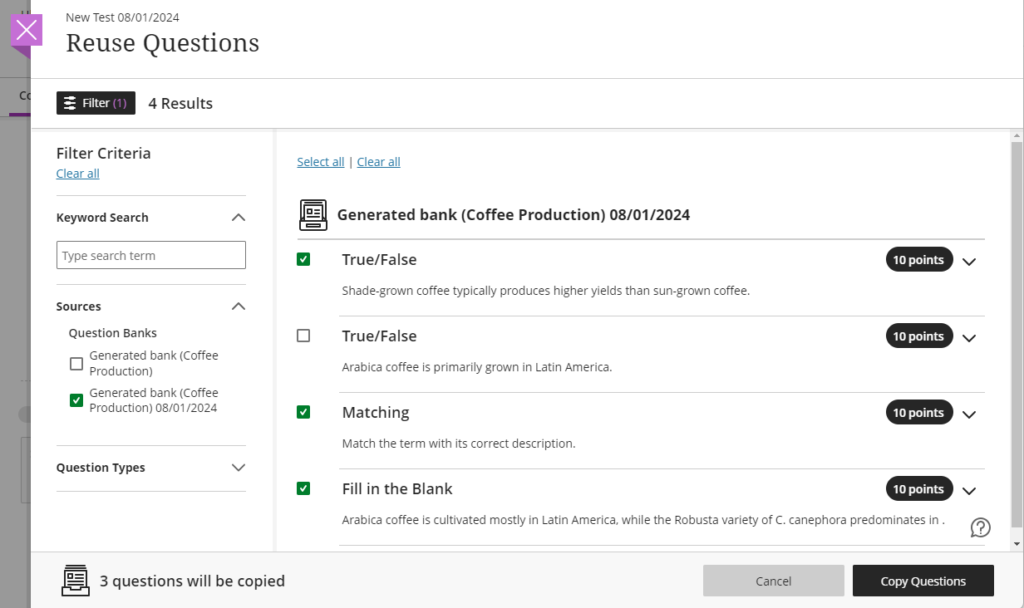
- Click on the Plus (+) button and select ‘Reuse Question’

- Select the Questions from the Question Bank you want to include in the test and click the ‘Copy Questions’ button
Generate Journal or Discussion prompts
You can use the Design Assistant to create a Journal or Discussion prompt based on a topic description and levels of cognition and complexity.
- Open the Journal or Discussion tool and click on the ‘Auto-generate’ button
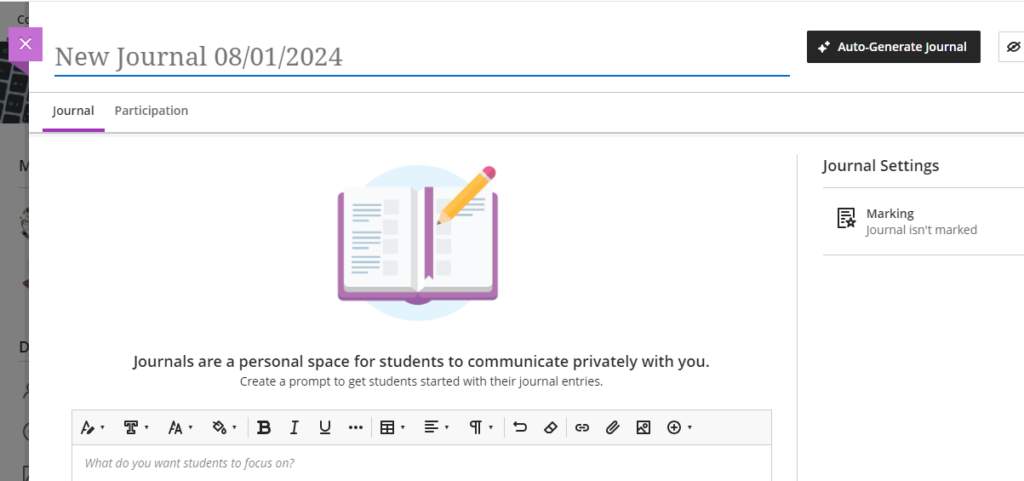
- Add a description for the topic of the Journal or Discussion
- Set the cognitive level of the discussion
- Select the Complexity of the generated prompts
- Click on ‘Generate’ to create suggested prompts
- Select the suggested prompt you want to use and click on ‘Add’. You’ll be able to edit the selected prompt once the Journal or discussion has been generated.
If none of the prompts suit your module delivery, try changing the cognitive level and/or complexity and click on ‘Generate’ again or click ‘Cancel’ to stop the auto generation.
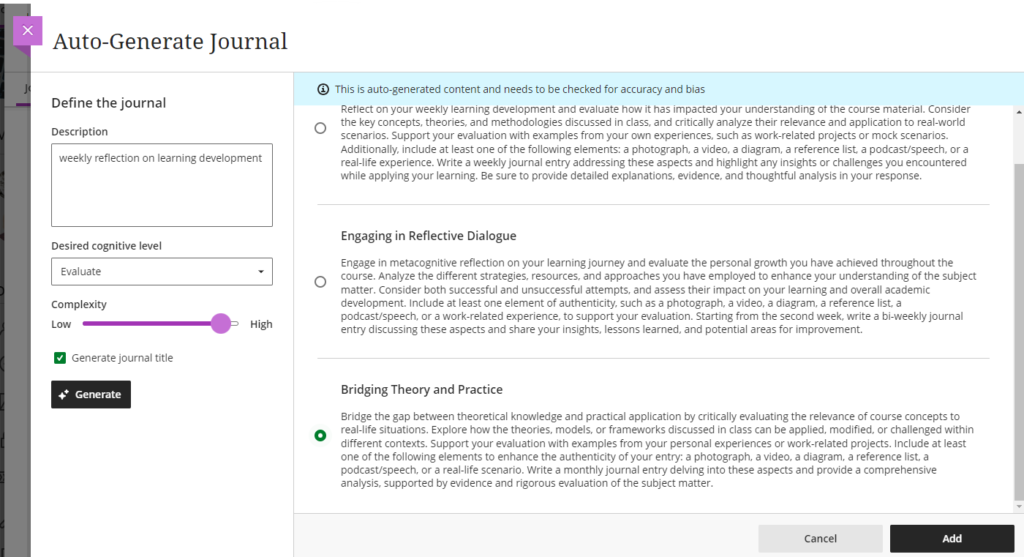
Once you click ‘Add’, the Journal or Discussion will be created and you can edit the title or prompt as required.