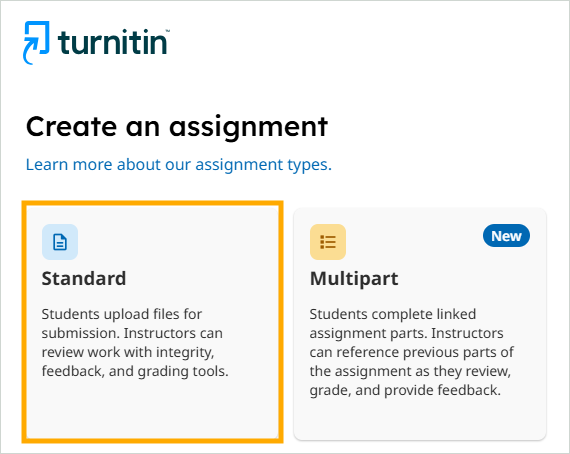
Create Turnitin Assignment

Turnitin Assignments are appropriate for: written submission types, typically submitted in a word processed document, or as a PDF file.

File upload limit: 100MB

Turnitin help page: File requirements

Access Turnitin

Before you get started you will need to identify if you are using an Ultra module or an Original module on Weblearn because the way you access Turnitin when creating an assignment link will look different.

Once you have opened Turnitin, it will look and work in exactly the same way for all versions of Weblearn.

To access Turnitin, click on the Plus (+) sign in the location in the Assessment folder where you want to add the Turnitin Assignment link and then select ‘More Tools’

Under the Institution tools, click on ‘Turnitin’

Turnitin will open and you can enter the details and settings.

Assignment Settings

Enter the assignment settings as per the table below and then click on the Option Settings to expand the additional options.

Quick Steps

Optional Settings must be configured for each assignment.

Turnitin SettingsAssignment
Assignment Title001 [Assessment name as it appears on Evision]
InstructionsEnter the due date and the feedback release date as a minimum.
Max Grade100
Start Date2 weeks before the due date
Due DateDue Date as shown on Evision at 3.15 pm
Feedback Release DateSet to the required feedback release date

Optional Settings

The recommendations in the tables below are the essential settings for summative on time assignments. More information about all of the optional settings are explained below.

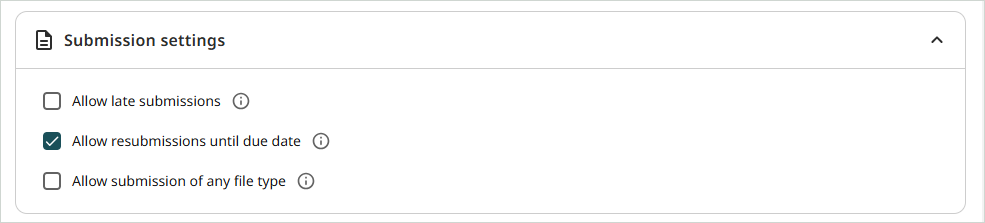
Submission settings

Optional SettingRecommendation
Submit papers to:Standard paper repository for summative assignments
Do not store submitted papers for draft/practice assignments
Allow submission of any file typeNo
Allow submissions after the Due Date No for standard on time assessments
Enable anonymous marking?Yes, unless assessment type is exempt
Enable Translated Matching? (Beta)Optional
Enable grammar checking using e-rater® technology?Optional
Attach a rubric/form to this assignmentOptional

Compare Against

Optional SettingRecommendation
Student paper repositorySelect all search options
Current and archived internetSelect all search options
Periodicals, journals, & publicationsSelect all search options

Similarity Report

Optional SettingRecommendation
Generate Similarity Reports for student submissionsGenerate reports immediately (students can resubmit until the due date)
Allow students to see Similarity Reports?Yes
Exclude bibliographic materials from Similarity Index for all papers in this assignment?Optional
Exclude quoted materials from Similarity Index for all papers in this assignment?Optional
Exclude small sources?Optional

Understanding the Optional Settings

Submission settings

Submit papers to: The Turnitin ‘Standard paper repository’ is the Turnitin database where all submitted papers are stored. It is the database which is search and used to generate originality reports.

Draft or practice submissions should not be stored in the repository.

Recommendation: Select the ‘Standard paper repository’ for assessed submissions. Select ‘Do not store submitted papers’ for practice or draft submission points.

Allow submission of any file type: Turnitin will generate an originality report for file types which can checked for similarity.

Recommendation: No

Allow submissions after the Due Date: The allow submissions after the due date option will allow students to submit after the due date only if they have not already submitted a file to the assignment prior to the due date.

If you have students who are permitted to submit late or have an extended deadline, this option could be used to allow late submissions, although it is more common to use a separate assignment.

Recommendation: No for standard on time assessments

Enable anonymous marking? All online submissions must be set up for anonymous marking unless the type of assessment is deemed unsuitable for anonymous marking. If an assignment is not marked anonymously, a disclaimer must be added to the online submission point to inform students.

Recommendation: Yes, unless assessment type is exempt

Enable Translated Matching? (Beta): The Translated Matching feature allows students to make a submission in another language which Turnitin translates into English and checks for originality against the standard paper repository.

Recommendation: Optional

Enable grammar checking using e-rater® technology? The grammar checker checks submitted papers for grammar, usage, mechanics, style and spelling errors.

Turnitin help page: E-rater user guides

Recommendation: Optional.

Attach a rubric/form to this assignment: Rubrics and Grading forms can be attached to each assignment.

Turnitin help page: Rubric/Grading Forms

Recommendation: Optional. If you have not used Rubrics or Grading Forms previously it is recommended that you arrange a training session before use.

Compare against

You are able to choose which part of the Turnitin repository the student submissions are compared against.

Recommendation: Select all options.

Similarity Report

Generate Similarity Reports for student submissions: This option determines how many times a student can submit to an assignment and when their similarity report will be generated.

  • Generate reports immediately (students cannot resubmit)
    Students can only submit once and the lecturer will need to manually reset the submission if a student encounters an issue and needs to upload another version of the file.
  • Generate reports immediately (students can resubmit until the due date)
    Students can submit as many times as required until the due date and will receive a new similarity report for each new file they submit.
  • Generate reports on due date (students can resubmit until the due date)
    Students can submit as many times as required until the due date but they will only see their similarity report for the first time on the due date.

Recommendation: Generate reports immediately (students can resubmit until the due date)

Allow students to see Similarity Reports? Students must be given the opportunity to view the similarity report which has been generated from their submission.

Recommendation: Yes

Exclusion options: A similarity report will check and compare all text within a submitted paper and display all matches unless the exclusion options are enabled.

The exclusion options are:

  • Exclude bibliographic materials
  • Exclude quoted materials
  • Exclude small sources
Note

Turnitin will not disregard matches using single quotation marks

Turnitin help page: Managing exclusions and filters in the Similarity Report

Turnitin help page: How exclusions and filters refine the Similarity Report

Recommendation: Optional. Choose the appropriate setting for your subject matter.

Exclude assignment template: An assignment template allows you to upload a file containing text which will be excluded from the similarity report on all submissions to the assignment link.

Recommendation: Optional. Choose the appropriate setting for your subject matter.

Additional settings: the option to save your settings will only save the settings for additional assignment crated within the same module.

Recommendation: Always check the ‘Optional settings’ when creating a new assignment link.