
Tests and test questions can be copied and reused., If you have existing Test on a module that was used previously you can copy the Test into the new module.
Create a Test
- Navigate to the location where you want to add the Test
- Click on the Plus (+) sign
- Select ‘Create’

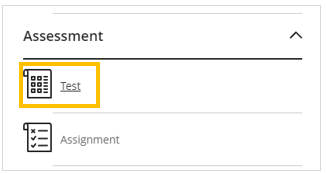
- Under the Assessment section, select ‘Test’
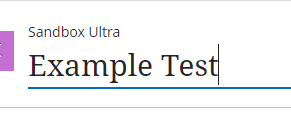
- Enter a ‘Name’ for the Test
Create new questions
- On the Test Content panel, Click on the Plus (+) sign
- Select the question type you would like to add
View the Blackboard Help: Question types (use the navigation on the left to navigate to each question type)

In this example, we are creating a multiple choice question
- Enter the question into the ‘Question Text’ field
Note: use the content editor tool bar to attach files and images and embed videos.

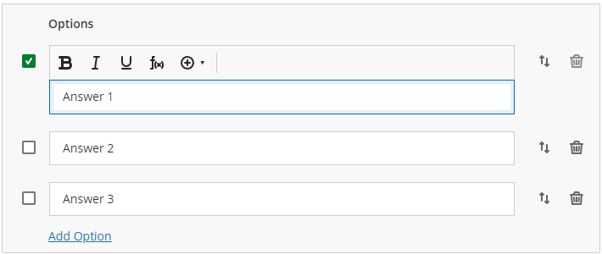
- Type the optional answers into the ‘Options’ fields and then select which answer/s are correct by ticking the checkbox next to the question
Additional options can be added by selecting ‘Add Option’
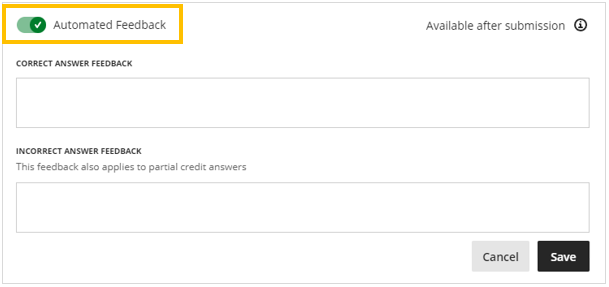
Optionally, click on the Automated Feedback toggle and enter feedback to students.
- Click on ‘Save’
You will be directed back to the Test Content page.
Reuse questions
If the module already contains tests or Question Banks, you can reuse the questions in the Test.
- Click on the Plus (+) sign
- Select either ‘Add question pool’, or ‘Reuse Questions’
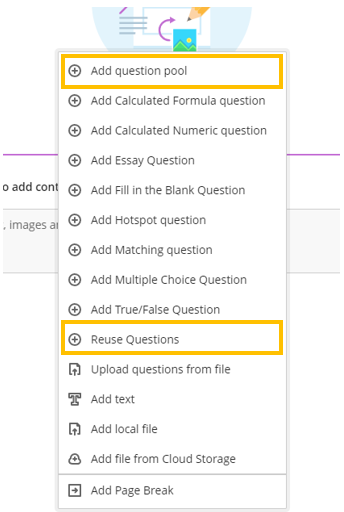
- Use the filter options to locate the questions you want to add to the Test
- Select the questions by clicking on the checkbox next to the question title

- Once you have selected all the questions you want to add, click on ‘Copy Questions’
The questions will appear on the Test Content page.
To edit any of the questions, click on the three dots to open more options and select ‘Edit’

Auto-Generate Questions
The Design Assistant allows Instructors to create question for different levels of complexity and specified question types based on prompts or module information provided.
View the full guide: Auto-Generate Test Questions
Import questions from a file
Questions can be imported into a Test from a .txt file
Sample files:
- Download the appropriate sample file and open it in a spreadsheet
- Update the file and enter the question text in column B, the correct answer text in column C and so on
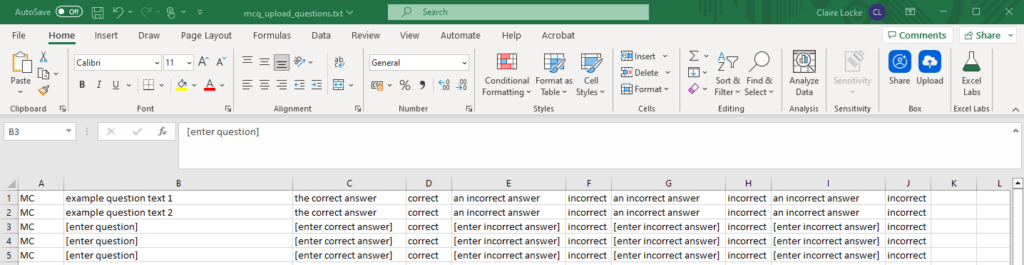
- Once you have finished editing the file, click on ‘Save’
- On the Test Content page, Click on the Plus (+) sign
- Select ‘Upload questions from file’
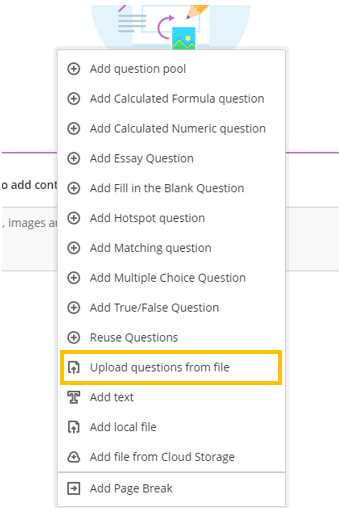
- Locate the .txt file on your computer and select ‘Open’

Once the file has processed, the questions will appear on the Test Content page

Update the Test Settings
Once you have added the questions, click on the Cog icon to open the Settings panel

View the instructions: Test Settings