
The Design Assistant allows Instructors to create question for different levels of complexity and specified question types based on prompts or module information provided.
Create a Test
Navigate to the location where you want to add the Test and lick on the Plus (+) sign
Select ‘Create’

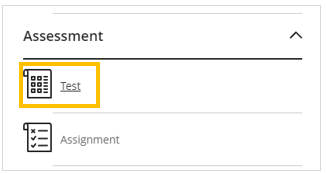
Under the Assessment section, select ‘Test’
Click on the Plus (+) button to create a new question and select ‘Auto-generate question’

Define Questions
There are two options available for defining the content of the questions, add ‘Description’ and ‘Select Course Item’.
Description
Text written into the description box can included paragraphs or pages of text. You are able to enter up to 2000 characters.
Type the text, or copy and paste the text into the description field.

Select Course Item
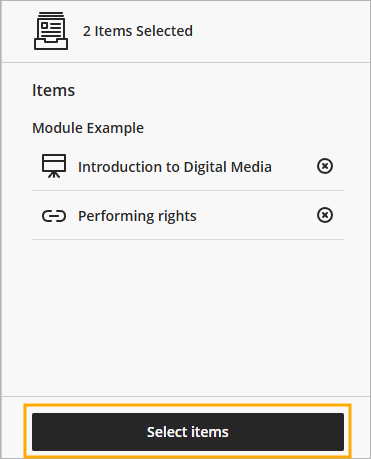
Allows you to s3elect content items from the module such as lecture slides and files – selecting a document where a file has been added will only include the text adde3d to the document, not the file content.
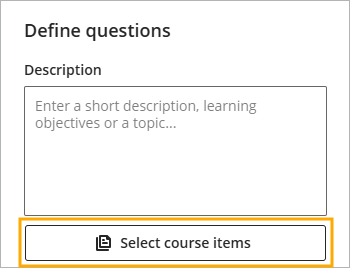
Click on the ‘Select Course Items’ button
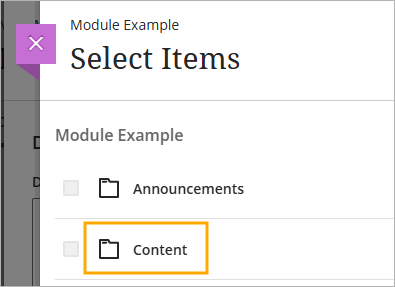
Select ‘Content’
Navigate to the location within the module where the content exists and then select the content item(s)
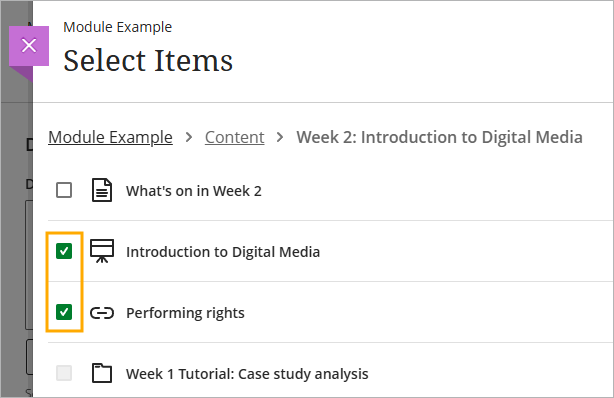
Click on ‘Select Items’
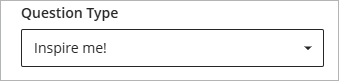
Select Question Type
Use the ‘Question Type’ drop down menu to select a question type you would like generated, or leave the default ‘Inspire me’ option selected.
View the Blackboard help page: Question types (use the navigation on the left to navigate to each question type)
Complexity and Number of Questions
Set the level of complexity and number of questions you would like generated.
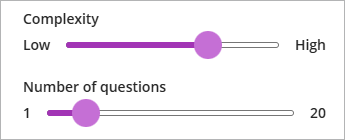
There are ten levels of complexity for AI-generated content:
- Early primary school
- Late primary school
- Early middle school
- Late middle school
- Early high school
- Late high school
- Undergraduate lower division
- Undergraduate upper division
- Graduate level
- Advanced PhD level
Generate Questions
Click on the ‘Generate’ button. You are able to use the generate questions option an unlimited amount of times.

A few second later the questions will be displayed on screen.
Review the questions and select appropriate questions, or click on the generate button again to generate different questions.