
Students can upload or create videos in their private folder on Panopto and then submit the video to a Weblearn Assignment. The submission process for students is a two part process where the student must create or upload the video to Panopto, then submit the video to the Weblearn assignment link.
Instructions for students
Instructions for creating and uploading videos to Panopto can be found on the student help pages, and it is recommended that you add the instructions where appropriate in the module.
How to create or upload a video using Panopto:
To start creating your video, open the Panopto video library and then click on My Folder.
Once you have opened your folder you will be able to:
Panopto Video submission
The Panopto videos will be submitted to a standard Weblearn assignment. To create a Panopto video submission you need to
- Create a Weblearn assignment
- Provide instructions to students on how to upload or create a video on Panopto
- Provide instructions to students on how to submit a video to a Weblearn assignment using the ‘Panopto student submission’ tool
Create Weblearn assignment
Click on the Plus (+) sign in the assessment component folder and select ‘Create’

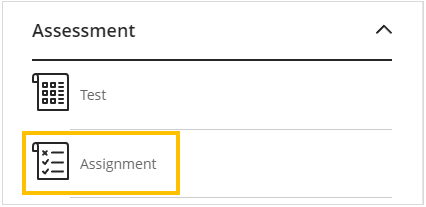
On the ‘Create Item’ panel scroll down to the Assessments section and select ‘Assignment’
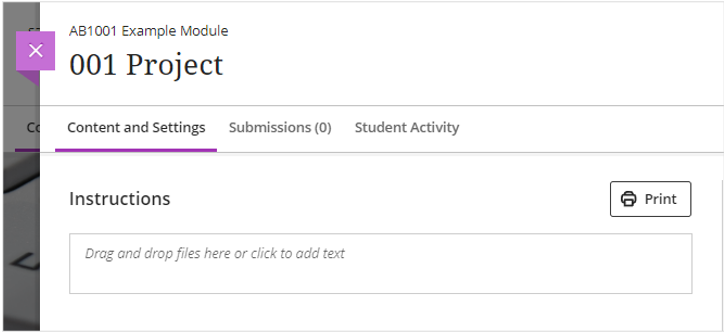
Add the name of the Ultra assignment using the naming convention for draft, on-time, resit or reassessment submission points, eg ‘001 Project’ for on-time or ‘001R Project (Resit)’ for resit submissions.
Add submissions instructions for student to the assignment
Add Assignment instructions for students in the Instructions field provided
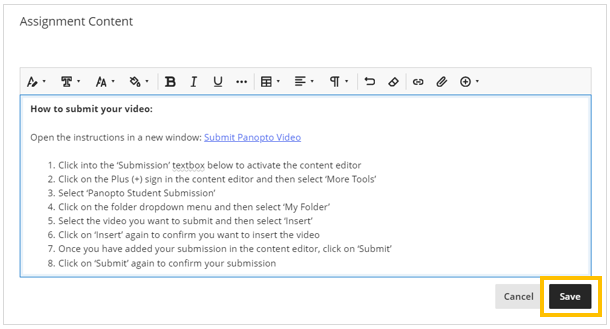
Copy the following text into the content editor
How to submit your video:
- Click on the Plus (+) sign in the submission box toolbar and then select ‘More Tools’
- Select ‘Panopto Student Submission’
- Click on the folder dropdown menu and then select ‘My Folder’
- Select the video you want to submit and then select ‘Insert’
- Click on ‘Insert’ again to confirm you want to insert the video
- Once you have added your submission in the content editor, click on ‘Submit’
- Click on ‘Submit’ again to confirm your submission
To open the full instructions in a new window: Submit Panopto Video
Click on ‘Save’ on the text editor to save the instructions
Configure the assignment settings
Click on the settings icon and set the below options

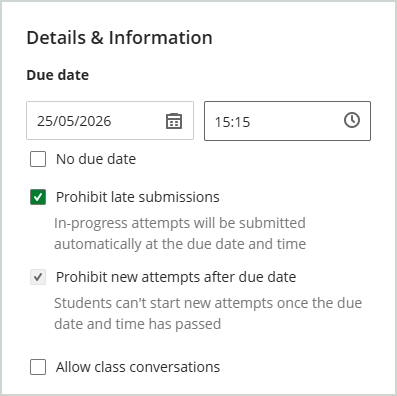
Under the Details & Information section set:
- Due date to the date shown on e:Vision and due time to 15:15
- Select ‘Prohibit late submissions’
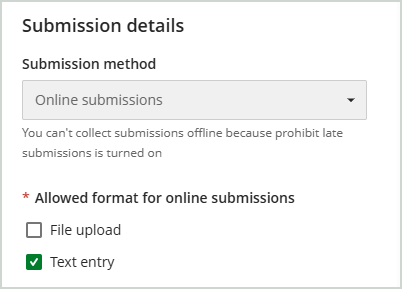
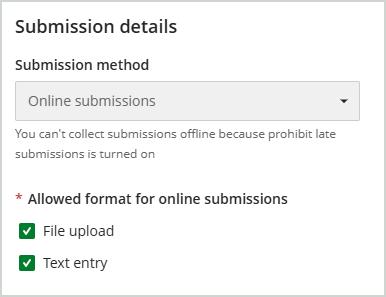
Under the Submission details section you need to select the ‘Allowed format for online submissions’ option depending on what students need to submit.
Submit video only: select ‘Text entry’
Submit video and supporting files: select ‘File upload’ and ‘Text entry’
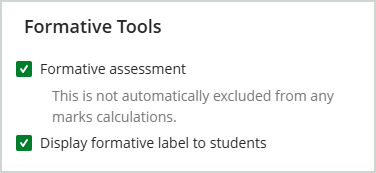
Formative assessments only: select ‘Formative assessment’
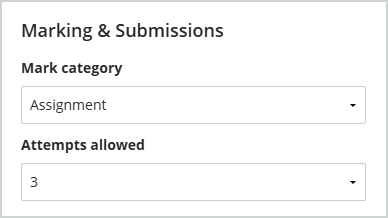
Under the Marking & Submissions section set the ‘Attempts allowed’ to 3 or more.
All other settings can be left as default. Optionally you can enable the following:
- Enable Turnitin (for text based files included in the submission)
- Enable Delegated Marking (to manage multiple markers)
Once you have set up the assignment and configured the settings, you will need to make the assignment link available to students.
