
Creating Video files
Panopto is the London Met video platform which is used for lecture recording and video storage. Students have full access to the video creation, upload and editing options available on Panopto so if you need to create a video as part of an assessment you may choose to create the video on Panopto.
View the instructions: Create Video with Panopto
If you choose to use a different app to create your video you will need to upload the video file to Panopto before you can submit it to the assignment link in Weblearn.
View the instructions: Upload Video File
Other commonly used video creation apps include:
- Microsoft Clipchamp: built-in video editor for Windows 11
- iMovie for Mac: video creation app for Apple devices
Submit a Video
View the instructional video: Submit a Video to Weblearn
Step by step instructions
To submit your video file to Weblearn:
- Open the ‘Gradebook’ page in your module
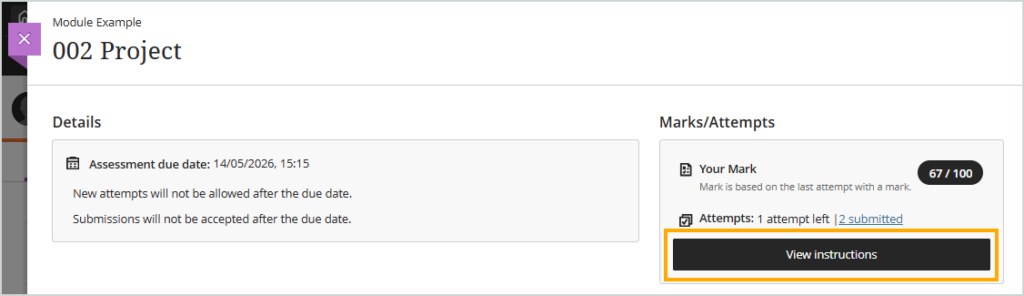
- Click on the Assignment title to open the Assignment information panel

- Click on the ‘View instructions’ button
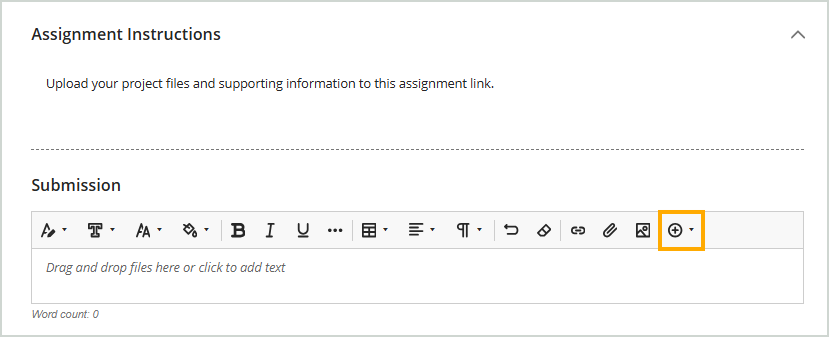
- Click on the Plus (+) sign in the submission box toolbar
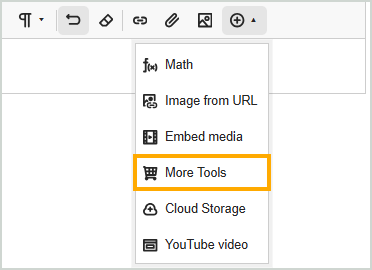
- Select ‘More Tools’
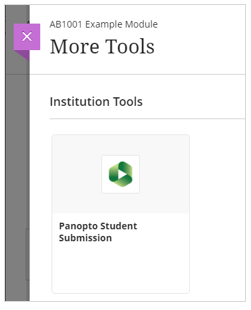
- Select ‘Panopto Student Submission’
- If you have already uploaded your file to Panopto, click on the folder dropdown menu and then select ‘My Folder’
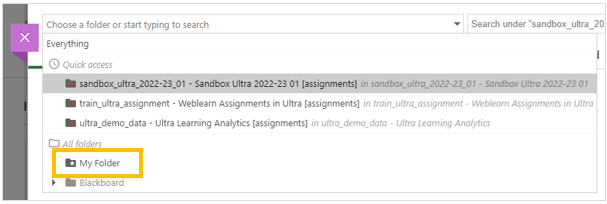
Alternatively use the ‘Upload’ tab to upload your video file.
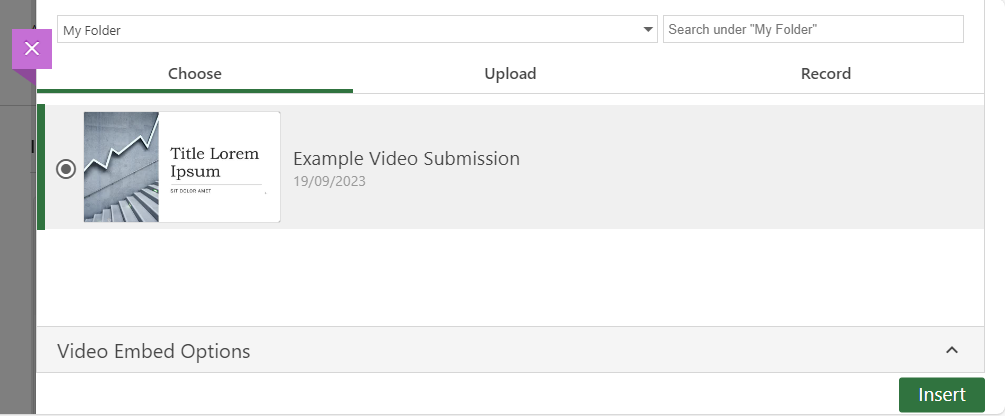
- Select the video you want to submit and then select ‘Insert’
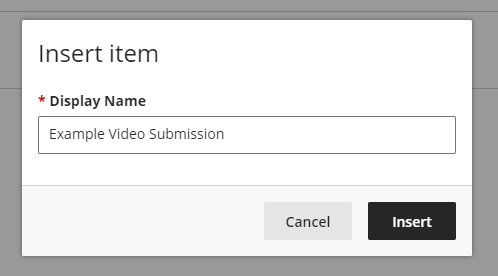
Optionally, edit the ‘Display Name’
- Click on ‘Insert’ again to confirm you want to insert the video
- Once you have added your submission in the content editor, click on ‘Submit’
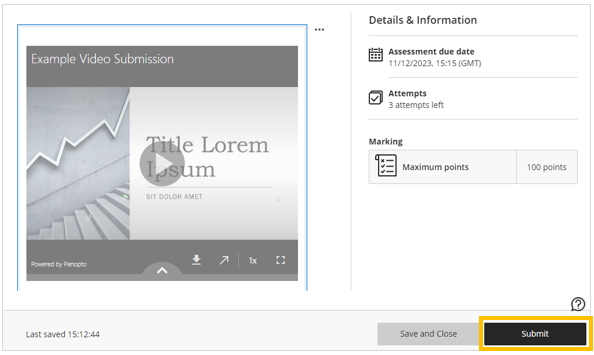
- Click on ‘Submit’ again to confirm your submission

Once your assignment has been submitted, the ‘Your submission was successful!’ message will display at the top of the screen and you will be able to download your Digital Receipt.
