
Message Notifications
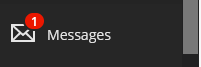
If you have received a new message an alert will be displayed on the Messages button on the main Weblearn menu.
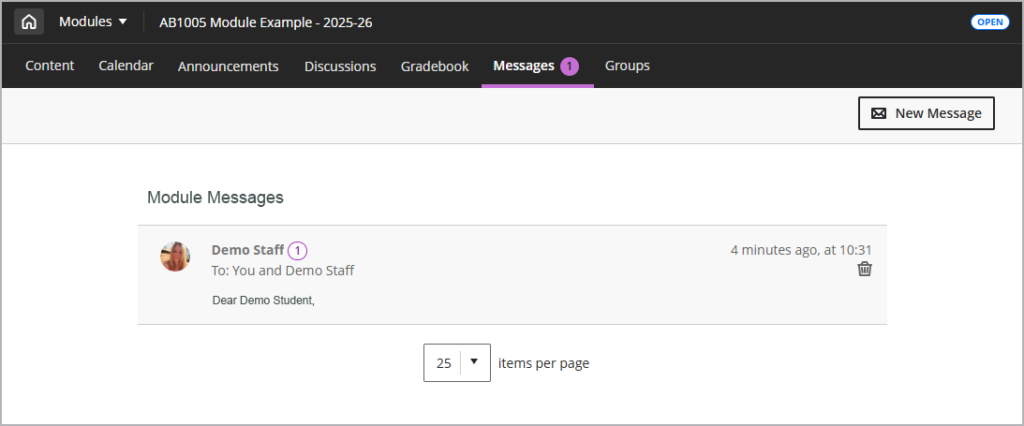
The alert will also be displayed at the top of your module next to the ‘Messages’ tab.
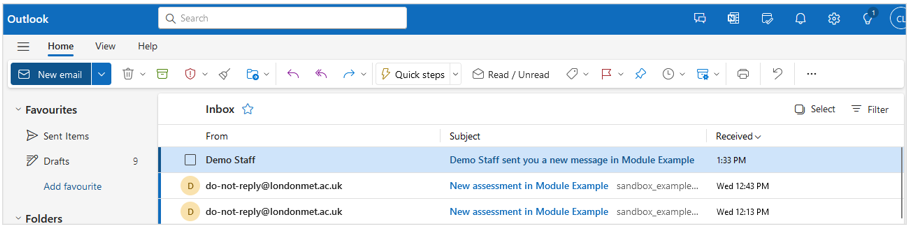
A copy of the message will be sent to your London Met email account.
Replying to Messages
If you would like to reply to the message you can either reply to the message by using the reply option in your email account, or login to Weblearn and reply using the Messages tool.
Replying in Weblearn
- Login to Weblearn and then click on the Messages link on the main menu
- Click on the module that has received the message
Note: modules that have received a new message will appear at the top of the page.

The messages page will open in the module
- Click on the message to open it
- Use the content editor at the bottom of the page to enter your reply and then click on the ‘Reply’ button.

Replying by Email
- Open your London Met email account and then open the message email
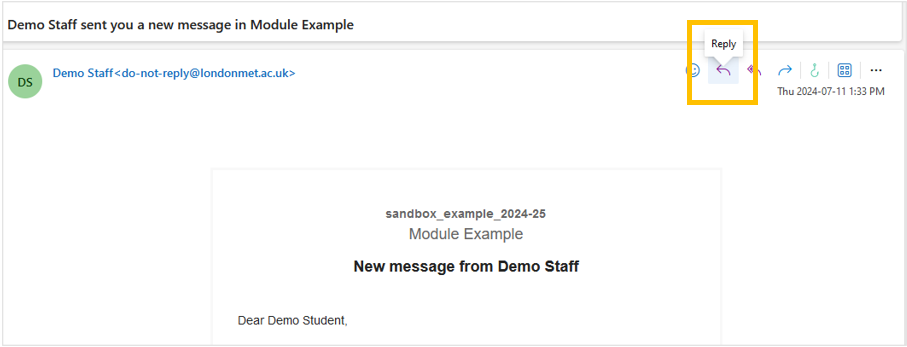
- Click on the ‘Reply’ icon
- Type in your reply and then click on ‘Send’
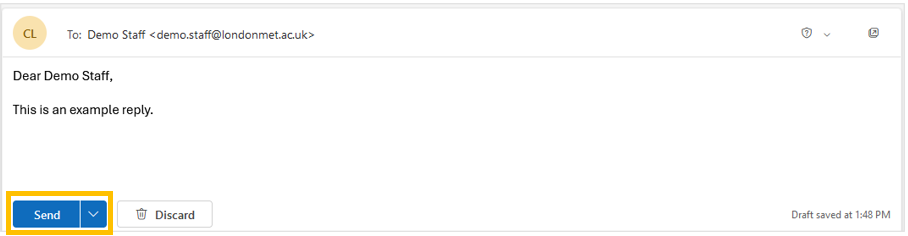
The reply will be sent to your lecturers email account.
Sending Messages
Students are able to send messages to staff on Weblearn from the messages page via the main Weblearn menu, or from within their module.
To send a message from the main Weblearn menu:
- Login to Weblearn
- Click on Messages
- Select the module where you want to contact your lecturer
- Select ‘Send Message’

To send a message from within your module, click on the messages icon next to your lecturers name under the ‘Module Staff’ section.
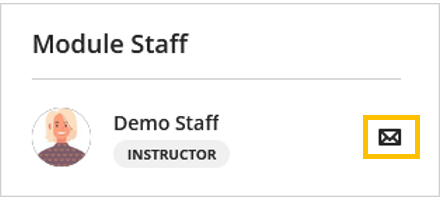
Alternatively, click on the Messages tab at the top of the module and then select the ‘New Message’ button.
