Assets (content)
Any document that you create in Pebble+, or which you upload to Pebble+, is called an Asset. An Asset may be an entry in a reflective journal; a page in a workbook, a photo or image you have uploaded, or a Word document or PDF which you have uploaded to be attached to a workbook.
Watch an overview video in YouTube: What is an Asset?
Resources and Workbooks
Pebble+ provides a number of generic document templates called Resources. In addition, any document which is created by a tutor and shared with you via Pebble is also deemed a Resource. A Resource may be a handbook or guide for your information only. However, a Resource is often a collection of structured (but empty) page templates into which you will enter information or attach Assets. This type of Resource is called a Workbook. By creating a personal copy of any centrally available Resource, it becomes an Asset in your personal collection of documents (called the Asset store).
Watch the PebblePad video: Using PebblePad Templates and Workbooks
Watch the PebblePad video: What is a resource?
Upload a File (Asset)
- Navigate to your Asset Store
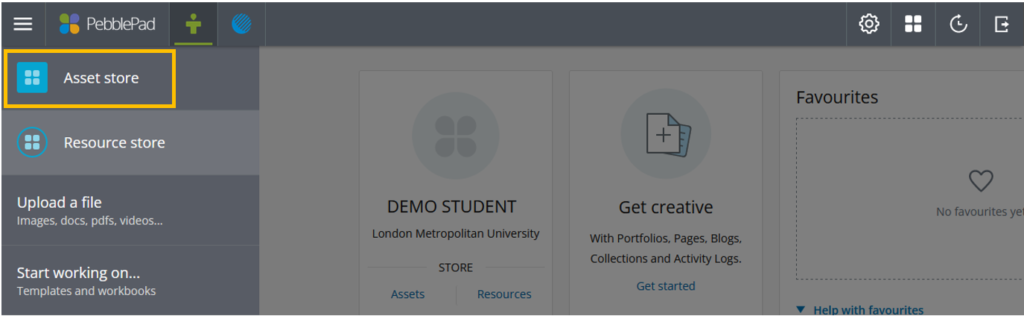
- Click on the ‘Upload file’ button

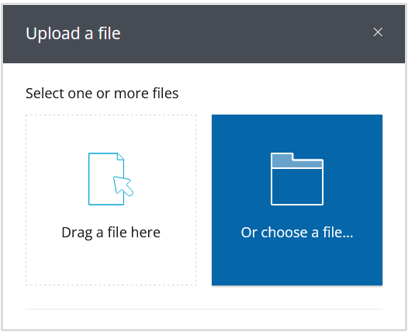
- You can either drag and drop a file from your computer to your Asset Store, or use the Choose a file option
Attach an Asset to a Workbook using the text editor
Assets can be attached to your workbook using the text editor by adding a link to the asset.
- In the text editor, click on the link icon

- On the Add link panel, either use the search box to locate an asset you have already uploaded to your PebblePad account, or select ‘More items’
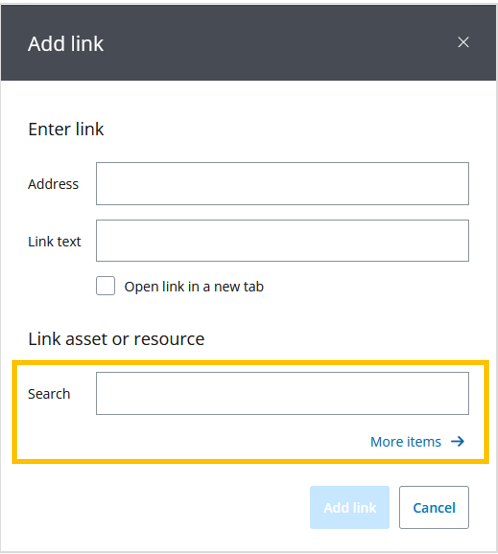
- Locate and select the asset you would like to attach, or choose to ‘Upload new’ if you would like to upload a new file to attach.
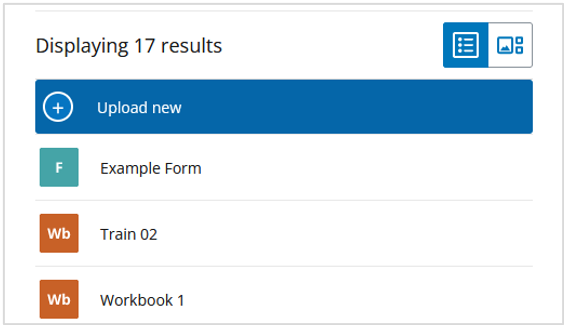
- Click on ‘Add link’

The link to your asset will now appear in the text editor.

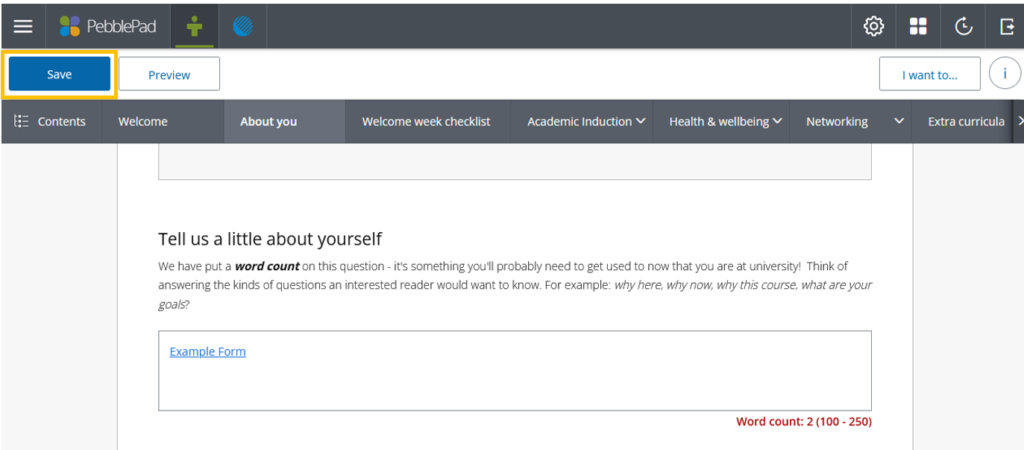
Don’t forget to ‘Save’ your workbook.