
What can be downloaded?
Content which has been uploaded to Weblearn, and images and text which has be added Weblearn Document can be downloaded by students. Grades and feedback added to a Weblearn or Turnitin assignment submission can also be downloaded by students.
Embedded content such as lecture recordings, reading lists and embedded activities cannot be downloaded.
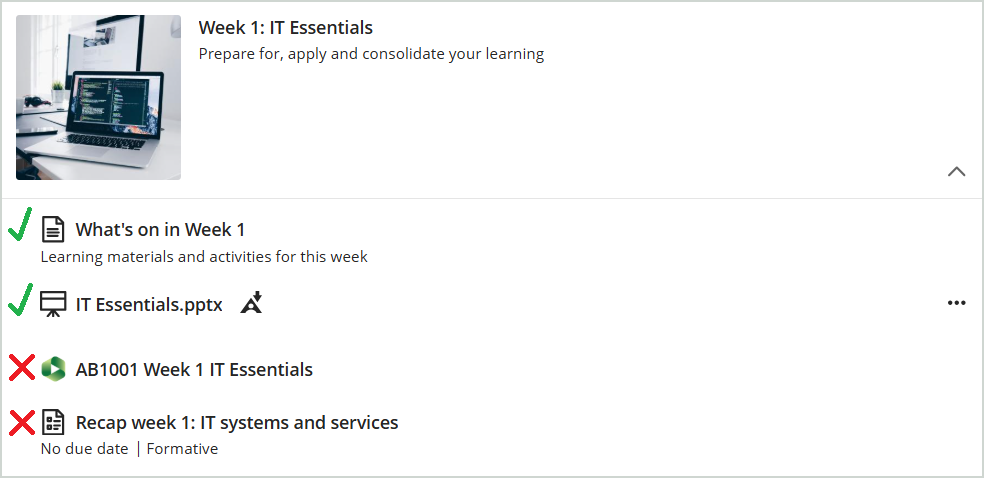
The example below shows a learning module containing 4 items of content. Only items 1 and 2 can be downloaded.
- What’s on in Week 1 (Weblearn Document)
- IT Essentials.pptx (PowerPoint file)
- AB1001 Week 1 IT Essentials (lecture recording)
- Recap Week 1: IT Systems and Services (Weblearn Quiz)
Downloading Files
To download a file which has been added to a learning module, click on the three dots to open the options for menu

Select on ‘Download Original File’ to save the file in the same format as is currently is, or select ‘Download Alternative Formats’ if you would like to save the file in another file format e.g. as a web page or MP3.

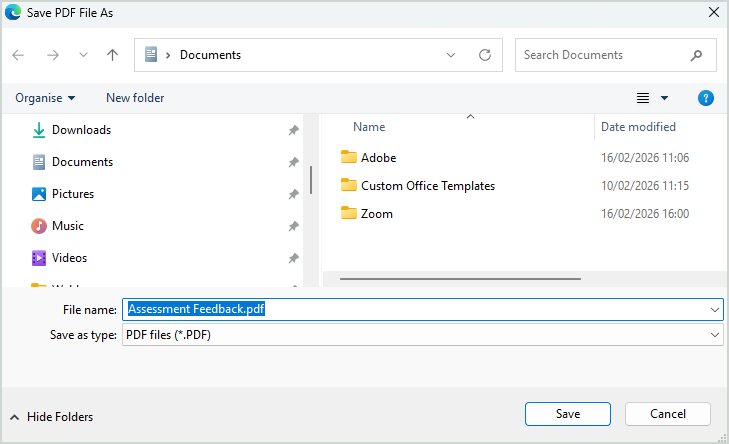
You will now be able to save a copy of the file on your computer.
Downloading Document Content
A Document can contain a mix of content types including text, images, files and embedded content. Files and embedded content will not be included in the download.
To download the Document, click on on the ‘Print’ icon
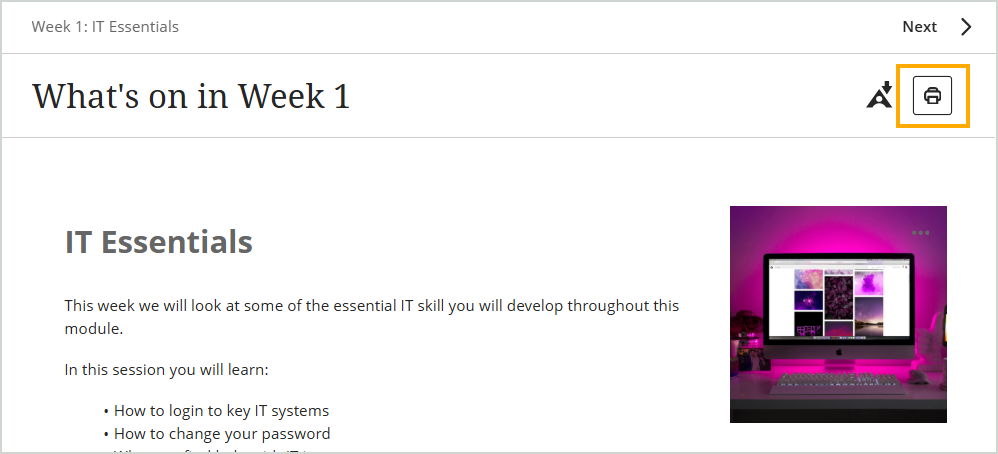
A preview of what you are downloading will be displayed.
Leave the Printer option set to ‘Adobe PDF’ and click on ‘Print’
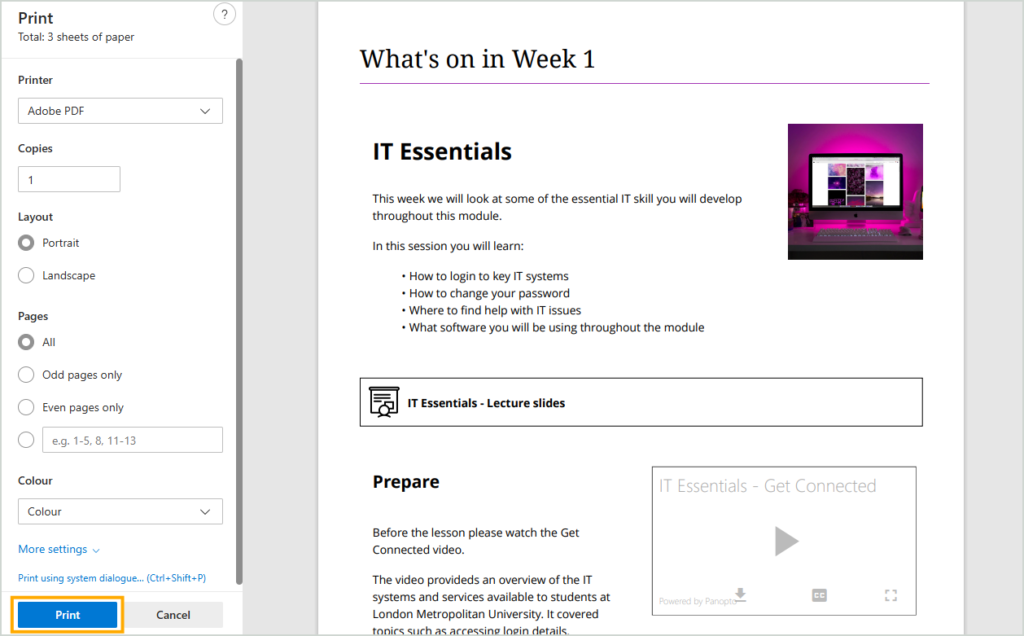
You will now be able to save a copy of the file on your computer.
Any files that are included in the document can be downloaded separately by clicking on the three dots for the file and selecting ‘Download original file’

Downloading Feedback and Marks
Feedback and marks for your assessment can be downloaded by going to the Gradebook inside your module and then selecting the ‘View’ option for the relevant assessment.
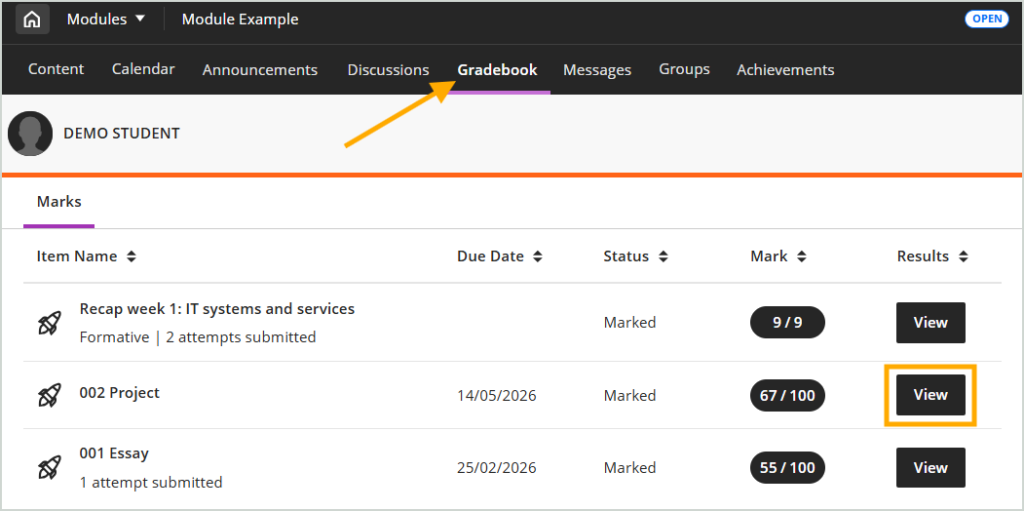
Submission attempts for Quizzes and Tests cannot be downloaded.
Turnitin Assignments
Once you have opened your Turnitin assignment link, click on the assignment name to load your submission with the feedback.
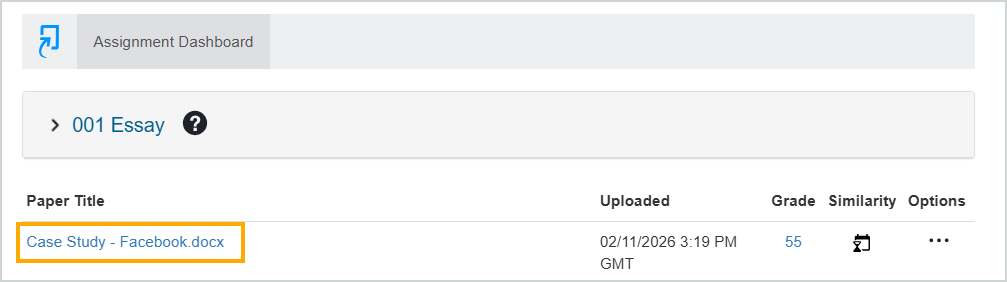
Open the feedback panel so it is visible on the screen by clicking on the speech bubble icon.

Click on the ‘Download’ icon and then select ‘Current view’.

A PDF file will be download which includes your mark, feedback and the content of the file you submitted.
Weblearn Assignments
Once you have opened your Weblearn assignment link you will be able to view your submission file(s) and the overall feedback and mark. If you have submitted multiple files you can use the tabs at the top of the page to view each file.
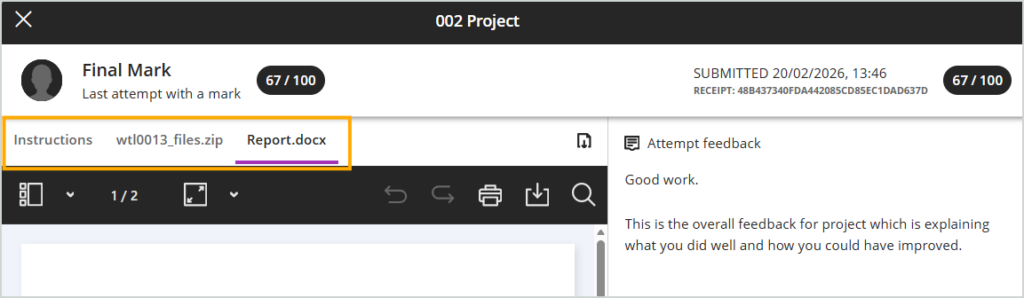
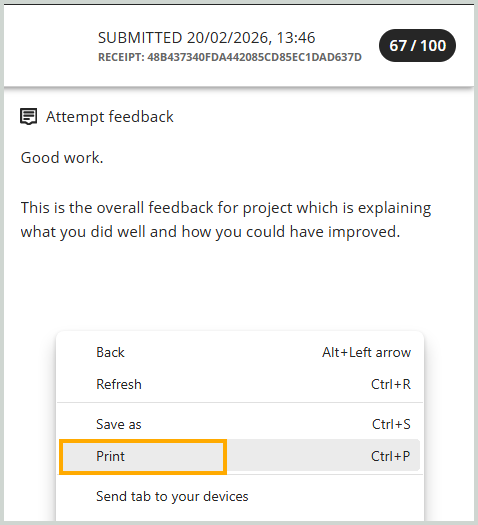
Right click your mouse anywhere on the Attempt Feedback panel and then select ‘Print’
A preview of what you will be downloading will be displayed.
Leave the Printer option set to ‘Adobe PDF’ and click on ‘Print’
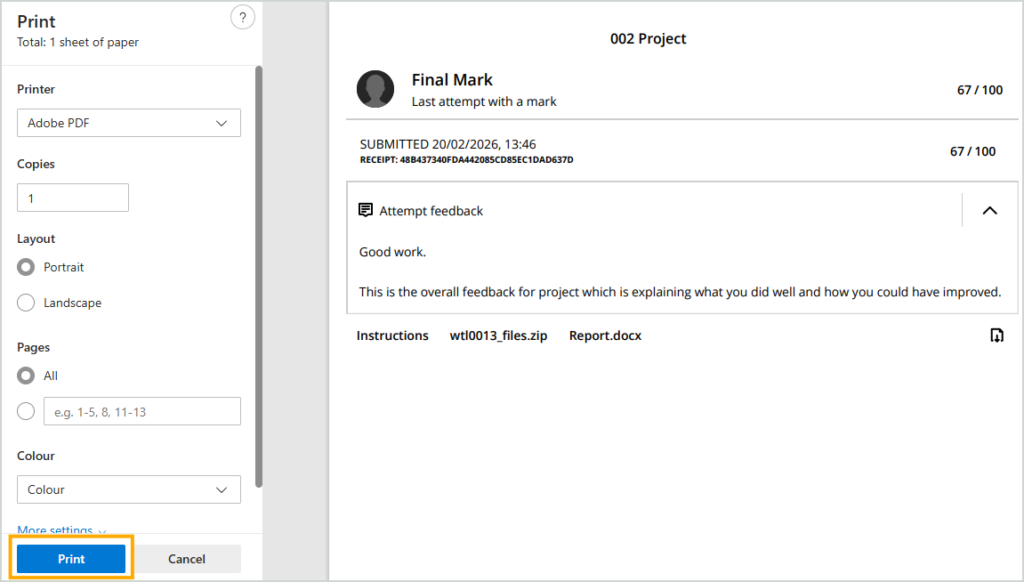
You will now be able to save a copy of the file on your computer
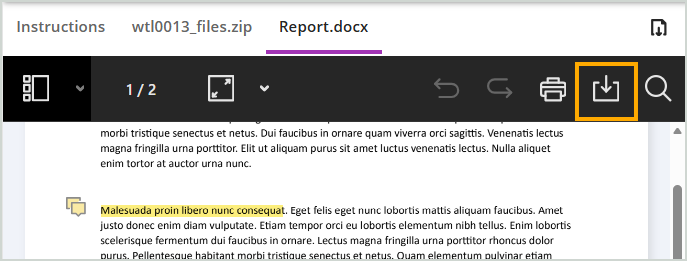
If any of the files you have submitted contain annotated feedback you can use the download option at the top of the file to save a copy of the annotated file.
Download Content in Different File Formats
Ally allows you to download files and Weblearn content wherever you see the Ally icon.

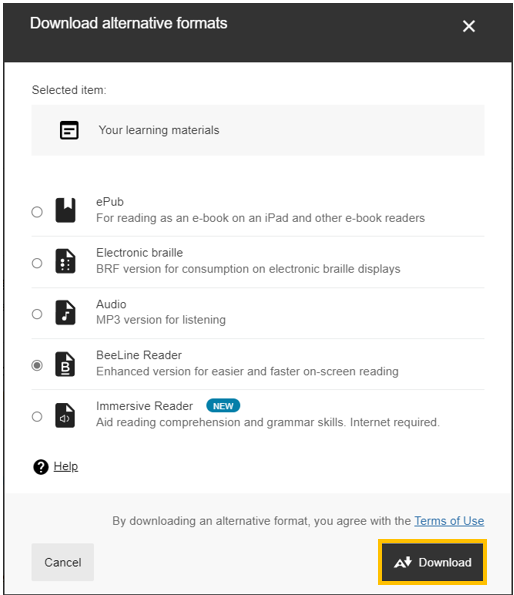
With Ally you can choose from a number of alternative file formats to save the content in such as MP3, ePub and BeeLine Reader.
To download content with Ally, click on the Ally icon

- Select the format you would like to download the file in
If you don’t have a specific format in mind, select ‘BeeLine Reader’. This will save the content as a web page which can be viewed offline on any device.
You will now be able to save a copy of the file on your computer.