
Media on a smart phone and/or tablet can be uploaded to Panopto using the Panopto app.
Install Mobile App
Open your the Apple Store, or Google Play on your device and search for Panopto
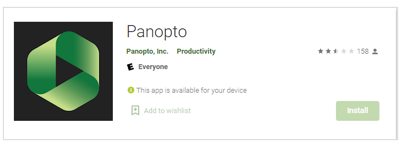
Login to Panopto
- Open the Panopto app on your device and select the ‘Options’ icon, three dots at the top right of the screen
- Select ‘Enter site address manually’
- Type in londonmet.cloud.panopto.eu and select return
- Select ‘Continue’ and you will be redirected to the London Met Panopto page
- Select ‘Sign in’
- Enter your London Met username and password
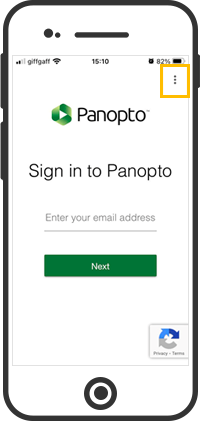
Open the Panopto app on your device and select the ‘Options’ icon, the three dots at the top right of the screen
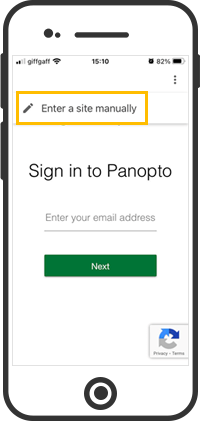
Select the ‘Enter a site manually’ option
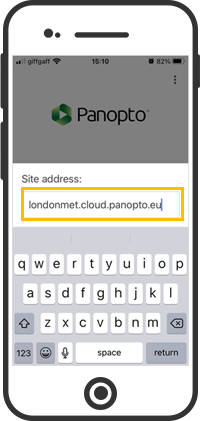
Type in the London Met site address:
londonmet.cloud.panopto.eu
Then select ‘Return’
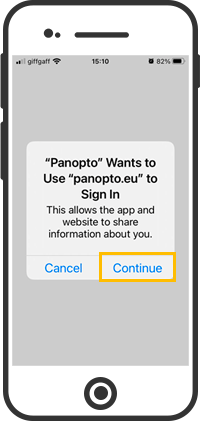
Select ‘Continue’ and you will be redirected to the London Met Panopto page
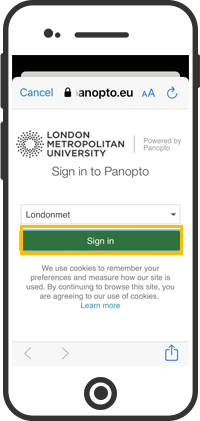
As default the Londonmet option will already be selected, select ‘Sign in’
You will now be redirect to the London Met login page where you can enter your username and password
Upload media
- Once you have logged into the app, select the ‘Add content’ icon (circle icon with plus in the centre)
- Select ‘Upload Media’
- select ‘Media Library’
- Locate and select your video, then select ‘Choose’
- Once the file has uploaded it is safe to close the app.
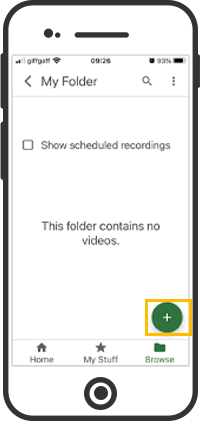
Once you have logged into the app you will be able to access the ‘Add content’ icon from any page in the app.
To upload your file click on the ‘Add content’ icon

Select ‘Upload Media’
Note: you are also able to create your video using the ‘Record a video’ option
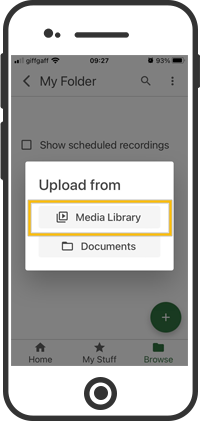
Under the ‘Upload from’ options, select ‘Media Library’, or ‘Documents’ depending on where your file is saved on your device.
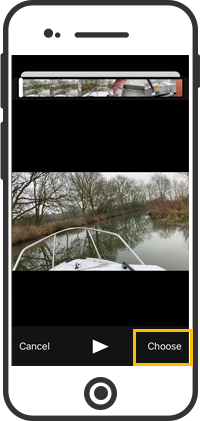
Locate and select your video on your device, and then select ‘Choose’

Once the file has finished uploading it is safe to close the app
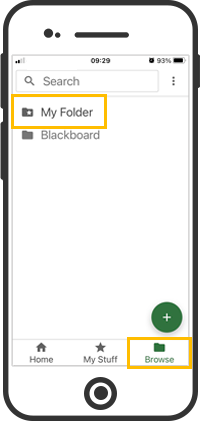
To view all of your uploaded files, click on the ‘Browse’ folder icon and then select ‘My Folder’