
Weblearn can be accessed via the Blackboard mobile app. The app allows students to view content and access the communication tools such as Messages and Discussions.
If you are unable to find or access something on the mobile app, please login to Weblearn using a web browser to access the full experience which is optimised for mobile devices.

Download and log into the Blackboard App
Download and install the Blackboard App from the Apple Store or Google Play. Compatible Devices: iOS 14+ and Android 11+

To login to the app:
- Type London Metropolitan University in the search box and then select the university name
- Click on the ‘Continue with Web-Login’ button
You will be redirected to the Weblearn login page.
- Login using your normal Weblearn username and password.
Navigating the App
Once you have logged into the app you will see the Activity Stream which will display any new Weblearn updates.
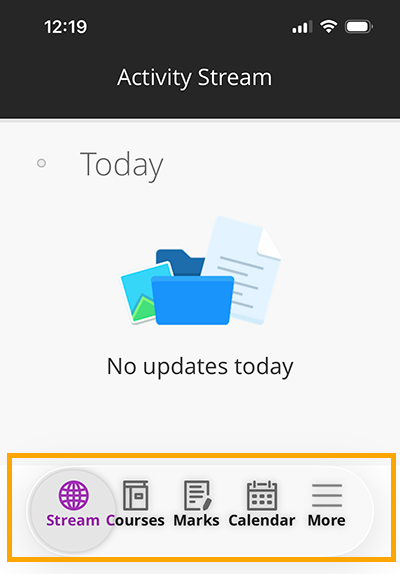
Use the menu at the bottom to find:
Stream: view your updates from Weblearn including new content, announcements, marks, and more.
Courses: in the mobile app Modules are called Courses and this is where you can access your learning materials.
Marks: see a quick view of your overall marks and access your feedback.
More: is where you can access Organisations, Messages, privacy and notification settings and view your profile.
Access Course Sites and Organisations
To access your Course Site and other organisations that you have been added to, click on the ‘More’ button and then select ‘Organisation’.
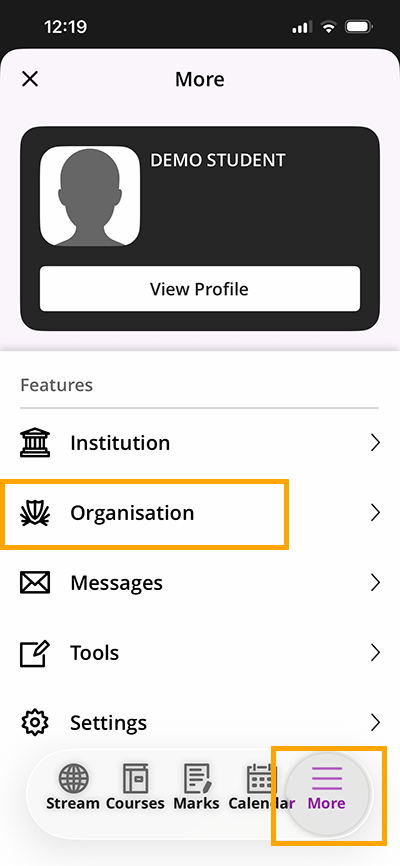
Other areas you will find under the ‘More’ menu are:
Profile: view your details and add pronouns and name pronunciation. You will not able to edit any details or change your password..
Institution: find help information and quick links to other university systems and services.
Messages: view and send messages to your lecturers.
Tools: the tools page is mainly use for staff so you won’t need to access this page.
Settings: edit your notifications and privacy settings, and access your downloaded content to access it offline.