
Content Editor
Students are able to add content to Weblearn wherever they see the content editor. This could be on a discussion, journal or as part of an online submission.
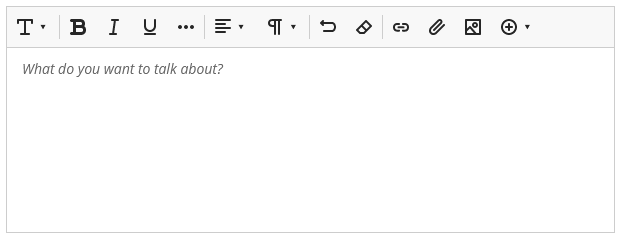
You can use the editor to add text, images, attach files, and insert web links.
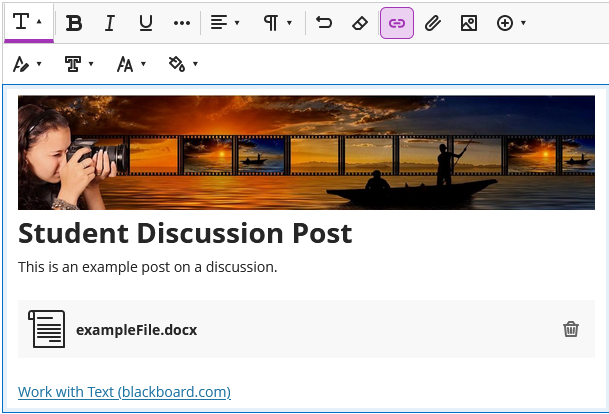
More information about using the content editor can be found on the Blackboard help pages: Content Editor
Adding Files
Weblearn will accept most file types however, there are a few things you should consider when creating files which can help to avoid technical issues when your file is uploaded to a computer system, and that can help you keep them organised.
- Give your file a meaningful name – this will help you locate and identify your files quickly and easily.
- Avoid using special characters (eg ! @ # $ %) in file names – this will help to avoid technical issues when you files are uploaded online.
- Use version control – adding a number at the end of each file name can help you identify your most recent version if you have more than one copy.
- Keep file names short – some computer systems will reject a file if the file name has too many characters.
File types to avoid:
Some file types will not be easy to open if the person (your lecturer?!) is trying to open them on a computer which does not support that file type.
- Pages (Mac)
- Rich text format (RTF)
- OpenOffice (ODT)
The full list of file types which are accepted in Weblearn can be viewed on the Supported File Types help page.