
If you are a new student who does not yet have an IT account you can join a Teams session as a guest.
Click on the session web link you have been sent to open the Teams session.
You will be prompted to allow Teams to use your camera and microphone, click on ‘Allow’.

Type your name in the Name field and then select ‘Join now’.
Note: make sure you enter your full name correctly so that your lecturer knows you have joined.

You may see a message at the top of the screen that says “Hey Student Name! Hang tight—someone should admit you shortly.”
This means that you are waiting in the Teams lobby and someone will let you into the session shortly.

Otherwise the session will load.
People who have joined a Teams session as a guest cannot use the ‘Chat’ option, but you may be able to ask questions via the ‘Q&A’
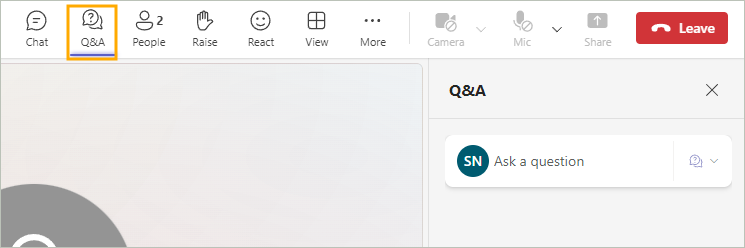
Teams sessions which allow guest access will usually have the microphone and camera options turned off. If the presenter asks if anyone would like to ask a question you can click on the ‘Raise’ hand button to let them know you would like to speak.

When appropriate, the presenter can activate your microphone button and allow you to click on the ‘Mic’ button and unmute yourself so you can speak.
