
The Originality report from Turnitin for a single paper could display different results depending on the settings selected when the assignment was been created. Understanding the different settings will help to choose the appropriate settings for your assignment type.
Understanding the settings
A typical Similarity score could contain a number of small percentage matches which are combined to make the overall score. For example, a 36% score could be made up of several 1-2% matches and one 19% match, and the 19% match would be the one which may need investigating.
Turnitin help page: Understanding the Similarity Score
Filtering a report
Once a report has been generated the results can be filtered to exclude any irrelevant matches, and a new report can also be generated so the paper can be compared against any additional papers submitted since the time of the original submission.
Turnitin help page: How exclusions and filters refine the Similarity Report
What is excluded from a report
Turnitin uses keywords and quotation marks present in the submitted paper to determine what to exclude.
Turnitin will not exclude single quotation marks, or quotes within quotes.
Turnitin help page: Managing exclusions and filters in the Similarity Report
Downloading Similarity report
Similarity reports for individual students can be downloaded from the Feedback Studio.
All assignment links can be access from the Gradebook tab in the module
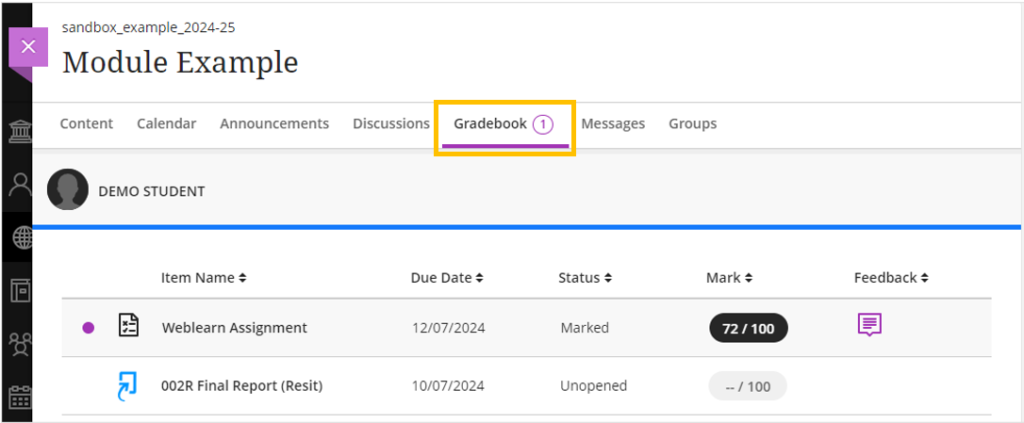
- Click on the name of the assignment to open the Turnitin Inbox
- Click on the similarity score of a student.

Make sure the similarity matches are highlighted on the paper. If the matches do not show, click on the ‘Show similarity layer’ icon.
- Click on the ‘Download Arrow’ icon
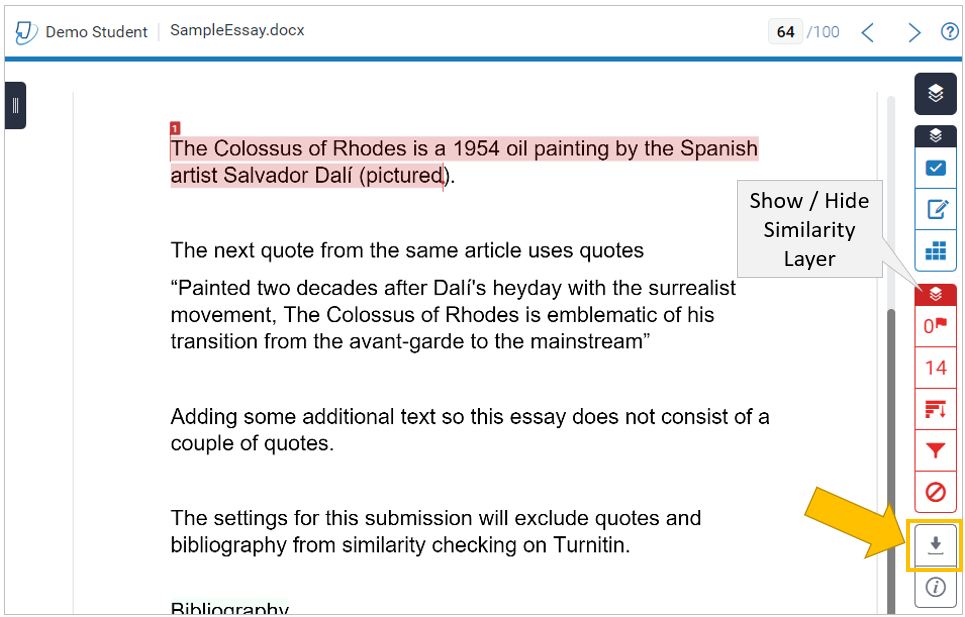
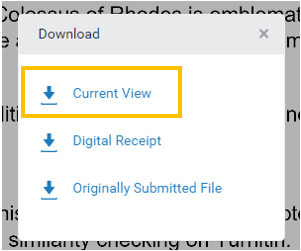
- Select ‘Current View’ to start downloading the similarity report.
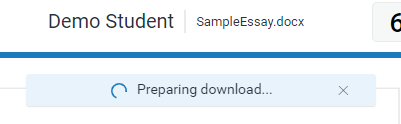
A ‘Preparing Download’ bar will appear at the top of the screen whilst Turnitin is creating the similarity reports as a PDF.
Depending on your browser settings, the PDF will be downloaded your preferred download location or your desktop, or you will be prompted to specify where you want to save the PDF.
Student submissions are considered personal data under GDPR. All student data downloaded from Weblearn must be stored in a secure location and deleted once it is no longer needed.