
Submission content

Submissions downloaded from Weblearn for Digital Packs must include all submitted files, associated feedback and attached artefacts such as linked OneDrive files or Panopto Videos.
The Digital Pack should also include
- Assessment briefs and marking criteria as published on Weblearn
- Any online marking rubrics if used
- Clear student identifiers to associate submissions and marks to students
Assessment marks
A list of marks can be downloaded from e:Vision, the Grade Report (Turnitin) or the Weblearn gradebook.
For modules were marks where adjusted due to internal moderation, assessment mark lists should be downloaded from e:Vision unless marks have also been adjusted on the online assessment in Weblearn.
Sample selection and download
Once the internal moderation process has been completed, select sample student submissions following the instructions provided by Registry. The sample should include some examples of the moderated submissions, but can include unmoderated submissions to meet the required sampling across grade bands.
Download the full submission for each selected student from Weblearn and upload the content to the module’s folder for Digital Packs on SharePoint.
Download options
The download process and types of content will depend on the submission tool used for the assessment. The table below shows download options for standard tools.
| Tool options | Submissions | Feedback | Other content |
|---|---|---|---|
| Turnitin | Bulk download as GradeMark file | All feedback options included in GradeMark file | Turnitin Grade Report |
| Weblearn Assignment | Bulk download including multiple files and attempts per submission | Overall text included in Gradebook Individual download of mark-up or rubrics | Weblearn Gradebook |
| Panopto Video submission | Individual download of each video Bulk download for other included files | Overall text included in Gradebook Individual download for rubric feedback | Weblearn Gradebook |
| Weblearn Test | Download result file from Markable items view for questions and answers | Included in result file | Print out of Test and pool questions Weblearn Gradebook |
| Journal tool | Individual export of each Student Journal using ‘Print as PDF’ options | Overall text included in Gradebook Expanded comments included in Print as PDF Individual download for rubric feedback | Weblearn Gradebook |
Artefacts
Artefacts must be downloaded if the artefact
- contributes to the grade
- has been included as a link in the submission, e.g as a Panopto Video or OneDrive file link
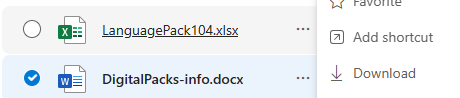
Use inbuild download options provided by the linked online tool if available, such as the ‘Download’ option for files shared via OneDrive.
Using a browser to save a copy of an online link
If no download options are available, each submitted artefact needs to be downloaded using functions such as ‘Print’ to save a PDF version , ‘Save as’ to save an HTML (webpage) version or other suitable options for the artefact type.
- Expand all minimised content on a page
- Scroll to the bottom of a page to ‘load’ all content in the browers
- Right-click on the page and select ‘Print’ > ‘Print as PDF’ or ‘Save As’
- Check if file includes expected content
Artefact file names
The downloaded artefacts must be clearly named to associate it with the relevant marks and feedback for the submission. If the default file name does not include a unique identifier for the student, the file must be renamed to include the London Met username or other unique identifier used by the assessment type.
Organising Sample Content
For Turnitin samples that include one file per student
- upload all files directly to the Sample folder
- upload a copy of the Grade Report to the assessment component folder
For samples that include multiple files per student
- Create subfolders in ‘Sample’ folder for submission, feedback or artefact files as required
- Ensure that all files for a student contain the student username or other unique identifier in the file name
- Upload files to relevant subfolder
- Upload a copy of the Gradebook to the assessment component folder
- Consider adding a short document explaining how to locate all files per student for more complex submissions
Access Digital Pack
You can access the folder for Subject Area from a link in the email you received or via SharePoint directly.
Find the Digital Pack on SharePoint
- Log into email or another M365 app
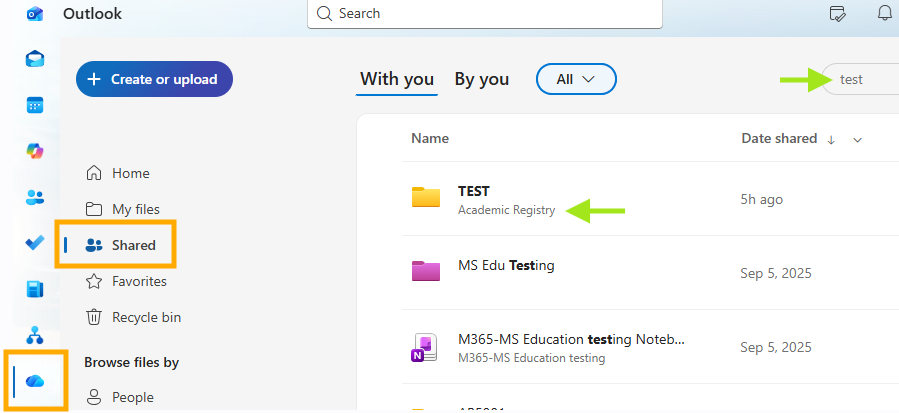
- Click on your ‘One Drive’ icon (blue cloud) and select ‘Shared’ to view all files shared with you
- The folder will show the Subject Area code (e.g. ARC for ‘Architecture) in the name and appear under ‘Academic Registry’
Search by subject area code if the folder is not immediately visible. Make sure to use the grey search input just above the list of documents, not the ‘Search’ at the top of the screen which will search all content on M365.
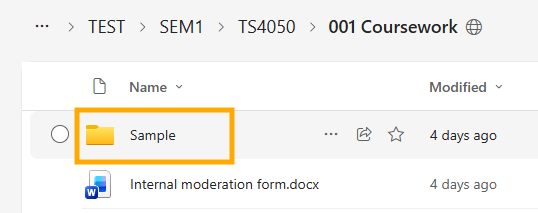
Navigate to ‘Sample’ folder
Select the academic period (SEM1, YEAR, etc) in the Subject Area folder on SharePoint for the current academic year
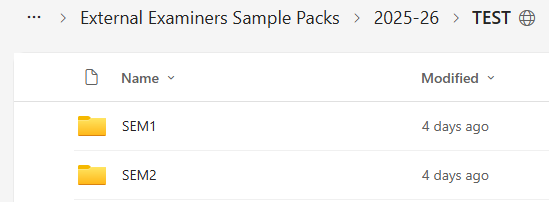
Select the Module Code and then the Assessment component
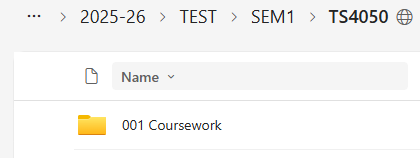
All sample files, feedback, mark information and other content required for the sample should be uploaded to the ‘Sample’ folder of the assessment component
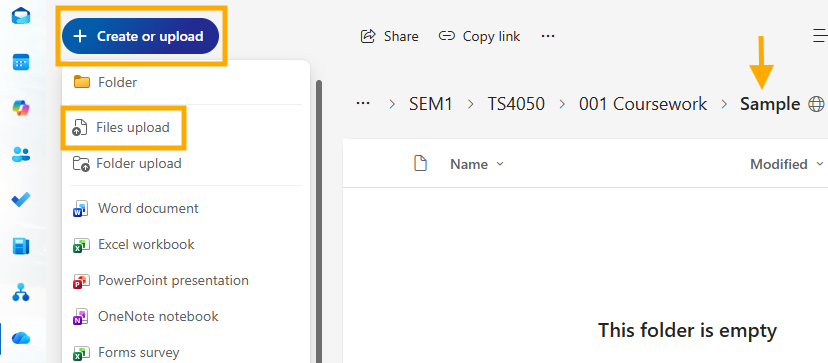
Upload files to SharePoint
Microsoft Guide: Upload files and folders to SharePoint
- In the ‘Sample’ folder for the asssessment component, click on ‘Create or Upload’ and select ‘Files upload’
Note: use ‘Folder upload’ if the sample contains subfolders, e.g. for artifacts or separate feedback files.
- Select the files you want to upload from your computer
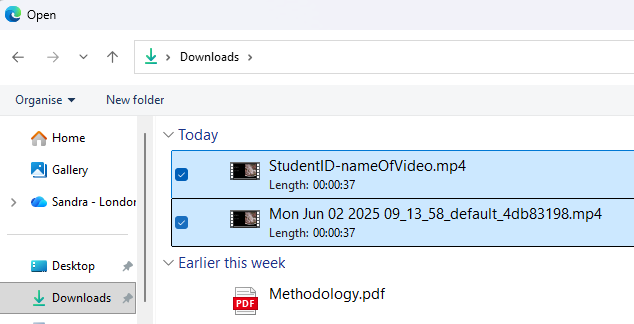
- Click on ‘Open’ to start the upload
Managing sample download issues
Files won’t download
If the submission files are very large, the creation of the the download .zip folders can fail.
Solution:
- Select fewer files and download sample as multiple packages
Download times out
If the created .zip file is very large, the download can time out on slow internet connections
Solution:
- If faster internet can be accessed elsewhere, re-download sample when connected to faster internet
- Alternatively, select fewer files and download sample as multiple packages
Files can’t be extracted from .zip folder
Known Issues – Error when extracting files from .zip
File extraction can fail if the combination of folder and file names on your computer become too long for the extraction tool you are using.
Create shorter folder name
- by shortening the name of the downloaded .zip file
- by extracting the .zip file in a folder with a short path, e.g.
- “Documents/Samples” instead of
- “Documents/Modules/XY1001 A very long title for the module included in the folder name/2025-26 Spring Semester/assessment/001 a long name for the assessement component“
Use different extraction tool
Windows staff laptops include 7-zip tool or you can download 7-zip from AppsAnywhere
Known Issues – Use 7-zip tool to extract files
To use the tool
- right-click on .zip folder
- choose 7-zip to extract files