
The Ultra Gradebook provides access to all assessments set up on a module for staff and students.
Students will be able to submit and view their submissions through the Gradebook.
Staff can manage all assessment related activities through the Gradebook except creating new online submission points which need to be created in the Assessment Component folder on the Module Content page.
Gradebook for Staff
All online assessments need to be created on the Module Content (Content tab) of the module.
Once any type of assessment has been created, it will appear as an item in the Gradebook tab. Staff will be able to edit and manage all assessments directly from the Gradebook.
If you delete an assignment from the Gradebook, all submissions will be deleted and the assessment will also be deleted from the module content page.
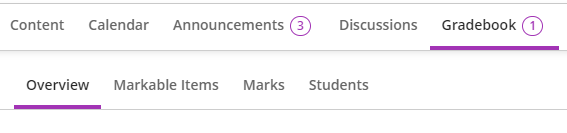
The Gradebook has four views, ‘Overview’, ‘Markable Items’, ‘Marks’ and ‘Student’ which provide access to different functionalities for teaching staff:
Gradebook Overview
- View submissions that need marking
- View marks that need posting
Gradebook ‘Markable Items’ tab
- A summary of the current status for each assessment
- Use for delegated marking for Weblearn Assignment
- Manage the order in which assessments appear to users in the Gradebook
Gradebook ‘Marks’ Tab
- Filters to view group of students, assessment or assessment types
- Search for students
Gradebook ‘Students’ tab
- Add accommodations (extensions) for individual students
- View all submissions and marks for individual students
- Access progress data for students
- Share internal notes about students (not visible to student)
Gradebook ‘Overview’ tab
The Overview tab shows all submissions that need to be marked under ‘Needs Marking’.
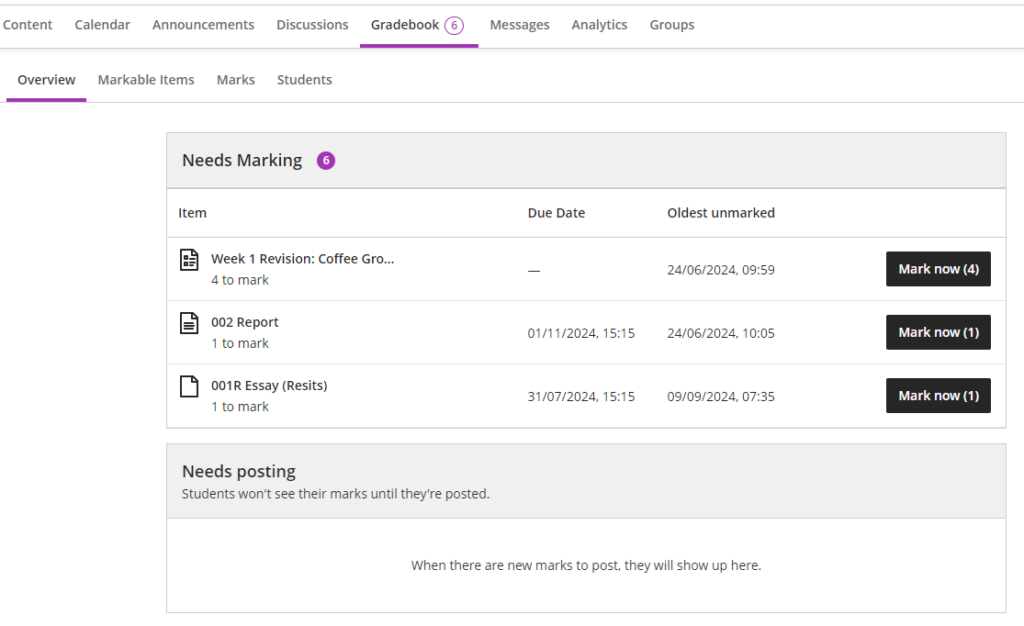
‘Needs posting’ will show the number of graded submissions that need to be posted.
‘Needs posting’ doesn’t show the number of unmarked submissions. Avoid posting marks from this tab unless you are sure that all submissions of a Weblearn assignment have been marked.
Gradebook ‘Markable Items’ tab
Click on ‘Gradebook’ and then the ‘Markable Items’ tab in your module.
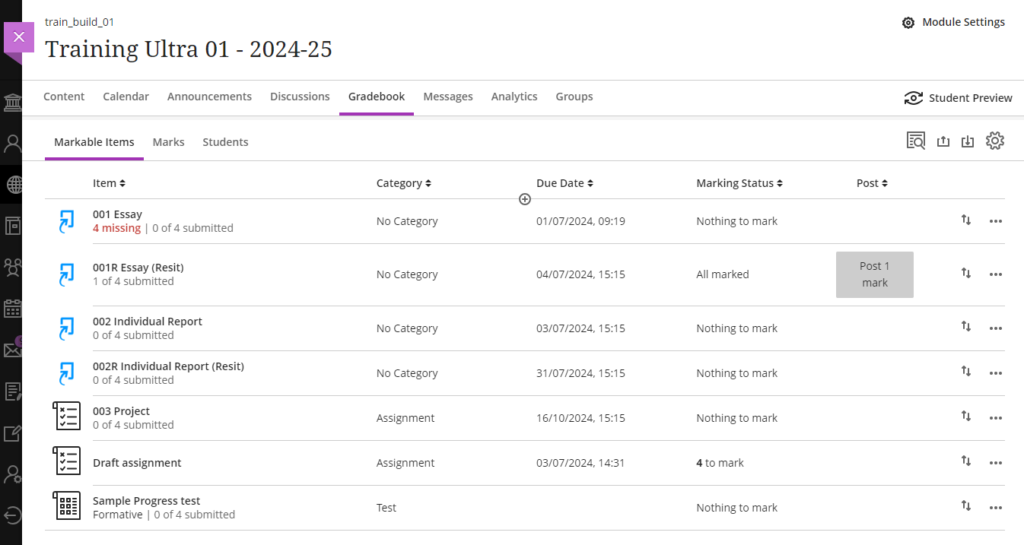
The ‘Markable Items’ tab shows a list of all assessments with a summary of current submissions.
Access and Assignment and view submissions
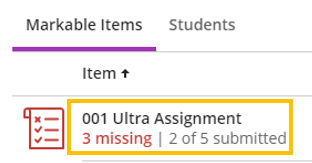
Click on the name of an assessment item to open the assignment and all submissions for marking.
If a Weblearn assignment has been enabled for delegated marking, the marker will only see submissions assigned to them on this tab. They can still view marks for all students and access their submission from the ‘Marks’ tab.
Assignment options menu
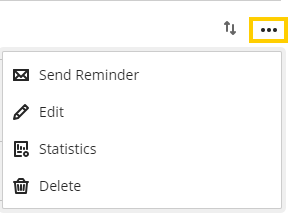
Click on the 3 dots associated with an assessment item to view available option. Standard options include
- Send Reminder messages to all non-submitters
- Edit the assignment settings
- View submission statistics
- Delete the Assignment (Caution – deleted assignments can’t be retrieved)
Sending reminders to non-submitters
The ‘Send Reminder’ option associated to an assignment can be used to send a Weblearn message to all non-submitters. The message will also be emailed to students so they will see the reminder both on the Weblearn module and in their London Met email inbox.

Post Marks (Weblearn assessment tools only)
All assignment that have been marked will show a ‘Post mark’ button.
Do not use ‘Post mark’ for Turnitin assignments.
If you post marks for Turnitin assignments, the marks will be visible to students but they won’t be able to see their feedback until the Feedback release date has passed.
The Turnitin ‘Feedback release date’ controls when the marks are posted on Weblearn and the feedback will become available to students in the Feedback Studio.
For Weblearn assignments and other Weblearn assessment tools you need to post marks once all submissions have been marked.
Click on the ‘Post Mark’ button to release the marks and feedback for the Weblearn assessment.

Gradebook ‘Marks’ tab
Click on ‘Gradebook’ and then the ‘Marks’ tab in your module.
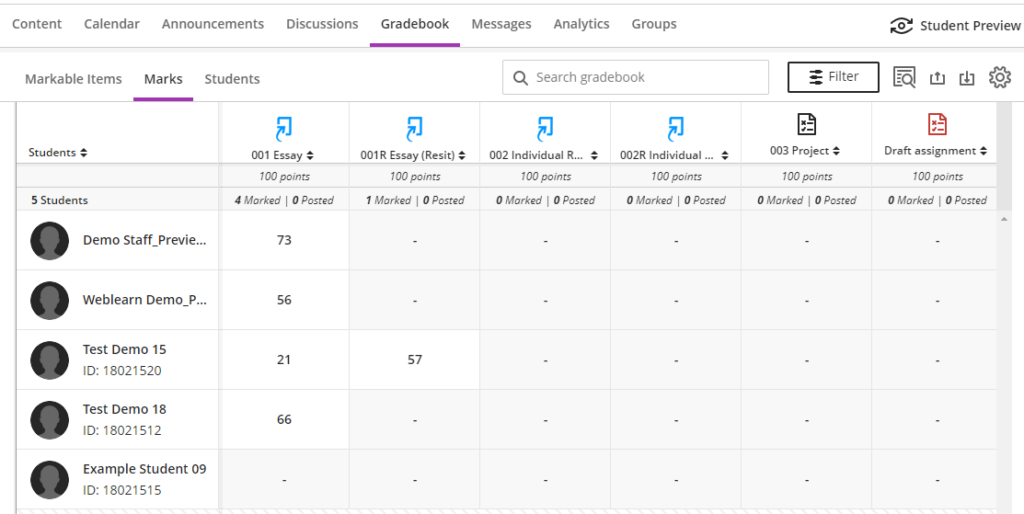
The ‘Marks’ tab will show a grid with the assignment marks for all students.
Marks will be automatically added as soon as an assignment has been marked.
Staff can also click on a cell in the grid to manually add a mark. This mark will not appear on the assignment and generally marks should be added through the assignment tool used when marking a submission.
Assignment options and sending reminders
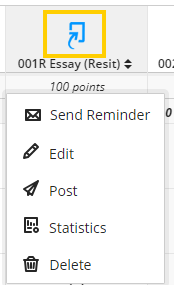
Click on the icon for a specific assignment to view the options available for the assignment. These option will be identical to the options available through the ‘Markable Items’ view and also include a ‘post’ option.
Do not use ‘Post’ for Turnitin assignments.
Gradebook Filters
Gradebook filters are only available on the ‘Marks’ tab.

Available filters:
The Gradebook filters allow you to change the gradebook view and view only student submissions within a filter or any combination of the available filters.
- Student(s)
- Group(s)
- Gradable items
- Assessment Type
- Categories
To access the filters click on ‘Gradebook’ tab > ‘Marks’ tab > ‘Filter’ button
To display only students from a specific group, click on the Groups dropdown menu to display all groups on the module
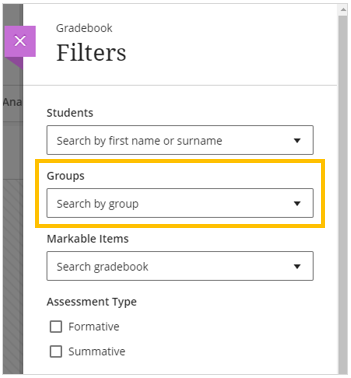
Select the group from the list of groups displayed
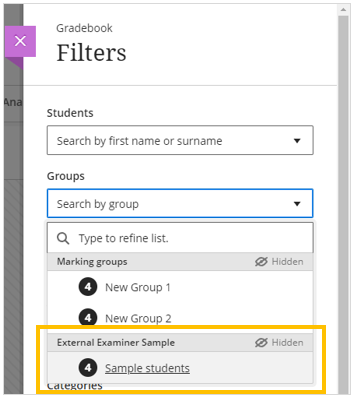
Click on ‘Apply’ to apply the filter

Only students who were added to the group selected will be displayed

To access the submissions, click on the student attempt and then select View

The student submission will now be displayed
The grading page will list all student submissions in the ‘Students’ panel. To return to the filtered list of students, click on the close icon

Gradebook for students
The Gradebook replaces the ‘My Feedback’ (My Marks) link that students used to see all of their online assessment points in Original modules.
Students will see links to all assessment points visible on the module. Depending on the status of the assignment, students will be able to
- submit their assessment via the Gradebook
- view their submissions and feedback
- view Marks that have been posted

Exampled of different assignment statuses:
Recap week 1: IT systems and services
The Weblearn Test has been marked and a mark of 8/9 points has been released to the student.
Students see their marks and can access feedback by clicking on the ‘View’ link in the Results column.
002 Project
The submission has been submitted, but marks and feedback have not been posted.
Students can view the submitted by clicking on the assignment link.
001 Essay
The due date for the Turnitin link has not yet passed and the student has not yet submitted.
Students can submit their assignment to Turnitin by clicking on the assignment link.