Journals are a private space between the student and the lecturer where students can add multiple journal entries over a period of time. The entries can include text, images, files and video embeds.
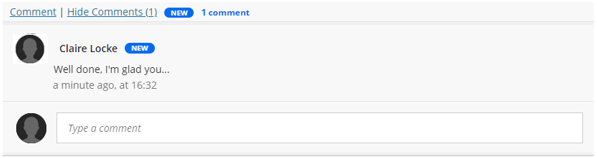
The comment option allows the student and lecturer to communicate about the journal content.
A Journal can also be used as an assessment where you can set a due date and provide a formal grade and feedback.
Create a Journal
To create a Journal:
- Click on the Plus sign (+) in the location where you want the student to access the link
- Select ‘Create’
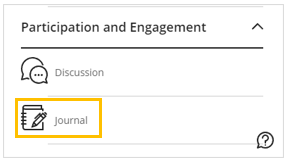
- Scroll down to the ‘Participation and Engagement’ section and select ‘Journal’
- Enter a Name for the Journal in the name field
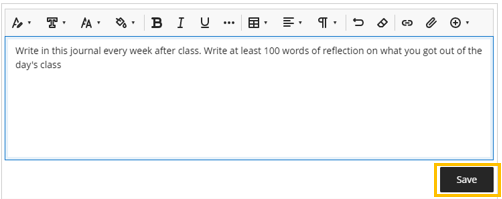
- In the Journal Prompt box, write the instructions or a description about how the Journal should be used
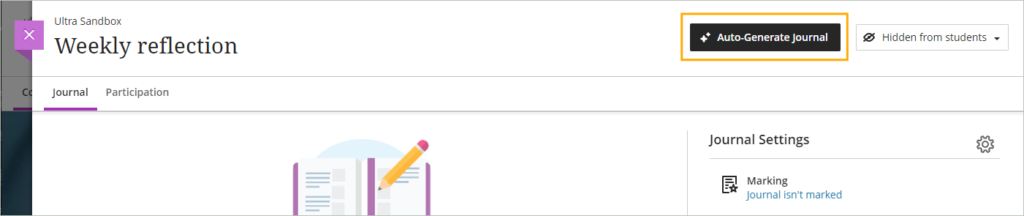
Or optionally, use the Design Assistant to auto-generate a journal prompt
- Click on ‘Save’
To make the Journal visible to student, click on the availability dropdown menu and select ‘Visible to students’
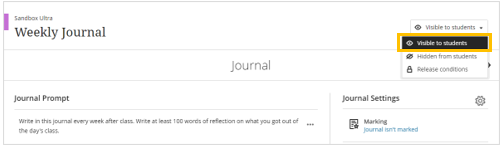
If you wish to prevent students from deleting journal entries or comments, you will need to update the Journal settings.
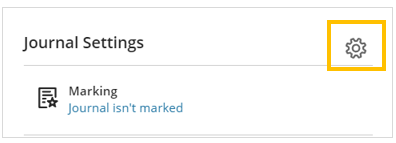
Enable Journal Grading
To enable journal grading or access the journal settings, click on the cog icon on the ‘Journal Settings’ panel
View the Blackboard help page: Enable journal grading
Accessing Journal Entries
When a new Journal entry has been posted by a student a blue speech bubble will appear next to the Journal name

- Click on the Journal name to open the Journal page
- Click on ‘Participation’

On the Participation page, use the search option to search for specific students, or use the Student Status drop down menu to filter the list of students
- Click on the student name

The journal entry will be displayed
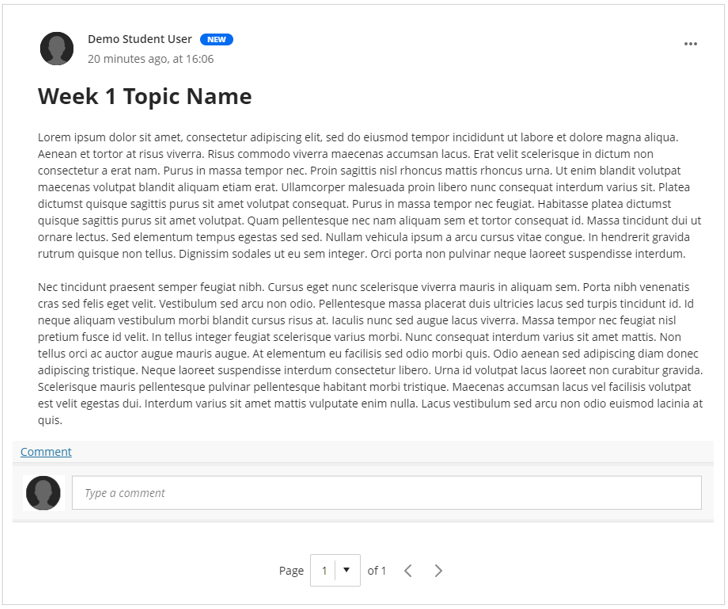
To leave a comment for the student, click on the ‘Comment’ option and then type the comment into the content editor
Click on ‘Comment’ to post the comment to the student

When a new comment is available to students, a blue speech bubble will appear next to the Journal name

Students can open the journal to view the comments and they have the option to add a reply