Make sure that you are familiar with the Online submission guidelines and the location in your module(s) where students should find their online submission points
Original modules: Online Submission content area
Ultra modules: Assessment component folder added to the Assessment folder
Are you using the right assessment tool for your purpose?
Check the Select Assessment tool guide to find out what tools are available at London Met.
Creating Weblearn and Turnitin Assignments in Ultra
Check out the guides if you’re new to online assessment in Ultra or need a reminder on how to set up groups and assignments.
Training sessions for Ultra modules, Original modules or a Panopto refresher are available for sign up at vletraining.eventbrite.co.uk
Ultra Session Recordings
If you can’t find a suitable time to attend a session or would like to review a session you have attended previously, the following session recordings are available on Panopto (login required)
2023-24 Weblearn modules and Modules Handbooks are now available
ULTRA and ORIGINAL Weblearn modules 2023/24
Modules for 2023/24 are now available for request on Weblearn. Modules need to be set up on Evision for 2023/24 to appear on Weblearn, if you can’t find your module in the request form, please check that it is on Evision before contacting Weblearn Support.
All L 3, 4 and 7 modules have been set up as Ultra module.
The module handbook template is now available, please use the template to update your handbook to make sure you are providing the correct information to students for 2023/24. The shared folder also contains example tables with teaching dates for each academic period to make it easier to update your Weekly Timetable on Weblearn.
To access the module request forms, log into Weblearn and click on
Institution page > Weblearn Help and Module Requests > Request Access to Modules and Course Sites
Once you have requested your 2023/24 modules, they will appear under ‘Upcoming Modules‘ and show as ‘Private’ until they become available to students one week before the start of teaching. You can edit the private modules as needed, but students won’t be able to access them until Sep 19th for YEAR and Autumn modules.
After a successful pilot of the new version of Blackboard called Ultra for our Course Sites on Weblearn, London Met is now moving to Ultra for Level 3,4 and 7 Weblearn modules for 2023/24.
The Ultra Course View provides a wealth of new features and improved workflows to create a better online experience for staff and students.
Some of the best new or improved features of Ultra include
Progress tracking and Learner Analytics
‘Document’ content type for complex and rich content
Making content interactive with ‘Conversations’
Improved assessment tools and workflows
Working with Ultra requires a different approach to content design and module management compared to the Original Course View.
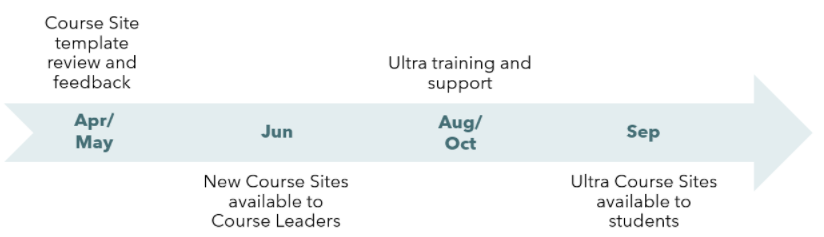
Support and training will be provided to facilitate a successful transition from Original to Ultra. Ultra modules for Level 3, 4 and 7 will be made available from May onwards to allow for plenty of time to rebuild content over the summer.
Join a focus group to contribute to the development of templates and recommendations for Ultra
Build your Ultra module (Jun – Sep)
Join Ultra sessions including ‘Designing Content’, ‘Teaching with Ultra’ and ‘Ultra Assessments’
Attend workshops for good practice
Start building your Ultra module
What is Ultra?
Blackboard Learn Ultra is a powerful new version of Blackboard that includes Ultra Base Navigation and the Ultra Course View for modules and organisations.
Blackboard Learn Ultra features simplified navigation and data-driven learning analytics, all contained within an intuitive mobile-friendly experience. Created in collaboration with real-life instructors and students, Blackboard Learn Ultra is designed to support teaching workflows, making it easier for instructors to teach and improving student outcomes.
Weblearn switched to using the Ultra Base Navigation in 2021.
The Ultra Course View defines what a module looks like and offers a user experience that features a simple, modern, intuitive, and consistent interface on any device.
The accessible and responsive design ensures that users have a great experience accessing Blackboard Learn on any mobile device they use.
Ultra Highlights
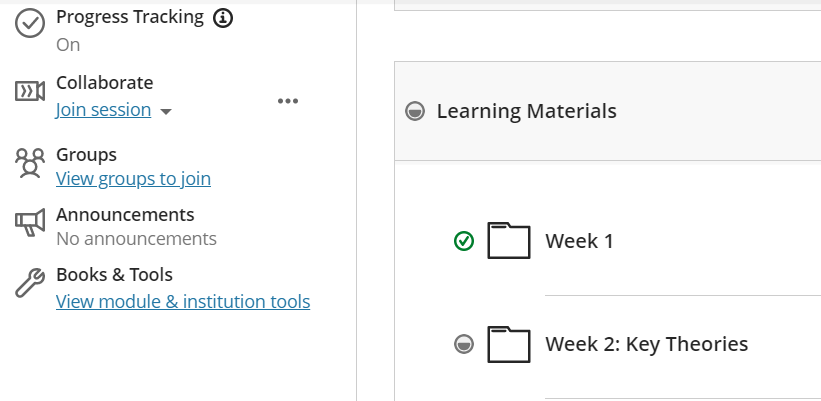
Progress Tracking
Use a simple toggle button to switch on Progress Tracking for all content.
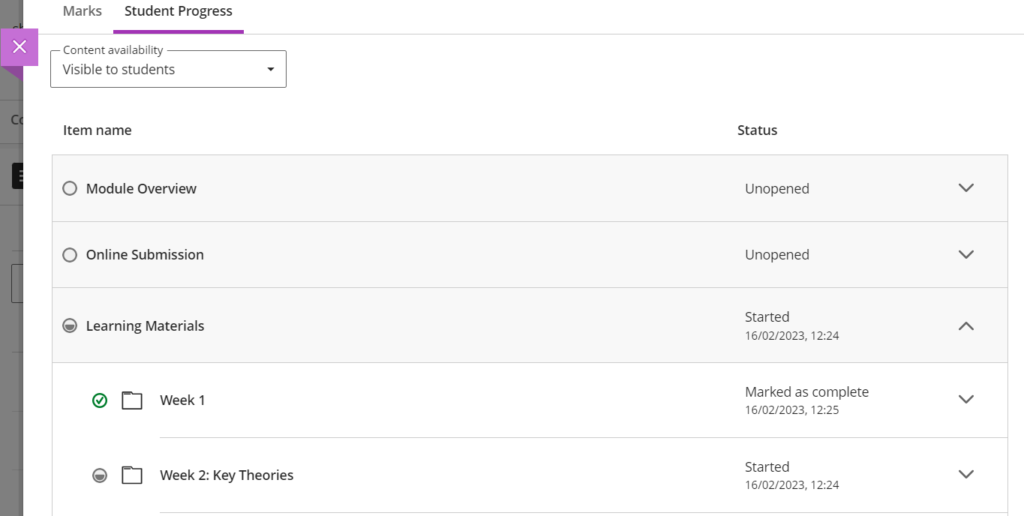
Students can see what content they have accessed and mark items as completed.
Staff can view a student’s progress from the Ultra Gradebook.
Managing Ultra Content
Ultra enables users to easily add content where they want it to appear.
Add content in any location
Simply point to where you want to add content and a plus sign appears to add your content where you want it to appear. No more moving up content from the bottom of the page.
Drag and drop
Move content to different folders or re-order content on a page with drag and drop.
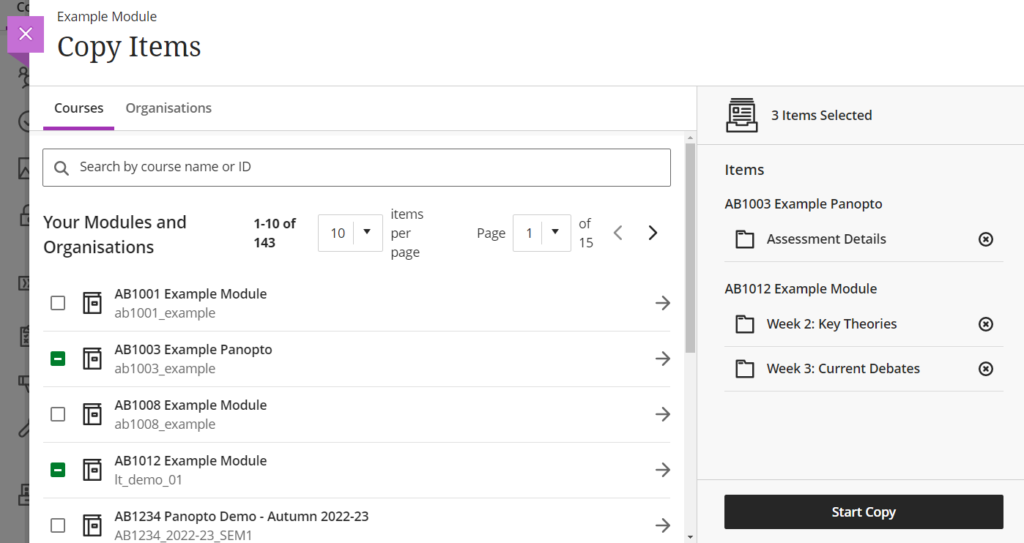
Copy Content from other modules
Ultra puts you in full control of copying content. Copy the exact content you want and add it exactly where you want it.
Batch Edit
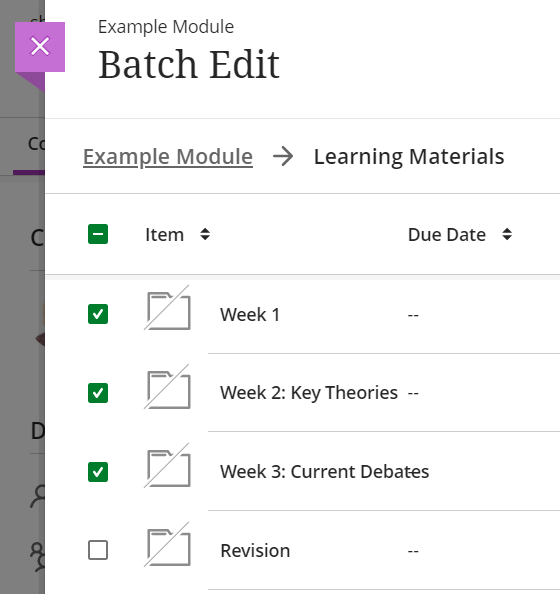
Edit visibility or delete content in one go using batch edit instead of managing each file individually.
Documents
Easily combine text, images, videos, files and more to present module content to students.
Make your document interactive by adding a ‘Conversation’, a contextual discussion thread that staff and students can access directly from the document.
As part of the University Digital Transformation programme all academic staff and students will be moved to Microsoft 365 (M365) over the Easter break.
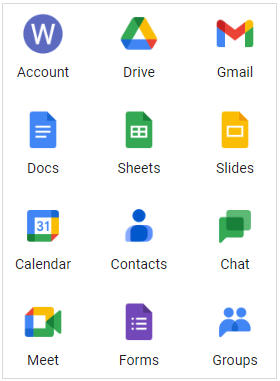
This means that none of the following Google Apps will be available to you after you have migrated to M365 and it’s very important that you are prepared for the change.
Google apps not available after migration:
Google Drive
Gmail and Calendar
Docs, Sheets and Slides
Contacts
Chat and Meet
Forms
Groups
You will already be familiar with many of the M365 apps available like Teams and MS Office. Once you have migrated all of your M365 apps and files stored on OneDrive can be accessed from one platform.
OneDrive: personal file storage
SharePoint: Teams files and institutional file storage
Outlook: email and calendar
Microsoft Forms
MS Office apps
Teams
Find our more about the project: Microsoft 365 (login required)
How does this affect Weblearn?
Google Drive files will be automatically transferred to OneDrive during the migration, but the file sharing options can not be transferred and need to be set up again in OneDrive.
A number of current Weblearn modules include links to shared Google files or forms which will stop working after the migration. This includes:
Weblinks and html links on Weblearn items to Google folders or files
Links to Google Forms
Google file links shared with staff by Students, eg for large file submission
Module leaders or content providers will need to replace Google file links with links to files stored on OneDrive or upload smaller files ( < 200 Mb) directly to Weblearn.
If your students have shared Google file links with you, you need to download the file to your OneDrive to retain access.
If your students submit files larger than 200Mb, they can’t be uploaded directly to Weblearn. Please instruct your students how to submit large files using OneDrive.
Previously students submitted those files via a link to their Student Google Drive. The Google links provided by students will not work after the migration, but students will retain access to their migrated file on OneDrive.
If your module contains an online submission via Google Drive and you need to retain access to the shared files, you need to download the files from Google Drive prior to the migration.
Any Google file shared as a link with students as a Weblink or on a Weblearn item will become unavailable to students after the migration. The files need to be moved to OneDrive prior to the migration and the link on Weblearn needs to be replaced with a shared OneDrive link.
If the file is no longer needed, remove the link to Google drive from your Weblearn module.
Essential files:
If the shared file should remain available to students, move the file to OneDrive, create a share link for the file and update the link in the Weblearn module.
Google file link shared in Announcement:
Old announcements do not need to be updated if the announcement is no longer relevant. If the Google Drive announcement link should still be available after the migration, please change the link to a file stored on OneDrive.
Sharing Google Forms
Google Forms can’t be migrated, but form data saved into a google sheet will be automatically transferred to a MS Excel file and stored on OneDrive during the migration.
If you are planning to use forms that need to be available to other users after the migration, you need to use M365 forms.
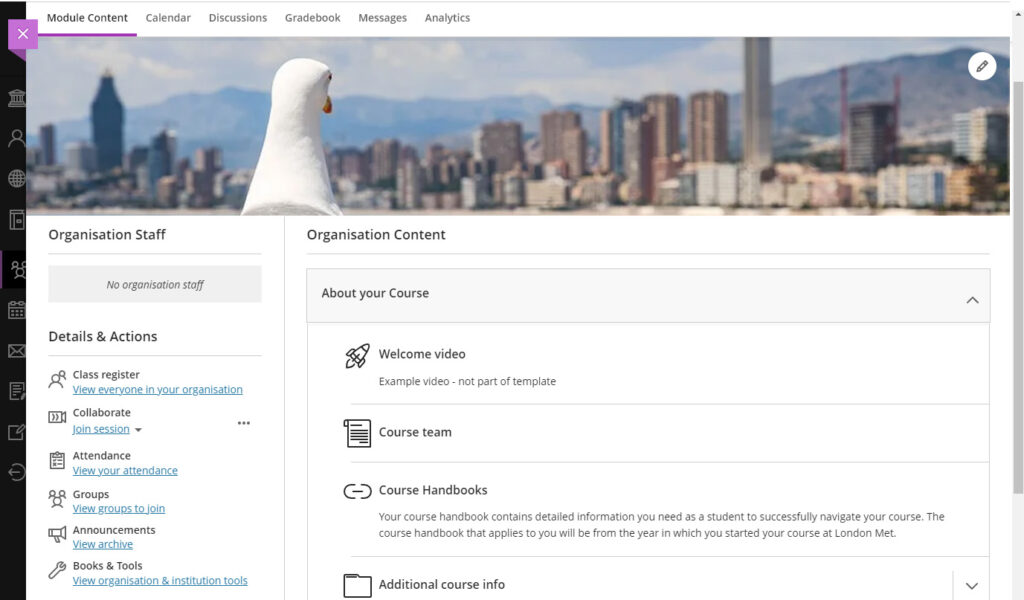
All existing course sites have been refreshed and replaced with new sites which use the Ultra Course View. The Ultra Course View provides a new look and feel for Weblearn Organisations.
Note: modules will not change for 2022/23.
The new course sites are visible to students on Weblearn from 1 Sept 2022.
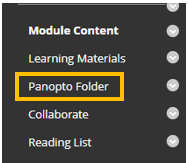
Panopto is the new lecture recording tool available through Weblelarn. All 2022/23 Weblearn modules will contain a Panopto Folder which will appear at the bottom of the module menu. Simply drag the folder up to the ‘Module Content’ section of the menu.
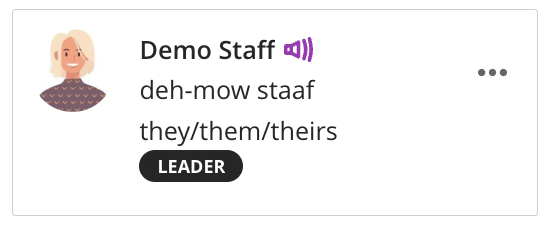
Over the summer Blackboard has made a number of diversity, equity and inclusion improvements to user profiles. Students and staff can now set their pronouns and name pronunciation on their profile.
Pronouns: users can select their pronoun from a list of common pronouns, or put in a request for a another pronoun to be added.
Pronunciation: the pronunciation can be added as the phonetical spelling of a name and a voice recording of how to pronounce the name.
Example profile with the user name, phonetical spelling and pronouns.
Pronouns and pronunciation will appear alongside a name in the following locations on Weblearn:
Discussion Boards
Messages
Weblearn Assignments inline grading
Class register (Ultra Course Sites only)
User Management > Users and Groups
Groups
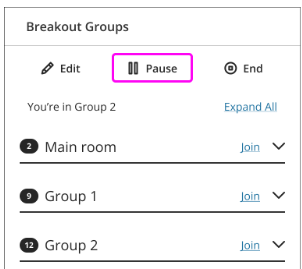
Collaborate: Pause and Resume Breakout Groups
The new Collaborate breakout groups feature, Pause and Resume, allows you to pause a breakout group and bring participants back into the main room, and then reassign the participants into the same breakout group.
Pause and Resume buttons will allow you:
Pause: put breakout groups on standby and regroup all attendees in the main room.
Resume: restart breakout groups and split all attendees into the same groups.
Note: only the moderator who paused groups can resume them.
Blackboard have consolidated their two mobile apps into to a single app for both instructors and students. Instructors can use the app to post announcements and interact with students while on the go.
Each course has its own area under the Organisations section of Weblearn which is used to provide course specific information and announcements to students.
In 2022/23, the Course Sites will be updated with a new look and mobile first design, and we need student feedback to help decide what should be included.
Join the Course Sites workshop – Friday 29 April at 12pm
If you would like to see a preview of the new version and give your feedback in person, please join the Course Sites Workshop via Collaborate on Friday 29 April at 12pm.
Blackboard Learn Ultra is the new version of Blackboard. We moved to Ultra Base Navigation in June 2021 whilst continuing to use the ‘Original course view’ for our modules and course sites on Weblearn.
The next step is moving to the Ultra course view to take advantage of new features and a streamlined, responsive interface design that works well on any device.
The first step of moving to the Ultra Course View will be combined with a refresh of our existing course sites and all existing course sites will be replaced with Ultra course sites for 2022/23.
This will give staff and students the opportunity to experience the new Ultra course view and provide feedback which will inform any further roll-out of the Ultra course view.
Timeline
Ultra Course View
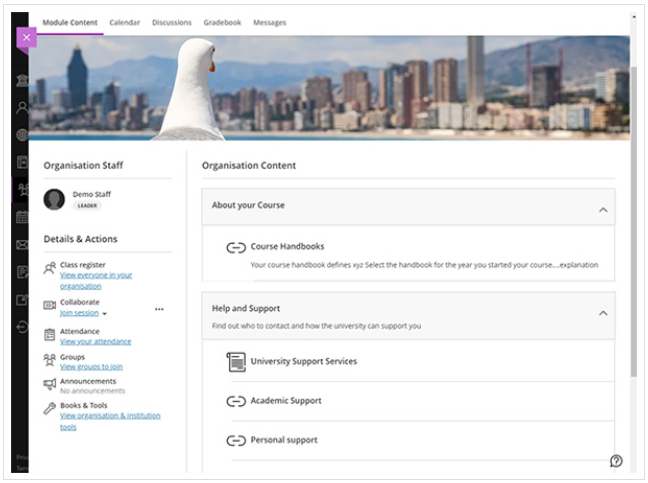
The Blackboard Ultra Course View provides a new look and feel for Weblearn Organisations.
Mobile-friendly. The Ultra Course View adapts to the size of users’ screens whether they view courses on a mobile phone, tablet, or desktop computer. Users can access their courses on the go and on their schedules.
Simplified workflows. Ready to add course content? On the Course Content page, select the plus sign to add content. The system walks you through the process to add assignments, discussions, links, and external content. Other common tasks, such as grading and sending messages, are simplified in the Ultra Course View as well.
Improved navigation. No need to dig for course tools. At the top of your screen, you’ll find content, events, discussions, grades, and messages, no matter where you are in the course.
Panopto is the new lecture recording tool which will replace MEDIALecture from 2022/23.
Panopto is a recording tool which can be used for lecture recording and recording asynchronous content. Some of the benefits of Panopto include:
Record in browser option (no installation required)
Multiple recording streams (screen and video)
Auto-captions
Student video submissions
Video Quizzes
Webcasting
All 2021/22 Weblearn modules are ‘Panopto ready’ and early adopters can set up a link to their Panopto course folder and start using it for lecture recording straight away.
Turnitin is moving to a new way of providing access to Turnitin through Weblearn called Turnitin LTI integration. The LTI integration is more robust than our current integration and has a simplified interface and improved dialogue for students when uploading.
The new integration is already available on Weblearn and you can start using it right away for your 2021/22 online submissions or wait until the Spring semester to make the switch.
This change does not affect the Turnitin feedback studio, so marking processes and viewing similarity reports remain the same.
Support and training
For an overview of the changes, sign up for a “Turnitin LTI: creating and managing assignments” session available at vletraining.eventbrite.co.uk
Our current integration (called Turnitin Basic Building Block) will stop working in January 2023 and users will no longer be able to access Turnitin assignments submitted through the Basic Integration after that date. To make sure that all submissions made in 2021/22 can be accessed for at least 12 month after the original deadline, we need to disable submissions to Turnitin Basic from February 2022.
You can continue using the Basic Integration until January 2022, at which point we will switch the Basic Integration into a ‘read-only’ mode.
Submissions made through the LTI integration will remain available for staff for 24 months after a module has completed
Key dates
Sept 2021: new Turnitin LTI integration is available through Weblearn
Feb 2022: current Turnitin Basic is switched off and will allow ‘read only’ access to previous submissions
Jan 2023: Turnitin Basics will be removed from Weblearn and users can no longer access submissions made through the Basic integration.
Training for the new version will be scheduled from teaching week 2.
What’s new?
The way you access the option to create assignments and access the Turnitin Inbox (student submissions) has changed and will look slightly different, but you will already be familiar with most of the assignment settings.
Creating Assignments
The create assignment option is now under the ‘Build Content’ drop down menu:
Managing assignments
The changes include
Access Assignment inbox directly from Assignment link
Weblearn preview user can be used to test submission as a student
Marking groups are more tightly integrated and can be easily accessed from the assignment inbox
Some configuration settings can’t be changed once the assignment has been set up
Accessing LTI assignments
In the Turnitin Basic integration, instructors need to access the assignments from Module Management > Module Tools > Turnitin Assignments.
That link doesn’t exist for the LTI integration, and instructors can access the assignment inbox by simply clicking on the assignment on ‘Online Submission’
The Turnitin Assignment inbox has simplified workflows and a new look and feel.