
Microsoft 365 Migration and Weblearn
As part of the University Digital Transformation programme all academic staff and students will be moved to Microsoft 365 (M365) over the Easter break.
This means that none of the following Google Apps will be available to you after you have migrated to M365 and it’s very important that you are prepared for the change.
Google apps not available after migration:
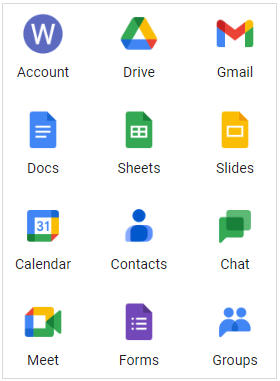
- Google Drive
- Gmail and Calendar
- Docs, Sheets and Slides
- Contacts
- Chat and Meet
- Forms
- Groups
You will already be familiar with many of the M365 apps available like Teams and MS Office. Once you have migrated all of your M365 apps and files stored on OneDrive can be accessed from one platform.

- OneDrive: personal file storage
- SharePoint: Teams files and institutional file storage
- Outlook: email and calendar
- Microsoft Forms
- MS Office apps
- Teams
Find our more about the project: Microsoft 365 (login required)
How does this affect Weblearn?
Google Drive files will be automatically transferred to OneDrive during the migration, but the file sharing options can not be transferred and need to be set up again in OneDrive.
A number of current Weblearn modules include links to shared Google files or forms which will stop working after the migration. This includes:
- Weblinks and html links on Weblearn items to Google folders or files
- Links to Google Forms
- Google file links shared with staff by Students, eg for large file submission
Module leaders or content providers will need to replace Google file links with links to files stored on OneDrive or upload smaller files ( < 200 Mb) directly to Weblearn.
If your students have shared Google file links with you, you need to download the file to your OneDrive to retain access.
Online Submission of Large files via OneDrive
Staff Guide: Use OneDrive for large file submission
Student Guide: OneDrive for large file submission
If your students submit files larger than 200Mb, they can’t be uploaded directly to Weblearn. Please instruct your students how to submit large files using OneDrive.
Previously students submitted those files via a link to their Student Google Drive. The Google links provided by students will not work after the migration, but students will retain access to their migrated file on OneDrive.
If your module contains an online submission via Google Drive and you need to retain access to the shared files, you need to download the files from Google Drive prior to the migration.
Note: Video submissions should be made via Panopto.
Sharing Google files in Weblearn module
Any Google file shared as a link with students as a Weblink or on a Weblearn item will become unavailable to students after the migration. The files need to be moved to OneDrive prior to the migration and the link on Weblearn needs to be replaced with a shared OneDrive link.
Log into OneDrive: onedrive.live.com
Microsoft Guide: Get started with OneDrive
Recommendation for shared Google files
Temporary files that are no longer needed:
If the file is no longer needed, remove the link to Google drive from your Weblearn module.
Essential files:
If the shared file should remain available to students, move the file to OneDrive, create a share link for the file and update the link in the Weblearn module.
Google file link shared in Announcement:
Old announcements do not need to be updated if the announcement is no longer relevant. If the Google Drive announcement link should still be available after the migration, please change the link to a file stored on OneDrive.
Sharing Google Forms
Google Forms can’t be migrated, but form data saved into a google sheet will be automatically transferred to a MS Excel file and stored on OneDrive during the migration.
If you are planning to use forms that need to be available to other users after the migration, you need to use M365 forms.
M365 Guide: Microsoft forms