
Move to Ultra
After a successful pilot of the new version of Blackboard called Ultra for our Course Sites on Weblearn, London Met is now moving to Ultra for Level 3,4 and 7 Weblearn modules for 2023/24.
The Ultra Course View provides a wealth of new features and improved workflows to create a better online experience for staff and students.
Some of the best new or improved features of Ultra include
- Progress tracking and Learner Analytics
- ‘Document’ content type for complex and rich content
- Making content interactive with ‘Conversations’
- Improved assessment tools and workflows
Working with Ultra requires a different approach to content design and module management compared to the Original Course View.
Support and training will be provided to facilitate a successful transition from Original to Ultra. Ultra modules for Level 3, 4 and 7 will be made available from May onwards to allow for plenty of time to rebuild content over the summer.
Timeline
Explore Ultra (Mar – Jun)
- Use your personal Ultra Sandbox to try out new Ultra tools and workflows
- Sign up for ‘Get started with Ultra’ sessions or check out the Ultra help pages
- Join a focus group to contribute to the development of templates and recommendations for Ultra
Build your Ultra module (Jun – Sep)
- Join Ultra sessions including ‘Designing Content’, ‘Teaching with Ultra’ and ‘Ultra Assessments’
- Attend workshops for good practice
- Start building your Ultra module

What is Ultra?

Blackboard Learn Ultra is a powerful new version of Blackboard that includes Ultra Base Navigation and the Ultra Course View for modules and organisations.
Blackboard Learn Ultra features simplified navigation and data-driven learning analytics, all contained within an intuitive mobile-friendly experience. Created in collaboration with real-life instructors and students, Blackboard Learn Ultra is designed to support teaching workflows, making it easier for instructors to teach and improving student outcomes.
Weblearn switched to using the Ultra Base Navigation in 2021.

The Ultra Course View defines what a module looks like and offers a user experience that features a simple, modern, intuitive, and consistent interface on any device.
The accessible and responsive design ensures that users have a great experience accessing Blackboard Learn on any mobile device they use.
Ultra Highlights
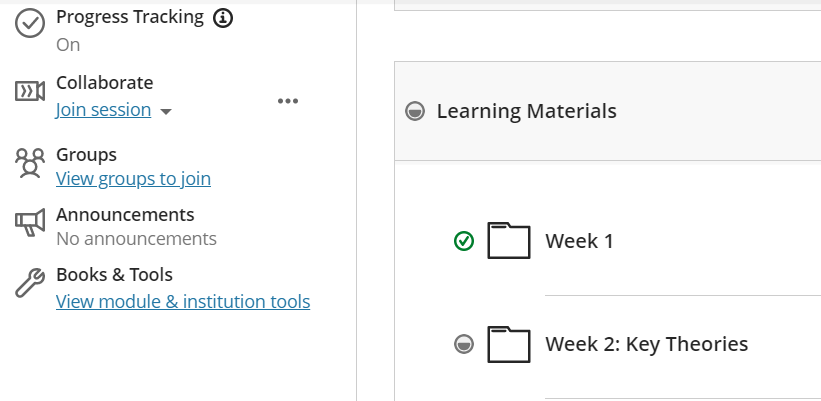
Progress Tracking
Use a simple toggle button to switch on Progress Tracking for all content.
Students can see what content they have accessed and mark items as completed.
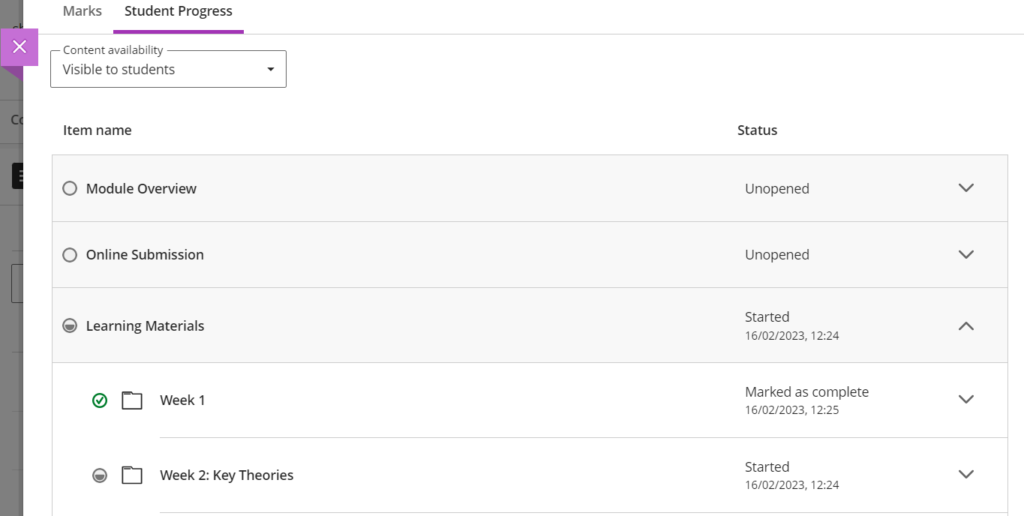
Staff can view a student’s progress from the Ultra Gradebook.
Managing Ultra Content
Ultra enables users to easily add content where they want it to appear.
Add content in any location
Simply point to where you want to add content and a plus sign appears to add your content where you want it to appear. No more moving up content from the bottom of the page.

Drag and drop
Move content to different folders or re-order content on a page with drag and drop.

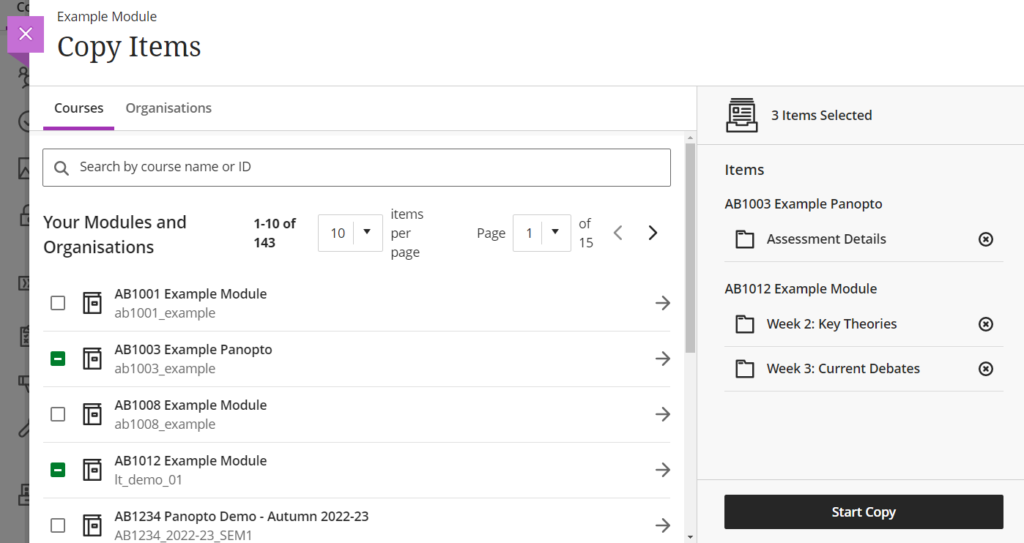
Copy Content from other modules
Ultra puts you in full control of copying content. Copy the exact content you want and add it exactly where you want it.
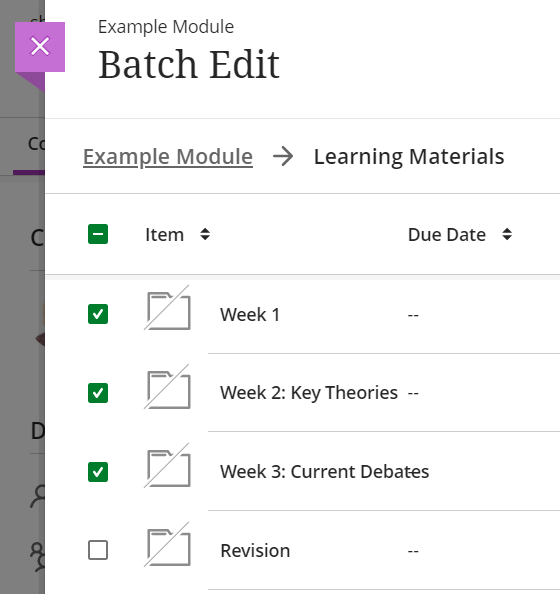
Batch Edit
Edit visibility or delete content in one go using batch edit instead of managing each file individually.
Documents
Easily combine text, images, videos, files and more to present module content to students.
Make your document interactive by adding a ‘Conversation’, a contextual discussion thread that staff and students can access directly from the document.

More information
For more information about Ultra
- Check the Ultra Help pages
- Join a Weblearn Office Hour to ask questions or contact Weblearn Support