
Microsoft Education
Microsoft Education is now available on Weblearn, replacing the previous Teams Meeting integration. The new Microsoft Education tool includes option to:
- Create a MS Teams meeting
- Share a Class Notebook (OneNote)
- Share a Collaborative document
- Upload an editable document to Weblearn
The option to create a team is still available if needed.
Access Microsoft Education
MS Education is located under ‘More Tools’ in the ‘Details & Action’ menu of your Weblearn module. Both staff and students can access the tool and available options from this location.
Note: There is no direct link on the Details & Action menu of the module, but a link can be added to the module content page when needed.
To access MS Education go to the ‘Details & Actions’ menu > click More Tool: ‘View tools’ > click ‘Microsoft Education: View Microsoft Education Resources’
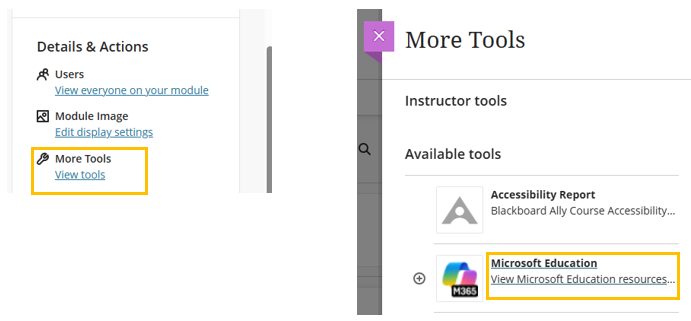
Once users click on the Microsoft Education link, they will see the options available to them.

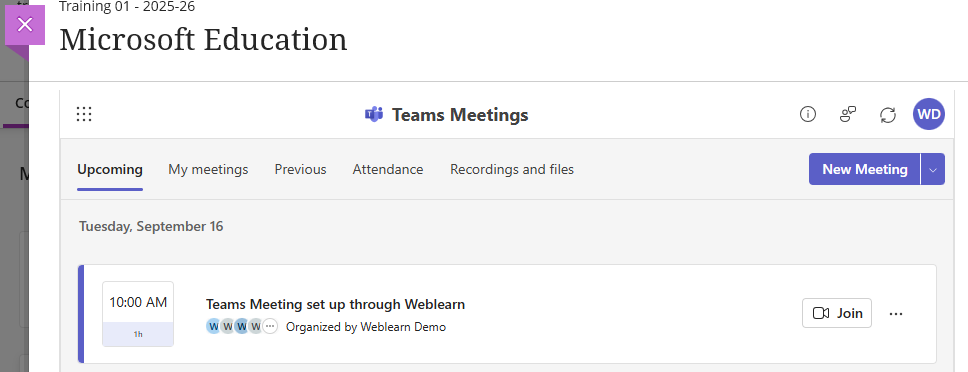
Microsoft Teams meeting
The new integration automatically creates a group for the module cohort that can be used to send invites to online meetings to students.
Users can access the meeting through the Microsoft for education link, their personal Outlook calendar, or a meeting link added to the module.
Class Notebook
A class notebook is a One Note document that is available to all students on the module cohort and contains:
- A collaborative space for notes that all users can edit
- A content library for documents shared by instructors
- A Teacher only section only visible to instructors
- Private student notebooks where students can edit their own contents and share with an instructor, but can’t view other students’ notebooks
Students can access the Class Notebook through Microsoft Education tool or a link added to the module.

Class Notebooks can be used for collaborative learning and formative activities such as development e-portfolios or similar.

Share Collaborative documents
Word, Excel and PowerPoint files can be added to a module as Collaborative documents that can be edited by all students.
Create a link from ‘More Tools’ in the location where you want to add the document

Select Microsoft Education Collaboration and select the type of document you want to add.
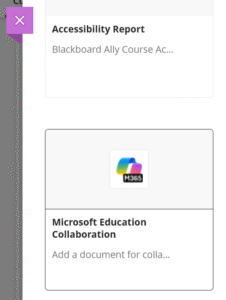
Students can access and edit the document for shared content creation, group work, tutorial tasks or any other collaborative activities suitable for a module.
