External Assessor How to Guides
How to access learner submissions to provide comments, feedback and digital signature sign-off.
View the PebblePad help pages: External Assessment
Sharing Workbooks
Students are able to share their PebblePad workbooks with their mentors, supervisors or members of staff who are supporting them on their placement. This type of share is called a share ‘with External Assessor’.
Prerequisites: Workbook has been shared for assessment
To share a workbook, or other PebblePad asset:
- Open the workbook
- Select ‘I want to…‘ and then ‘Share‘

- Choose the ‘With an external assessor‘ option
Note: If the ‘with External Assessor’ does not appear then it is likely that the workbook has not been shared for assessment on PebblePad.
Instructions for sharing for assessment: Share Asset for Assessment

- Enter the email address that the workbook should be shared with in the search box and then click on the search icon
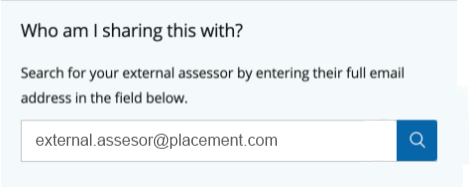
- Select the assessors name which will appear underneath the search box and then scroll down and select the Share Asset button.

The external assessor will be sent an email notifying them that you have shared your workbook with them.
View the instructional video: Share Workbook with External Assessor
Accessing Shared Workbooks
- Login to PebblePad at https://v3.pebblepad.co.uk/login/londonmet
If you have problems logging into PebblePad please use the ‘Forgot password’ link on the login page.
Once you have logged in you will see a list of all student assets which have been shared with you.

Only workbooks which appear in the ‘Items shared for assessment’ can be completed by external assessors. ‘Items shared with you’ are view only.
- Click on the link to the asset to open it
Fields which are marks with ‘To be completed by: External Assessors’ can be completed by users with external assessor rights.

- Once you have completed the fields click on ‘Save & Release’ to immediately release information to the student, or ‘Save & Hold’ to save the content and release the information at a later date.
Adding file attachments using the text editor
Assets and files can be attached to your workbook using the text editor by adding a link to the asset.
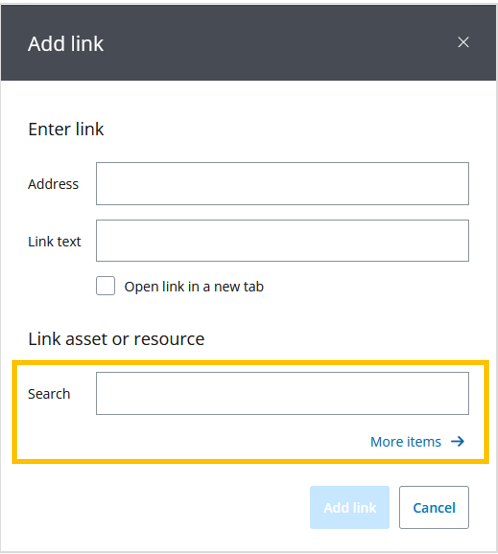
- In the text editor, click on the link icon

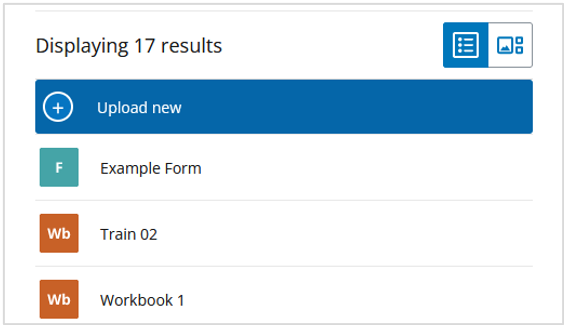
- On the Add link panel, either use the search box to locate an asset you have already uploaded to your PebblePad account, or select ‘More items’
- Locate and select the asset you would like to attach, or choose to ‘Upload new’ if you would like to upload a new file to attach.
- Click on ‘Add link’

The link to your asset will now appear in the text editor.

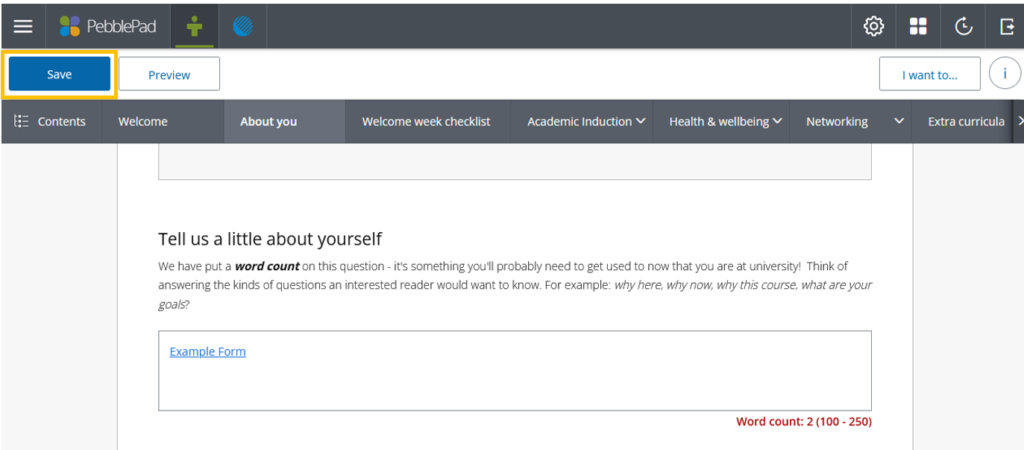
Don’t forget to ‘Save’ your workbook.