
Each PebblePad Workspace has a default assignment which an auto-submit resource can be submitted to. It is recommended that the assignment settings are modified to help to avoid potential submission issues.
To add an auto-submit resource to a workspace you need to:
- Add the auto-submit resource to the ATLAS workspace
- Edit the assignment settings
Prerequisites:
- PebblePad workspace has been created
- The resource for submission is available in your account
Add Auto-Submit Resource
- Open the PebblePad workspace by clicking on the PebblePad link in the Weblearn module
- Click on the to the ‘Resources’ link on the main navigation menu

- On the resources page, click on the three dots on the General Resources panel and then select ‘+ Add a resource’

- On the ‘Add a resource’ page, locate the resource you would like to add
Note: workbooks can usually be found under the ‘My Workbooks’ tab.

- Click on ‘Select item’

- On the ‘Manage the selected template page’ set the following:
| Setting | Recommendation |
|---|---|
| How would you like to refer to this in the resource panel: | Leave default option: Refer to this resource on this Workspace using its existing title and description |
| Would you like to prompt the user to auto-submit the workbook when saved? | Yes |
| Make this resource the destination for the VLE/LMS link? | Yes |
| Would you like to allow other people to use this resource on their workspaces? | No |
| Would you like to allow a user to complete this WorkBook in ATLAS? | No |
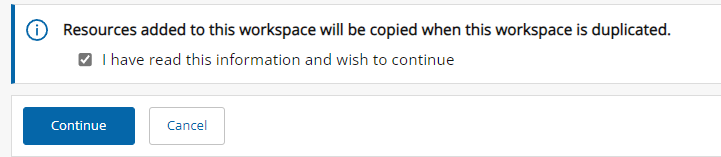
- Once you have set the above options, tick to confirm that you know the workspace resources can be copied if the workspace is duplicated.
- Click on ‘Continue’ to complete the set up process
Update the Assignment Settings
Most of the assignment settings can be left as default, but to avoid students submitting the wrong asset and/or accidently removing their submission, the assignment settings should be updated as described in steps 8 and 10 below.
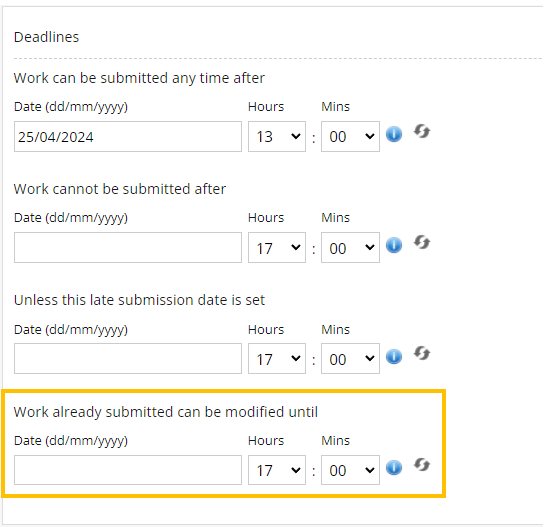
For summative assessments Deadline dates must be configured to prevent students from modifying the submission after the due date as specified on Evision.
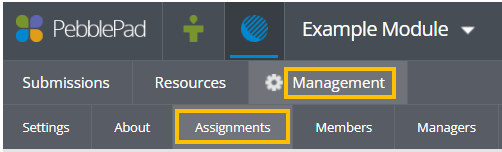
Navigate to the assignment page by clicking on ‘Management’ then ‘Assignments’
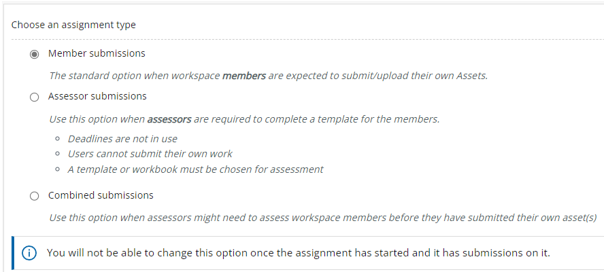
- On the Assignment settings page, leave the default ‘Member submissions’ selected.
- Leave ‘Submission Viewer 2’ selected

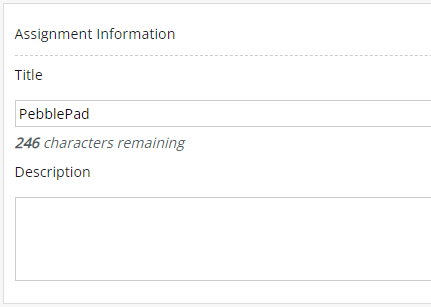
- Leave the prepopulated title. This will be the same as the name of the PebblePad link added to the Weblearn module.
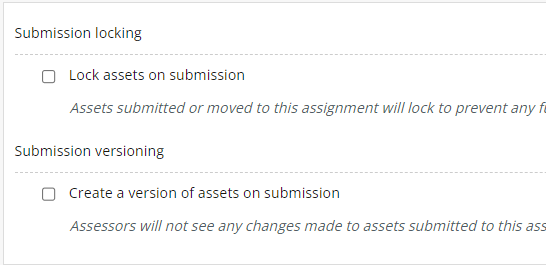
- Do not select ‘Lock assets on submission’ or ‘Create a version of assets on submission’
- Optionally, set the ‘Work already submitted can be modified until date’. This will prevent students from modifying the submitted version of the resource after the date set. Students can continue to modify the resource, but the modified version will not be visible on their submitted version.
Note: for summative assessments set the date to the due date as shown on Evision
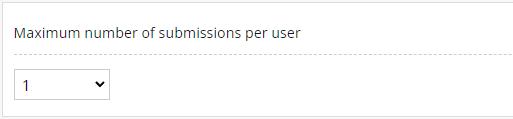
- Leave the ‘Maximum number of submissions per user’ set to one. This will prevent students from submitting the same workbook multiple times.
- Select ‘Restrict submissions to specific Asset types’ and then select the type of asset they need to submit. This will prevent students from submitting the wrong asset for assessment.

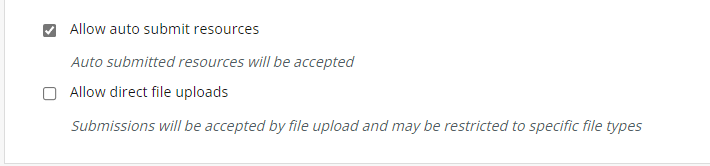
- Leave ‘Allow auto submit resources’ selected and do not select ‘Allow direct file uploads’
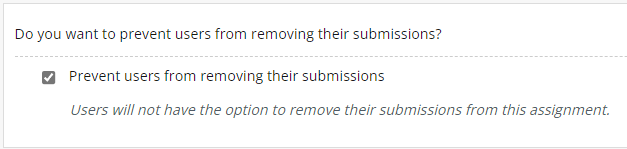
- Select ‘Prevent users from removing their submissions’ to prevent students from accidently removing their submission.
Note: when a submission is removed from a Workspace any grades and feedback added to the asset will be lost.
- Click on the ‘Save’ button to confirm the changes.
The Auto-Submit resource has now been set up. When a student clicks on the link to PebblePad from the Weblearn module they will be directed to the resource.