
How do I submit online?
All online submission points will be available via the Gradebook tab in your module.
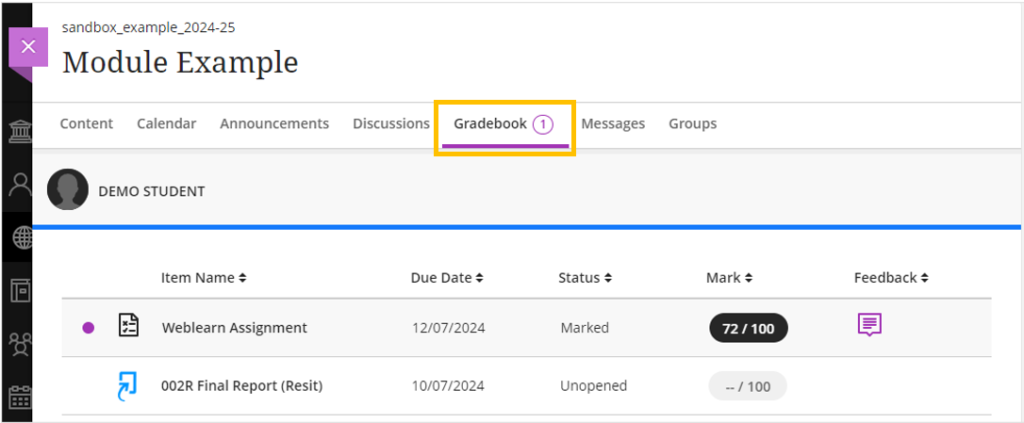
The most commonly used online submission tools on Weblearn are Turnitin Assignments and Weblearn Assignments.
Example Turnitin Assignment link:

Open the ‘how to’ instructions: Submit to Turnitin
Example Weblearn Assignment link:

Open the ‘how to’ instructions: Submit a Weblearn Assignment
Turnitin says I ‘Cannot Upload Submission’
If you open a Turnitin link and you see a message saying ‘Cannot Upload Submission’ it is likely that the due date set on the assignment link has past.

Click on the name of the assignment at the top of the page and then check the ‘Due Date’ information.
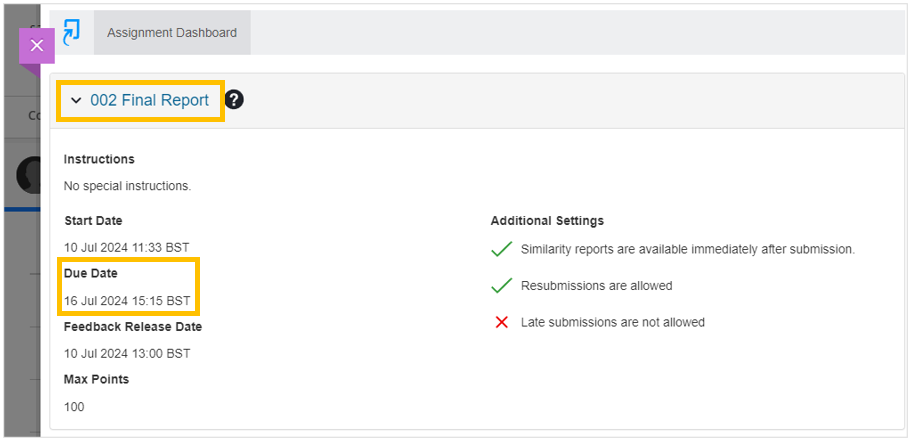
If the due date set on the assignment link is incorrect please contact your lecturer as soon as possible.
I can’t find the submission link in my module
All online submission points will be available via the Gradebook tab in your module.
If your submission link is not listed please contact your lecturer who will be able to advise.
I uploaded the wrong file
Most online submission points in your modules will have been set up to allow multiple submission attempts before the due date, however this will not be the case for all submission points.
Turnitin assignments: Submit another attempt
Weblearn assignments: Submit another attempt
If you discover that multiple submission attempts are not allowed and up want to upload another file before the due date please contact your lecturer ASAP. Your lecturer may be able to clear your submission so you are able to resubmit.
Once your deadline has passed, the file submitted online will be marked and no other submissions will be accepted. Make sure that you always check the file(s) you are submitting when you are uploading your coursework.
Invalid or missing state message when opening Turnitin link
If you see a Invalid or missing state message when open a Turnitin link you will need to allow third-party cookies in your web browser.
View the animation: Allow third-party cookies
In the web browsers address bar, click on the eye icon

Click on the ‘Third-party cookies’ toggle to allow third-party cookies.

I can’t upload my file
If you are unable to submit online for any reason you should contact your lecturer as soon as possible.
After you have contacted your lecturer, please log a call on the University Support Portal with the following information and attach a copy of the submission so we can look into why you were not able to submit:
- Please describe what happened when you attempted to submit your coursework?
- What is the name of the module where you were trying to upload your coursework?
- What is the name of the assignment you were trying to submit to (please provide full name as it appears on Weblearn)?
- At what time did you attempt to submit your coursework?
I did not receive a submission receipt via email
Online submission confirmation emails are only sent if you have submitted to a Weblearn Assignment. The Turnitin does not send confirm of submission via email, instead you can download a copy of your digital receipt.
How to check your submission
Turnitin assignment:
The Turnitin does not send submission confirmation to your student email, instead you can download a copy of your digital receipt.
Open the ‘how to’ instructions: Digital Receipts (Turnitin)
Weblearn assignments:
Submission confirmation for Weblearn assignments is sent to your student email account and can also be checked through the Gradebook area in your module.