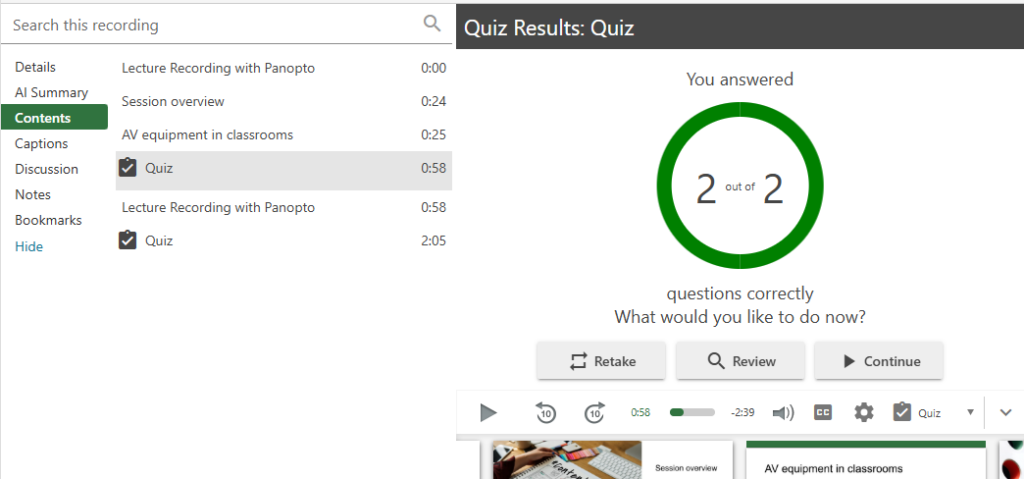
Instructors can create interactive video by adding quiz questions to existing Panopto videos. Each quiz segment can contain one or more questions and can be configured to suit the required engagement activity.
When a student watches a video, the quiz question will automatically show on the screen at the point where they were inserted. Depending on the chosen quiz questions, students need to answer the question(s) to continue watching the video or can continue without providing an answer.
Add quiz questions to a video
View the full guide on How to Add a Quiz to a Video
- Open a Panopto video in edit mode
- Select the location on the timeline where you want to add a quiz question
- Select the ‘Quiz’ in the left hand menu and click on ‘Add a Quiz’ to add one or more questions
- Create the question and click ‘Done’ or ‘Add a question’ if more than one question will be used
- Select suitable quiz settings
- Click ‘Finish’
- Click ‘Apply’ to save the changes
Question types and default answers
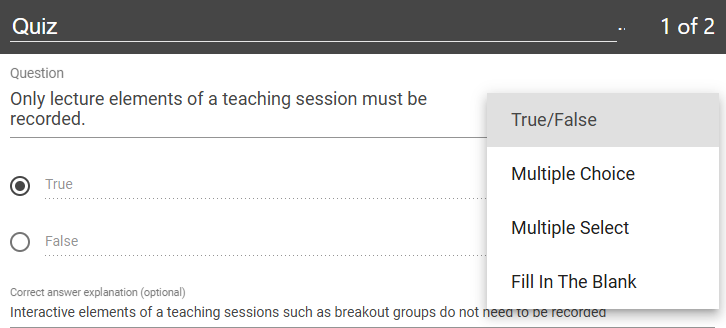
Panopto provides 4 simple question types and an option to add a correct answer explanation. The questions consist of
- True / False
- Multiple Choice (select one correct answer)
- Multiple Select (select multiple answers)
- Fill in the Blanks
Quiz settings
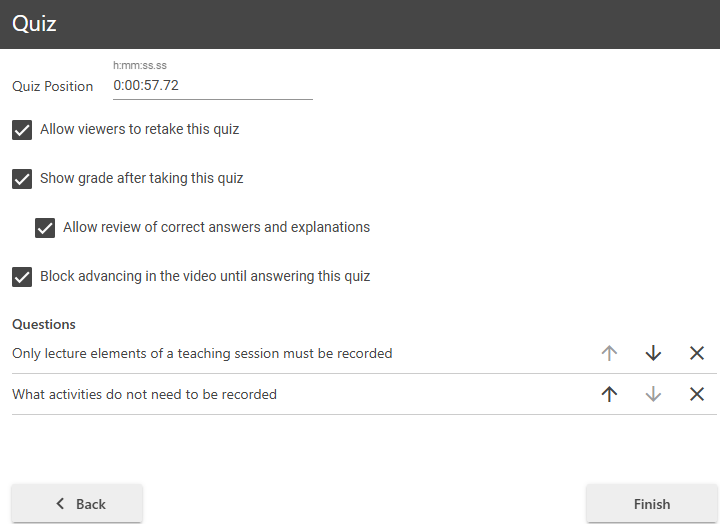
Once all questions for a segment were created, the quiz options need to be selected to define how students interact with the quiz. The options include:
- Allow users to retake Quiz
- Show grade after quiz
- Allow review of correct answers and explanations
- Block advancing in the video until answering this question
All questions will be listed under the ‘Questions’ header, use the arrows to change question order before clicking on ‘Finish’.