
You can copy recordings to different folders if needed. The recordings will inherit the sharing and availability settings of the folder they were moved or copied into.
If you want to permanently hide an unsuitable lecture recording from viewers, you can move the video to your personal Panopto folder (My Folder).
Copy a video(s) to another module
- Hover your mouse pointer over the video you want to move. A tick box will appear on the video.
- Select the video(s) you would like to copy
A row of buttons will appear.
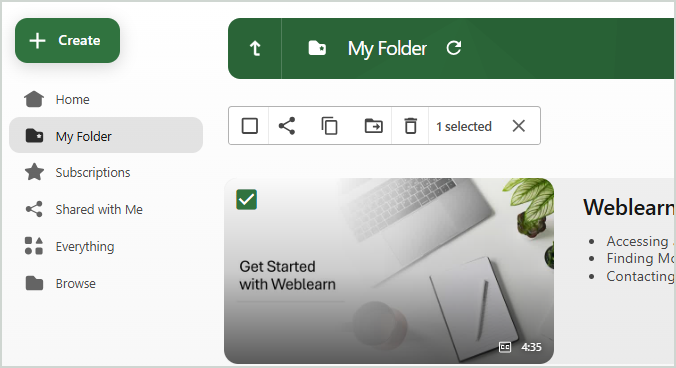
- Click on the ‘Copy’ icon

- Type the module code into the ‘Copy video(s) to’ search field and then select the module from the list of modules displayed
Note: do not copy the video into the [assignments] folder as students will not be able to access the video.

- Click on the ‘Copy’ button

A reference copy of the video will appear in the Panopto Folder for the module where the video was copied to and it will be available to all users on that module.
Edit a copied video
All copied videos will show as a ‘reference copy’ because the copied video is referencing the content from the original video. A reference copy can be identified by the small link icon displayed on the video thumbnail.

If you would like to edit the video you can choose to:
- Edit original video: the applied editing will appear on the original video and all referenced copies
- Unlink and edit: the video will be unlinked from the original video and the applied editing will only appear on the copied version
Click on the Edit icon for the video

Choose whether to ‘Edit original video’ or ‘Unlink and edit’

The video can now be edited as required.
View the instructions: Edit Panopto Videos