
The Panopto editing features allow you to remove unwanted sections of a video and/or add additional content such as web pages, PDFs and PowerPoint slides.
Edit Panopto Video
To access the editing panel, open the video and click on the pencil icon at the top of the screen

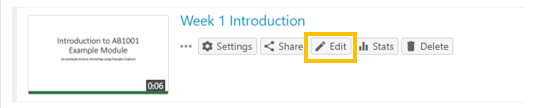
Alternatively, click on the ‘Edit’ button which appears when the mouse pointer hovers over the video thumbnail
The Panopto Trim feature allows you to cut out (or trim) sections of the video that you do not wish to publish.
Note: the trimmed sections will remain visible in the edit view to staff who have access to the video folder.
Smart Chapters and Video Contents
Smart Chapters automatically generate a table of contents for a video. The Smart Chapters use Optical Character Recognition (OCR) technology and will recognise PowerPoint slide titles when using the ‘Capture Slides’ option available in the Panopto Record in Application.
Alternatively, you can create a table of contents by select points in the video timeline and adding entries in the Contents panel.