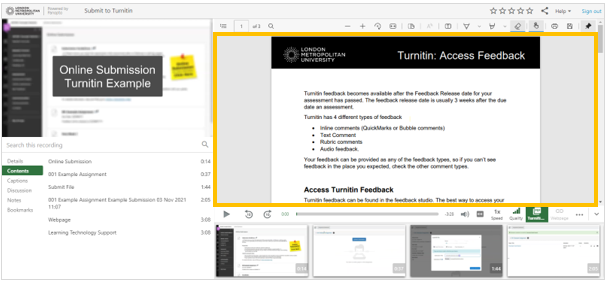
Add, Edit and Delete Slides
PowerPoint slide files can be automatically uploaded and saved as attachments in the Panopto Video Player when using Panopto Record in Application.
To enable this option select Capture PowerPoint
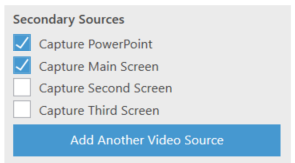
Note: the Capture PowerPoint option is not available through the Record through Browser option.
Additional slides can be added to the video and existing slides can be edited or removed.
Students are able to download file attachments from Panopto, but this option must be turned on for each video in Settings > Streams > Presentation Documents
Embed Web Page
A web page can be added to the video timeline. Once a viewer reaches the web page it will automatically pause the video and the web page will open in the Panopto viewer. Once the viewer has viewed the web page, they can select play to continue watching the video.
Note: not all web pages will work as expected and it is recommended to test opening the web page from the video before publishing to students.

Add PDF Files
A PDF file will appear in the Secondary Stream panel and it can be viewed along side a Panopto screen or camera recording.
Note: if a video includes both screen and camera recording, the camera recording will be displayed in the primary stream panel.