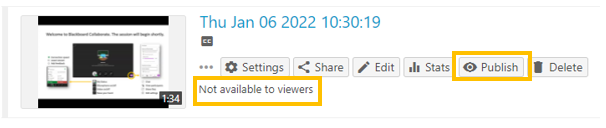
Access to videos is controlled by the ‘Share’ and ‘Availability’ Settings on a Panopto folder or video.
For viewers to see a video, the video needs to be
- Shared with the user
- Available to viewers (published)
By default, all videos are published immediately to users with viewing rights to the video.
Share a recording
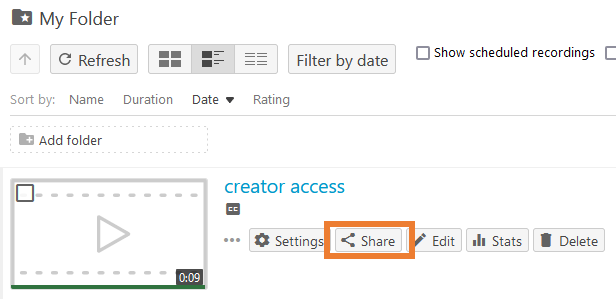
The share settings for videos are accessed through the option menu that will show up when you hover over a video in the Panopto folder.
- Go to the Panopto Folder where the video is stored
- Hover over the video and click the ‘Share’ button
- Select the desired share option
Panopto guide: Share Panopto video
Share settings define who can access an available Panopto video or folder.
Videos and Folders can be
- Shared with individual users
- Restricted to London Met users
- Shared to anyone with a link

Share a recording with a different Weblearn module
If you want share a recording made in a Weblearn module with another module cohort, create a copy of the recording and add it to the Panopto Folder of the other module.
Do not try and change share options on a Lecture recording in a Weblearn module’s Panopto folder.
Share with individual user or group
Individual users (‘people’) or groups can be added to a folder or video as ‘Viewer’ or ‘Creator’.
To add an individual user to a folder or module
- Open the Share Settings
- Start typing the name of a user in the ‘People and Groups’ input box.
- Select the username from the dropdown
- Select ‘Viewer’ or ‘Creator’ as role

- Hit enter to confirm your selection
This option is useful to
- give full edit access to School or Department folders on Panopto
- share a video or folder with an individual to review videos prior to publishing
Permissions associated with Viewer and Creator roles
| Viewer Role | Creator Role | |
|---|---|---|
| View video | yes | yes |
| Edit video | no | yes |
| Create video | no | yes |
| Edit settings | no | yes |
Share with London Met user (organisation)
You can use the Organisation Share option to allow any London Met user with a Panopto account to view videos or folders.
To share with users in the London Met organisation:
- Open the Share settings
- Click on the ‘change’ link in the ‘Who can access’ section
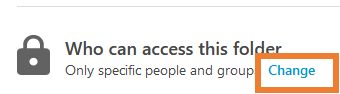
- Select ‘Your Organisation’. Use the unlisted option if you don’t want the video to show up on everyone’s homepage and in searches.
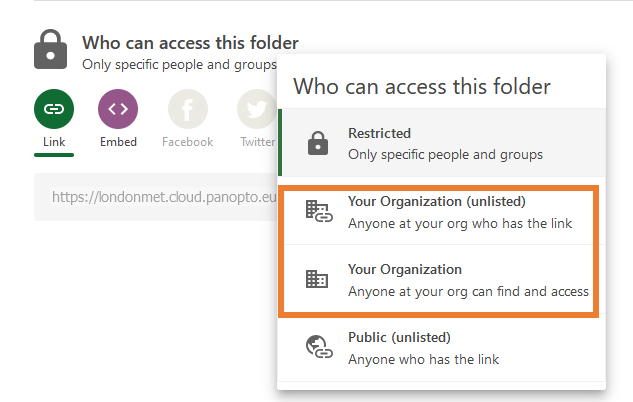
You can now copy the link to share it with any London Met Panopto user.
Note: Do not use the embed code to add links to Weblearn modules. You need to use the integrated Panopto tool on your module for that.
Share with anyone with a link
The ‘Share with anyone with a link’ option doesn’t require viewers to have a Panopto account.
It is suitable for support videos and similar, but should not be used for lecture recordings or recordings that contain data protected under GDPR.
To create a public unlisted share link:
- Open the Share settings
- Click on the ‘change’ link in the ‘Who can access’ section
- Select the ‘Public (unlisted)’ link

You can now copy the link to share it with any user, no Panopto account required.
Share a subfolder
Folder settings are accessed through a wheel icon in the top right hand corner of the Folder screen.
Note: do not change share settings for Weblearn Panopto folders
The folder settings can be overwritten for individual videos, eg when a user wants to share a link to just one video in a folder.
Note: Folder share options are not available for your private ‘My Folder’, but you can share individual videos from ‘My Folder’
- Go to a Panopto Folder
- Click on the share icon at the top of the folder view
- Select the desired share option

Panopto guide: Share a Panopto folder
Session Availability Settings
Panopto refers to recordings and webcasts as sessions. The session availability settings define whether viewers can access a recording or webcast. By default, all sessions are published as soon as they are created or uploaded to a folder.
Availability settings can be changed for folders or individual videos.
Availability for Lecture Recordings
All webcast links and recordings in a Weblearn module’s Panopto Folder are published immediately.
Do not change the availability setting for a folder that stores lecture recordings and provides access to webcast links to students.
If the folder’s availability setting is not set to ‘immediately’, users will no longer be able to view webcasts.
You can temporarily hide individual lecture recording videos for editing and then re-publish them manually.
Hide individual recording and publish manually
You can hide an individual recording if you need to edit it or need to check the content prior to users viewing the recording.
- Go to the Panopto folder where the recording is stored
- Hover over the video you want to hide and click on ‘Settings’
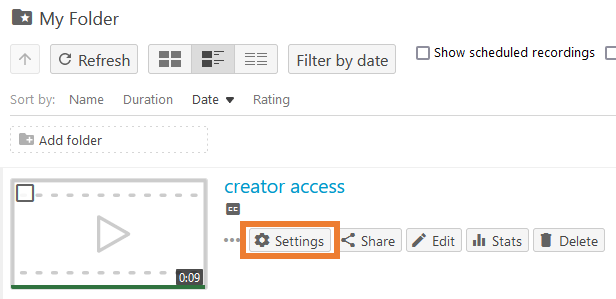
The Settings dialogue opens on the ‘Overview’ tab.
- Scroll down the overview tab until you get to the ‘Availability’ section.
- Tick the ‘starting’ option and select an appropriate date.
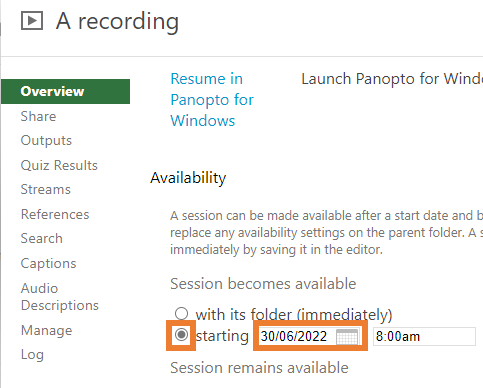
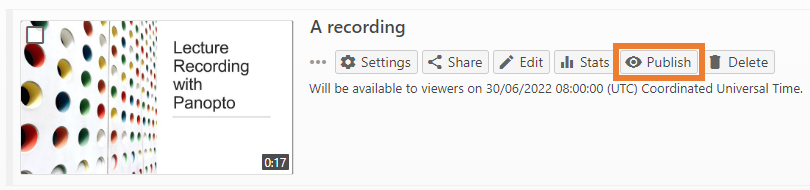
You can now publish the recording manually until the chosen date, on which it will automatically become available to users.
- Once you’re ready to publish the video, hover over the video and click ‘Publish’ to make the video available.
Hide folder content and publish manually
You can change session availability settings for school or department folders, subfolders created in a module’s Panopto Folder, but do not change settings for Weblearn Module’s Panopto Folder itself.
If the folder is set to unavailable by default, each recording will inherit the folder default setting. You can then publish the recordings when you’re ready for them to go live by making each recording available (publish immediately or by a specified date.
- Go to the Panopto Folder
- Click the wheel icon

- Next, select ‘Settings’ and then scroll down to the Availability section
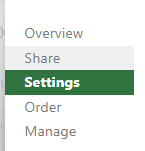
- Under ‘Sessions become available’, select the ‘never (unless set on the session)’. The change will be auto-saved.

Note: do not select ‘when approved by a publisher’ unless you have manually assigned publisher rights to an instructor on the module.
All videos in the folder will now show as ‘Not available to viewers’ and each video will need to be manually published to become available to viewers.
- Once you’re ready to publish the video, hover over the video and click ‘Publish’ to make the video available