The Panopto Quizzing Tool integrates Panopto quizzes or video viewing progress with the Weblearn Gradebook, making it easy to use video for formative tasks and measure how students have engaged with the video content.
Create a Quizzing Tool link
Quizzing tool links can be created in:
- Learning Modules
- Content Page (e.g. for Welcome Video)
Full Guide: How to Embed Panopto Videos with Quizzes in Blackboard Ultra
- Click the (+) button in a Learning Module and select ‘More Tools’ > ‘Panopto Quizzing Tool’
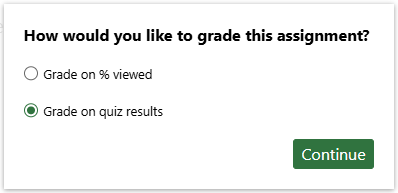
- Choose the grading option (Quiz results or percentage viewed)
- Select the prepared video and click ‘Submit’
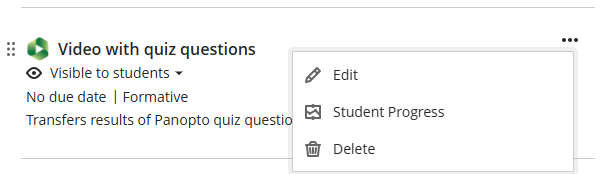
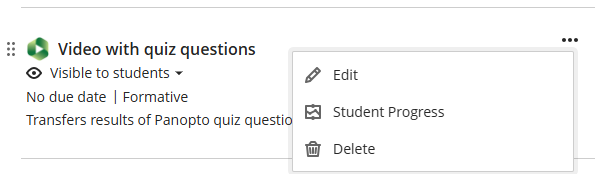
- Click on the three dots of the added link to edit settings as required
Grading Options
The tool provides two grading options:
Grades based on Panopto Quiz results
- Instructors need to create an Interactive Panopto Video prior to creating the quizzing tool link
- The marks are transferred once the student completes the quiz
Grades based on percentage of video viewed
- Can be used with any Panopto video
- Note: the viewing percentage can take up to 24 hours to appear in the Gradebook
Once the link appears, Assignment options such as due dates or adding a formative labels can be accessed from the ‘Edit’ link.
Student access
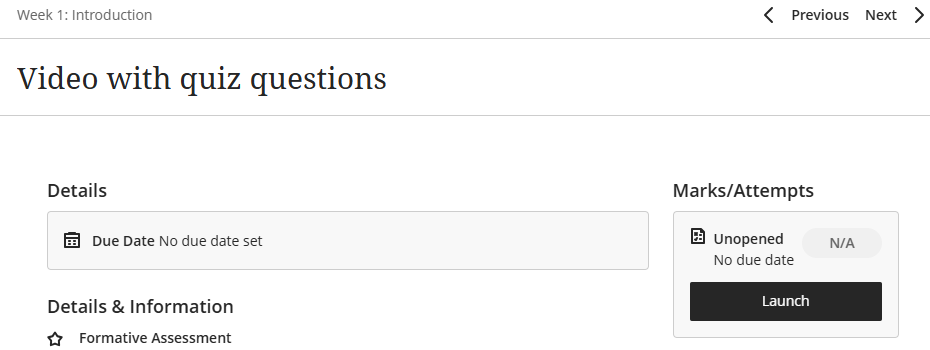
The Panopto video link created by the instructor looks similar to standard Panopto links, but will display a due date.
Students click on Panopto Quizzing Tool link to access the video.
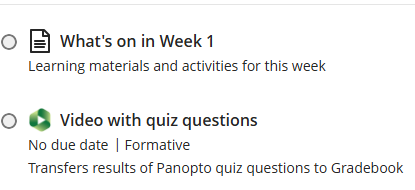
The video is launched in the same way as other formative assignments. Students click on ‘launch’ to view the video and answer quiz questions if included.
Checking engagement
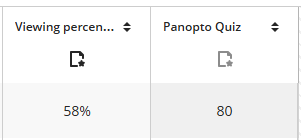
Instructors can check student results in the module’s Gradebook. Students who have not viewed the video or did not answer quiz questions will have no marks.
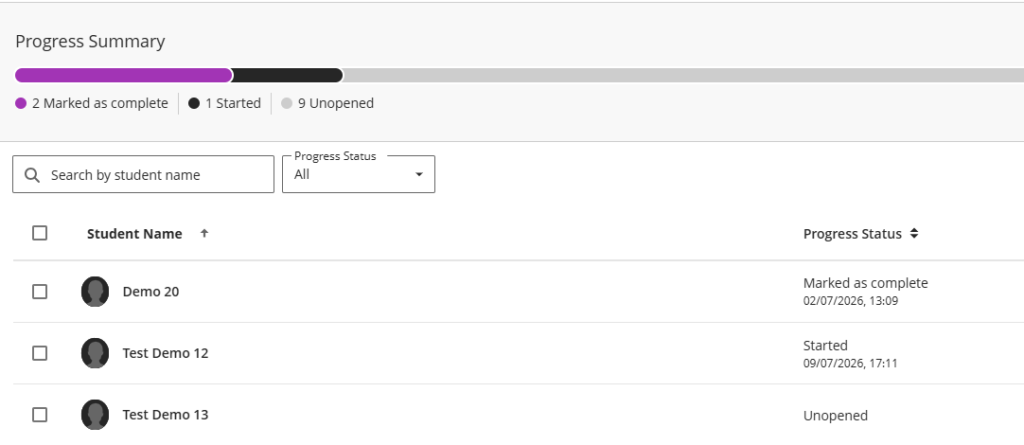
Alternatively, the ‘Student Progress’ option for a video link will show all students who have accessed the video.
Progress Tracking will show the engagement with the video for all students.
Progress Tracking status:
- Marked as completed: student has made a submission
- Started: student has opened the video link
- Unopened: student has not accessed the video link