
Record in Browser (Panopto Capture)
Panopto Capture allows you to record with Panopto in your web browser – there’s no need to install anything on your computer, just select ‘Panopto Capture’ to create your recording.
- How to Create a Video Using Panopto Capture (full guide)
Quick steps:
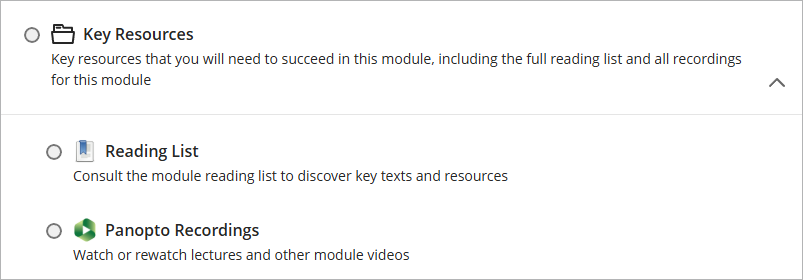
- Open the Panopto link in your module
In Ultra modules the Panopto Folder can be accessed from the Key Resources folder.
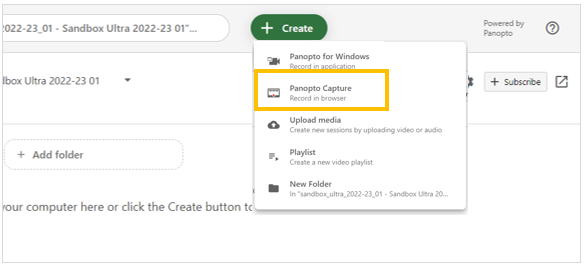
- Select Create > Panopto Capture
- A pop-up will appear if you haven’t used Panopto Capture before. Click ‘Allow’.
Panopto Capture will open. If a camera is selected, hover over the screen to bring up the option menu. Click X to switch the camera off for this recording.

Check your microphone has been selected.
- Click on the ‘Audio’ tab and speak into your microphone.

The green bar to the left of the selected microphone should move.
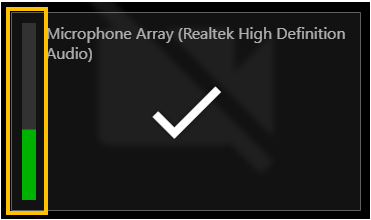
- Click the x at the bottom of the screen to close the audio tab.

- Click on ‘Screen and Apps’ to share your desktop.

- Click on ‘Entire screen’
- Select the screen you want to share (screen 1 in this example)
- Click the ‘Share’ button

Panopto Capture will show the content it will record.
- Click the red button to start recording

Panopto has a 5 second countdown to give you time to bring up your slides and minimise Panopto capture.
- Once you have finished your recording, click on the red square at the bottom of the screen to stop the recording

Wait until the first messages changes to one stating that ‘it’s safe to close your browser window’. If you close the browser immediately, the recording will be corrupted.
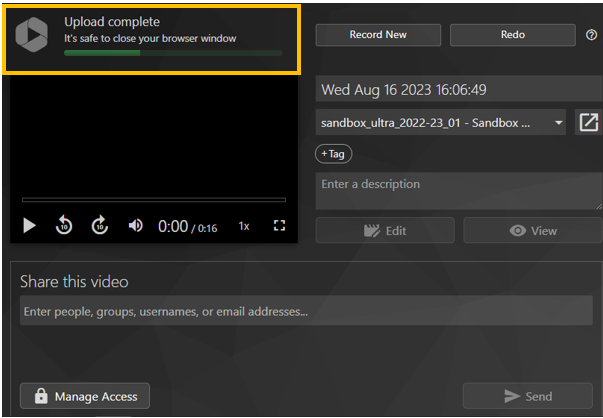
You can just close the browser window and apply any edits and name changes later.
Record in Application (Panopto for Windows/Mac)
The Panopto Application (Panopto for Windows, or Panopto for Mac) needs to be downloaded and installed before it will be available for use.
To load the Panopto application, open a Panopto link in your module and select Create > Record in Application

Note: the Panopto application must be installed on the computer before use.
View the full Panopto user guides for Windows:
During a recording you can use the keyboard hot keys to to access the recording controls.
Record: F8 Key
Pause: F9 Key
Stop: F10 Key
View the full Panopto user guides for Mac:
During a recording you can use the keyboard hot keys to to access the recording controls.
Record: Option + Command + R
Pause: Option + Command + P
Stop: Option + Command + S