
Microsoft Teams provides different options to create meetings from your Outlook or Teams calendar, set up channel meetings from a Team or place calls from the ‘Call’ tool in Teams.
Calls

Start a call:
Open Teams and click on the ‘Calls’ button. Select a user to call by typing in their name or phone number.
Calls can also be started from an existing chat.
Staff users can place audio calls to external numbers.
Note: Calls cannot be recorded
Use for:
- 1:1 or ad-hoc small group conversations
- Sensitive conversations that should not be recorded
Meetings
Meetings can be scheduled from the Outlook or Teams calendar, or the Teams Weblearn integration. All invited users will receive a calendar invite for the meeting.
Use for:
Meetings with specific meeting options including:
- presenter and attendee roles
- nominated co-organisers to manage the meeting when the organiser is not available
- Allow guest users to bypass the Lobby
- Green room to control when the meeting starts and ends (requires additional edit after meeting has been created)
Meetings can be set up as:
- Scheduled meetings with invited attendees
- Scheduled meetings with a shareable link for guest users
Note: Use the Weblearn Teams integration to add an entire module cohort to a meeting invite.
Meetings created from Outlook Calendar
This is a quick way to set up a meeting for invited attendees if you don’t need to edit meeting options. The meeting will be created with the following options:
- All users join as presenters and can record the meeting
- Guest users need to be manually admitted
- Chat is available
Meeting options can be edited after creating the meeting if necessary.
Note: The easiest way to access the edit options and copying a valid join link for guest user is from the Teams Calendar.
Meetings created from Teams Calendar
The Team calendar provides more options on how to set up a meeting and allows user to edit meeting settings when the meeting is created.

To create a meeting:
Open the Teams app and click on the ‘Calendar’ icon.
Click on ‘New Meeting’ or the arrow to select a specific meeting from a dropdown.

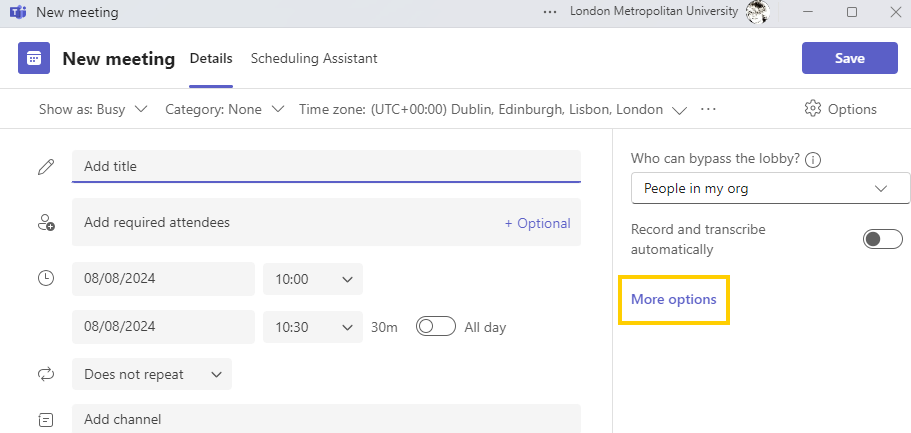
The set-up screen allow you to enter the meeting details and configure meeting options such as specifying roles for attendees, who bypass the lobby when creating the meeting.
Add the details and click on ‘More Options’ to view and configure meeting options as required.
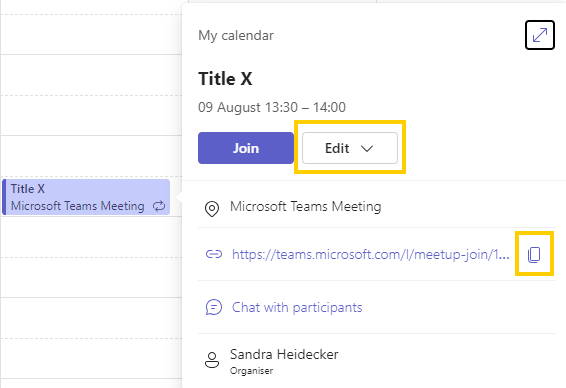
Once the meeting has been created, click on the invite to copy a valid meeting link or edit settings further, eg to enable a Green Room.
Meetings created from Weblearn Teams integration
The Weblearn Teams integration creates a Team for a module cohort and allows instructors on a Weblearn module to easily create meeting invites for the entire module cohort.
Once the Teams integration is enabled for a module, instructors can create meetings and edit meeting options as required from their Weblearn module.
Use for:
- Online Teaching sessions available for a module cohort
If you provide sessions for students from more than one module, consider setting up a meeting through the Teams calendar and share the link in each module / suitable locations.

If the Team created for the module is deleted, the integration will no longer work. Make sure you renew your team if you receive an ‘Action Required: Renew team’ email notification
Channel Meetings
Channel meetings are associated to a specific Team’s channel. Team members will be able to access any meeting set up within the channel as well as recordings or chat messages created during the meeting.
Use for:
- Repeat meetings with the same group of users
- Projects and other group activities
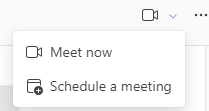
Channels provide ‘Meet Now’ option for ad-hoc meetings and a ‘Schedule a meeting’ option.
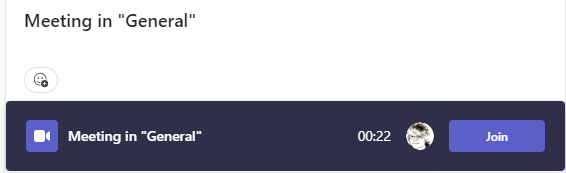
Team members can join any meeting from a join link in the channel that will appear once the meeting has started.
Scheduled meeting appear in the Team Channel Calendar that can be added to the Team using the + button at the top of the channel.

Recordings and shared files will be stored in the channel and are available to all channel members.