
Edit Meeting Options
You can edit meeting options before or during a meeting. The options will open in a new browser tab or as a pop-up on teams depending on how they are accessed.
Once you edited options, you must click the ‘Save’ button at the bottom of the page to apply the new options.
When creating a meeting
- Open Teams in the application or in a browser and click on the calendar icon

- Create a new meeting
- Click on the ‘More options’ link in the panel to the right
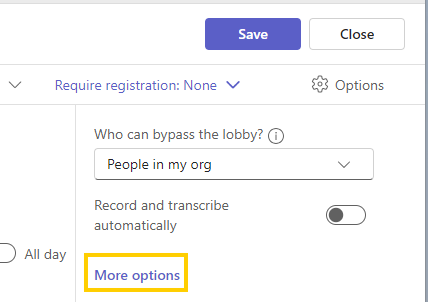
For an existing meeting
- Open Teams and click on the ‘Calendar’ icon
- Click on the meeting and select edit. If you are editing a recurring meeting, select ‘Edit all meetings in series’
The details tab opens. Select ‘Meeting Options’.
- Click on the 3 dots to select ‘Meeting Options’ if it does not appear on the list of options
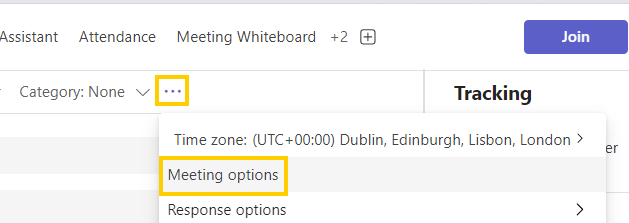
Note: if no other users have been invited to a meeting, you can only change options during the meeting. Either add a user to the invite to get access meeting options, or join the meeting temporarily to edit the options prior to the actual meeting.
During a meeting
Click on ‘More’ in the top menu of the current meeting.
Select Settings > ‘Meeting Options’
