Teams meeting options allow users to configure teams meetings for specific purposes, such as a presentation or an interactive online session.
You must be the meeting organiser or co-organiser to edit meeting options.
- Organiser: the person who created the meeting
- Co-organiser: a person who was added to the meeting invite and given the role of ‘co-organiser’ by the organiser.
Options can be configured
- when a Teams meeting is created through the Teams Calendar
- by editing the meeting invite after the meeting has been set up
- during a meeting
Meeting options
Meeting options are grouped by type. Click on the name of the option type or scroll down the page to view or edit specific option.

Meeting options allow users to specify who can access a meeting, what role a user has when they join the meeting and what tools will be available to them.
| Option Type | Purpose |
| Security | Define when users can join a meeting |
| Audio & Video | Restrict use of audio / video for attendees |
| Engagement | Define when chat is available |
| Roles | Specify co-organizers Assign presenter and attendee roles to users |
| Recording and transcript | automate recording |
Security (Lobby and Green Room)
The security options allow you to specify how users access a meeting.

Who can bypass the Lobby
The Lobby defines whether users need to be admitted manually to a meeting.
Default option: People in my org
| Lobby Option | Definition |
| People in my org | Only users who are logged into teams with their London Met account can enter immediately, guest users must be admitted manually |
| Everyone | No Lobby, allow anyone to join without admitting them manually |
| Only Organizers and co-organizers | All attendees need to be manually admitted |
Green Room
Microsoft Guide: Green room for Teams meetings – Microsoft Support
A Green Room gives presenters control on when to start a meeting so users can’t join before the meeting has been set up.
The Green Room option will be greyed out when you first create a meeting. You need to define roles and save the meeting to your calendar before you can enable the Green Room.

- If other users should present, add them to the invite and make them a ‘co-designer’ in the Roles section.
- Under ‘Roles’, specify only ‘organizers and co-organizers’ can present
Note: The Green Room option will now become available to toggle but if you set it before saving the meeting, it will default back to ‘not enabled’ - Save the meeting (send invite if other presenters were added.
- Open Meeting Options again and toggle to Green Room to enabled.

If no other users were invited to the meeting, you need to join the meeting to easily get access to the meeting option.
- Click on the Join button in the calendar after you created it
- Go to More > Settings > Meeting Options
- Set Green room to ‘enabled’, click save and leave the meeting.
The Green Room will appear the next time to join the meeting.
Audio and Video
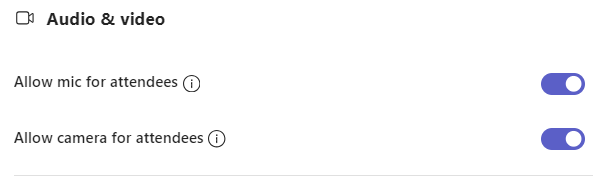
The audio and video options only apply to users who join a meeting as attendee.
Use the toggle to switch cameras and microphones off for attendees at the start of the meeting (if required).
Engagement

Meeting Chat:
As soon as a meeting has been created, users can join the meeting and use the chat.
If you don’t want the chat to be used before or after the meetings, click on the dropdown for ‘Meeting chat’ and select ‘In meeting only’.
Q&A: not recommended for standard meetings, use for large Webinar type meetings only
Reactions: leave enabled
Attendance reports: leave enabled if you need to check attendance. The reports are only available to meeting organizers.
Roles
The role a user has in a meeting determines which meeting options the user has permission to use.
- Organiser or co-organiser: full access to all meeting options
- Presenter: access to most meeting options except manage breakout rooms and change the meeting options
- Attendee: speak, share video, and participate in meeting chat
View the full list of user permissions: Roles in Microsoft Teams meetings
By default all users who join a session are Presenters.
If want students to join the meeting as attendees, change the ‘Who can present’ option to either ‘Specific people’ or ‘Only organisers or co-organisers’.

During the meeting you can change an attendee into a presenter via the ‘People’ panel.
Click on the People icon

Click on the three dots for the user and then select ‘Make a presenter’
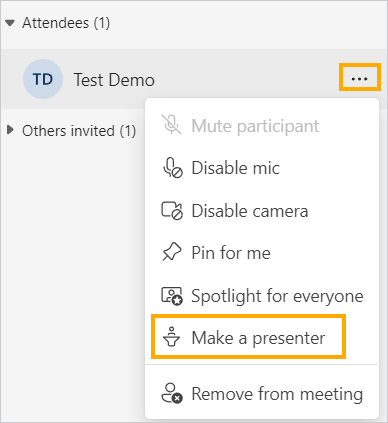
Repeat this process to change them back into an attendee.
Recordings & Transcripts
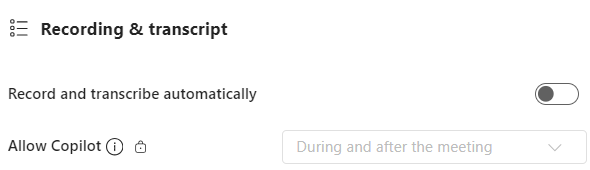
The ‘Record and transcribe automatically’ option will start a recording as soon as the first person joins a meeting.