
On Thursday 6 August 2026, the Gradebook will be updated to improve the overall experience, making key features easier to find and use.
The four Gradebook tabs will be replaced with two views, the List View and the Grid View.
- List View: a direct replacement for the ‘Markable Items’ tab
- Grid view: access all mark and student information without the need to switch between Marks, Student and Overview tabs
There are no changes to marking Weblearn or Turnitin assignment once you’ve accessed an assignment through the new List or Grid views.
What’s Changing?
The main updates include:
- Navigation and layout: toggle button replacing tabs and improved search
- Grid view: improved use of space
- Mark details (New): shows an overview of student submission status and to access the submission and post marks
- Assessment details: quick access to view student submissions and post marks for Weblearn assignments
- Filters: improved usability
There is no change to any of the following:
- Flexible grading (opens and works the same)
- The List View / Gradable Items (no changes)
- All assessment types: assignments, tests, journals, discussions
- All gradebook columns, categories, and overall grade calculations
- Download/upload gradebook (now located in Gradebook Settings)
Navigation and Layout
Overview video: Navigation and layout (1:46 minutes)
The Overview, Markable Items, Marks and Students tabs will be replaced with two viewing options: Grid View and List View, accessible via toggle buttons.
The gradebook search has been enhanced into a single, unified search bar, allowing you to search for students, assignments and submission receipts in one place.

The Overview tab is replaced by the ‘To do’ button in the Grid View (top right) which will show Needs Marking and Needs Posting information.

The Students tab has been removed. Student information can be directly accessed from the Grid View by clicking on a student’s name.

Grid View
The Grid View has been optimised to make key features easier to access, while displaying more students on screen with less need for scrolling. Alternating row shading has also been introduced to improve readability and help you track across the grid more easily.

Mark Details Panel
Overview videos: Grade Details Panel (3:35 minutes)
When you click on any cell in the gradebook, this panel opens on the right keeping the grid visible while you work.
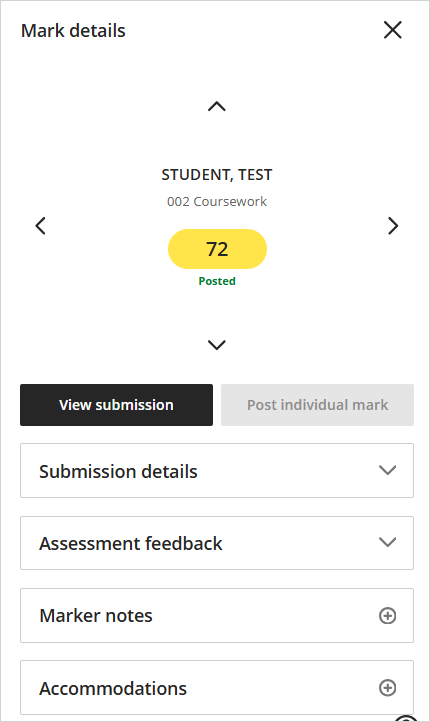
Mark Details panel allows instructors to:
- View the student and assignment name, grade, posting status
- View, add, or edit assessment feedback directly from the panel
- Add private grader notes
- Post mark with a single click from within the Mark Details panel
- Use the arrow keys to navigate between submissions and assessments
Manual Grading and Posting Marks
Overview video: Manual Grade Entry and Posting Grades (1:38 minutes)
The gride view has improved navigation and usability for manual marking and posting marks.
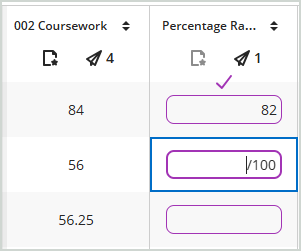
In the grid view instructors can now:
- Click on each cell to manually add or override marks
- Use the keyboard arrow keys to navigate between cells
- Post marks with one click by clicking on the icon in the column header
Assessment Details
Overview video: Column Header and Assessment Details panel (3:20 minutes)
The Assessment Details panel provides an overview of the assessment information, and quick access to view student submissions and post marks for Weblearn assignments.

On the Assessment Details panel instructors can:
- Access the assessment settings by clicking on the assessment name
- View all submisisons
- Post all marks
- Send reminder emails to students who have not yet submitted
- Download results, submissions and the rubric report
- View the due date, category, max points, attempts and other assessment settings
Gradebook Filter
Overview video: Gradebook – Filter (1:08 minutes)
The filter options have not changed, but the usability and interface design is now clearer and requires less clicks to apply multiple filters.

FAQs
Will my grades change when the new gradebook launches?
No. Your grades, grade calculations, and overall grade configuration are untouched. Only the visual interface of the Grid View is changing.
Where did the Students tab go?
The Students tab has been removed. To view a student’s individual details (progress, activity), click the student’s name in the gradebook. This takes you to the same student-level information.
How do I know if grades have been posted?
In the new Grid View, the top of each column shows the number of grades that still need to be posted (via the paper airplane icon). To see whether an individual student’s grade is posted, click that student’s cell to open the Grade Details panel; it shows posting status clearly. We know this is different from the green ‘Posted’ text in the current view, and documentation / help materials have been prepared to help with the transition.
How do I enter grades directly in the grid?
To enter edit mode, hover near the top of the column until the purple pencil icon appears and click it, or tab to the icon using your keyboard. The column enters edit mode and you can type grades directly into each cell. Press Enter to advance to the next student or use the down arrow key. Click the checkmark in the column header or press the Esc key to exit edit mode. Grades will autosave .
Where do I download or upload the gradebook?
Download and upload have moved to the Gradebook Settings panel. Click the settings icon (gear) in the top right of the gradebook to access them. The functionality is the same; only the location has changed.
What happened to exceptions and exemptions?
In the new gradebook, exceptions (due date changes, access date changes, additional attempts) and exemptions are all accessible from the Grade Details panel under a section called Accommodations. Click any student cell to open the panel. There are no changes to how module-level accommodations are set. New in this release: if a student has a module-level accommodation, the details are now displayed directly in the Grade Details panel, so you no longer have to navigate away to check.
What does the purple dot mean in the grid?
A purple dot in a student’s cell indicates there is a new, ungraded submission. You can click the dot or the cell to open the Grade Details panel and then navigate to the submission from there. The number at the top of the column shows how many items need marking for that assessment. For group submissions, you may notice more purple dots in the grid than the number shown in the column header. This is expected — each student in a group shows their own dot, while the column header counts the number of groups that need marking.
Can I still use the List View?
Yes. The List View (Gradable Items) is unchanged. You can toggle between Grid View and List View at any time using the buttons at the top of the gradebook.