
Users
The ‘Users’ page displays all users enrolled on a module or organisation.
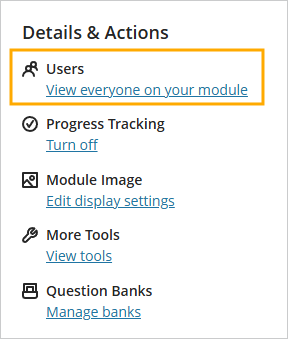
To open the ‘Users’ page, click on ‘View everyone in your module’ under ‘Users’ in the Details & Action menu.
User Profile Information
The ‘Users’ page displays any additional profile information that a user has added to their account on Weblearn. The additional information can include an image, pronouns and name pronunciation information.

If the user has chosen not to edit their profile information, only the name and role they have been assigned will be displayed.
Add Users
Organisation Leaders and Module Instructors can add other users to the module or organisation.
- Open the ‘Users’ page the Actions and Details menu
- Click on the ‘Add people’ icon
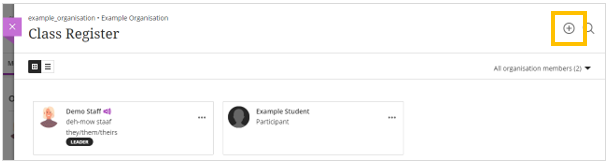
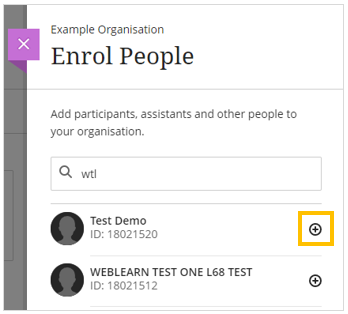
- Use the search box to locate the user you want to add. You can search by username, first name, last name and email address.
- Click on the add icon next to their name.
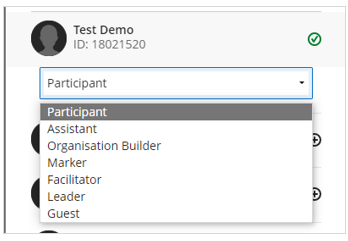
- Select the user role from the drop down menu
- Click on the ‘Save’ button to confirm your selection

The user will now appear on the ‘Users’ page.
Select a user role:
| Role | Description | Who to enrol |
|---|---|---|
| Student / Participant | Student role | Students |
| Instructor / Leader | Full rights on the module, including enrolling other users | Module/Course Leader |
| Teaching Assistant / Assistant | Similar to instructor, but can not enrol other users | Teaching staff who update content |
| Module / Organisation Builder | Can upload files etc, but not carry out teaching activities such as sending announcements | Designs modules, no teaching activities |
Change a Users Module Role
To change a users role in a module
- Open the ‘Users’ page from the Actions and Details menu
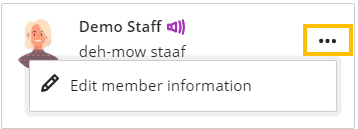
- Click on the ‘More options’ icon for the user you want to change the role of
- Select ‘Edit member information’
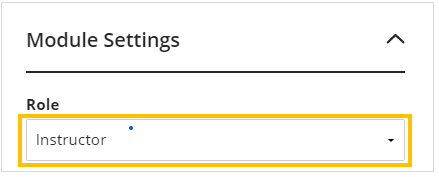
- Click on the ‘Role’ drop down menu and then select the new role for the users
- Click on the ‘Save’ button to confirm the change

The user role will now be updated.
Assign Primary Staff Role
Modules and Organisations which include multiple staff enrolments can assign staff members as ‘Primary’ staff members.
The ‘Primary’ staff will always be displayed first in the staff list which is visible to students. If there are multiple Primary staff, their names will be displayed alphabetically in the list.

- Open the Users page and locate the staff member you want to set as Primary
- Select the ‘More options’ icon, and then ‘Edit member information’
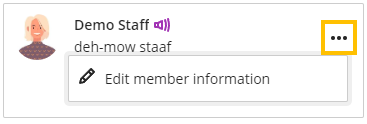
- On the Member Information panel select the ‘Primary Leader/Instructor’ check box and click on the ‘Save’ button.
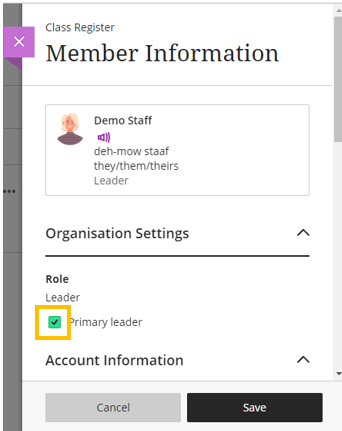
The user will now be displayed prioritised in the list of staff displayed to students.
Remove Users
Any staff member who has been assignment an Instructor or Leader role can remove other users from the module or organisation.
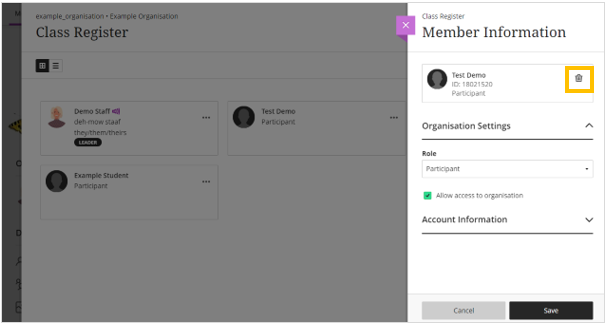
- Open the Users page and locate the user you want to remove
- Click on the users name to open the ‘Member Information’ panel
- Select the ‘Remove member’ icon
- Confirm that you want to remove the member
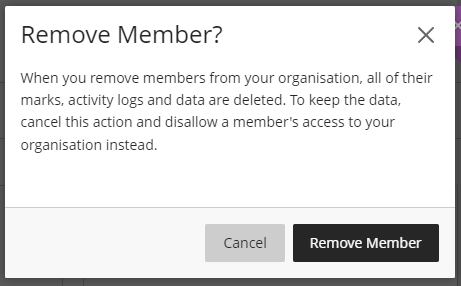
The user will now have been removed and will no longer be able to access the module or organisation.