
Visibility Settings
Newly created or copied content will be hidden from student view by default. The content can be made visible by clicking on the visibility menu under the content title, or by using the Batch Edit option to make multiple items of content visible at the same time.
To make an item of content visible to students:
- Select the visibility dropdown menu under the content title
- Select ‘Visible to students’

Release Conditions
Content availability to students can be restricted
- to specific users or groups
- by Date / Time
- by ‘Performance’ which is based on scores achieved from gradable items
Blackboard Help Page: Content Release Conditions
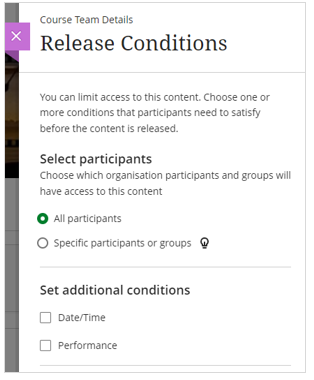
| Condition | Description |
|---|---|
| All Participants | Allows all students to view the content |
| Specific participants or groups | Visibility is restricted to specified students or groups |
| Date/Time | Content can be set to become available, and/or hide from student view on specified a date |
| Performance | Students must achieve the specified grade or above for a gradable item before the content will appear |
Student Preview
The Student Preview option creates a demo student on the module. An instructor can enter the student preview mode and interact with the module in exactly the same way as a student would. The only thing you can’t do in student preview is submit Turnitin assignments.
Enter the student preview by clicking on ‘Student Preview’

Select ‘Start Preview’

To exit the preview mode, click on ‘Exit’ at the top of the screen

Choose whether to ‘Save’ or ‘Discard’ the student preview user
Save: Keep the preview user and all data
If you intend to view any submissions or content added in the student preview, select ‘Save’ to keep the student preview user on the module
Discard: Delete the preview user and all data
If you are finished previewing the module as a student, select ‘Discard’ to remove the preview user from the module
