
Weblearn has a built in accessibility checked called Blackboard Ally. Ally will generate an accessibility report for the module that will gauge the accessibility of content and assist in making content more accessible.
View the overview video: Accessible Weblearn Modules
To access the Accessibility Report for the module, click on the ‘More Tools’ link under the Details & Actions menu

Select ‘Accessibility Report’

Run your Ally Report to find out which files or items on your module have accessibility issues.
- Blackboard Guide: Accessibility Overview
- Blackboard Guide: Ally Accessibility Checker
Fix identified issues
Ally provides information for each identified issue and directs you on how to to fix it.
- PDF, Word and PowerPoint files can be downloaded through Ally to edit them on your desktop and then be re-uploaded.
- Alternative text for images added to Weblearn can be edited directly in Ally
Blackboard Guide: Inclusive Learning Experiences
Prioritising Issues
Focus on severe issues identified by Ally as well as
- Alternative text descriptions for images and objects
- Document structure including consistent use of headings / heading levels, titles and PDF tags
- Use of table headers
- Reading order and inline placement of images of objects
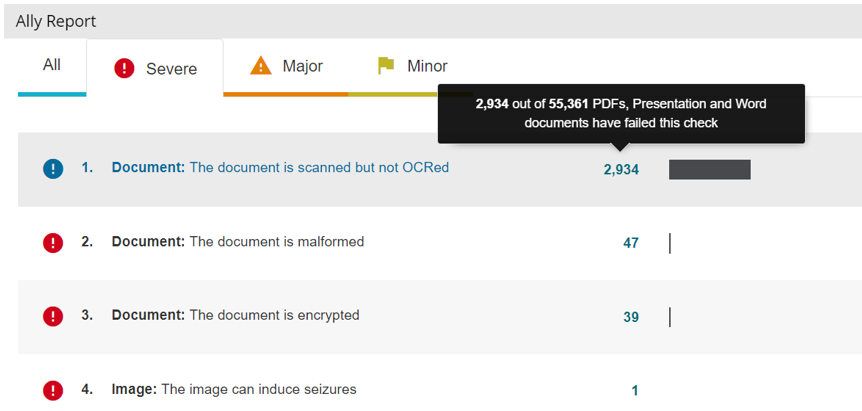
Severe Issues – Fix priority 1
If your report includes any issues classified as severe by Ally, you need to fix them immediately.
Major Issues – Fix priority 2
If your report includes major issues with a fix priority of 2 as shown in the table below, try to fix them as soon as possible.
Major Issues – Fix priority 3-5 / Minor issues
Try to fix major issues with a priority of 3-5 and minor issues when you can.
| Fix priority | Ally report issue description | How to fix the issue | Severity (Ally) |
| 1 | Document: The document is scanned but not OCRed | PDF documents flagged as not OCRed must be removed from Weblearn. If the document is a scanned chapter / article request a copy from library services via Reading List | severe |
| 1 | Document: The document is malformed | Malformed documents can not be opened by some or all users and must be removed from Weblearn | severe |
| 1 | Document: The document is encrypted | Documents shared with students must not be encrypted. Remove encryption. | severe |
| 1 | Image: The image can induce seizures | Remove image from Weblearn | severe |
| 2 | Document: The document contains images without a description | Download document and add alternative text to all images, then re-upload document. | major |
| 2 | Document: The document does not have any headings | Download document and apply inbuilt heading styles, then re-upload document | major |
| 2 | Document: The document is untagged | Download PDF and use autotag option of Adobe Acrobat Pro accessibility checker | major |
| 2 | Document: The document has tables that do not have any headers | Download document and mark top row as header. | major |
| 2 | Image: The image does not have a description | An image uploaded to Weblearn does not have an alternative text description. Use Ally to add a description. | major |
| 3 | Document: The document has contrast issues | Download the document and increase the contrast between foreground and background colours for text. | major |
| 3 | HTML: The HTML content has contrast issues | Edit the item in Weblearn to increase the contrast between foreground and background colours. | major |
| 3 | HTML: The HTML content contains videos without captions | All videos should provide captions. Use MEDIALecture to add captions to welcome videos and similar | major |
| 3 | HTML: The HTML content contains images without a description | Download the HTML file and add an image description, then re-upload the file. | major |
| 3 | HTML: The HTML’s heading structure does not start at the right level | Download the HTML file and add consistent heading levels starting with Heading 1, then re-upload the file. | major |
| 4 | HTML: The HTML content has tables that don’t have any headers | Download the HTML file and add header tags, then re-upload the file. | major |
| 4 | HTML: The HTML content has empty headings | Download file and edit the html to remove empty header tags, then re-upload the file | major |
| 4 | HTML: The HTML content does not have any headings | Download the HTML file and add consistent heading levels starting with Heading 1, then re-upload the file. | major |
| 4 | HTML: The HTML content has embedded objects without alternative descriptions | Add alt tags to images and other objects or mark objects as decorative (empty alt tag) | major |
| 4 | HTML: The HTML content has form elements without a label | Add labels to any form elements | major |
| 5 | Image: The image has contrast issues | If possible, replace the image with an accessible version that has sufficient contrast | major |
| 5 | Document: The document is scanned and OCRed | If possible, replace the document with an accessible version | major |