
Weblinks
To add a weblink to the main module content panel, or inside a learning module:
- Click on the Add Content (cross icon) option in the location you want to add the link and select ‘Create’

- On the Create Item panel, select ‘Link’

- Enter a ‘Display name’ for the weblink. This is the name of the link which will be visible to students. For more information about naming weblinks see Accessible Weblinks – Learning Technology Support
- Enter the web address into the ‘Link URL’ field

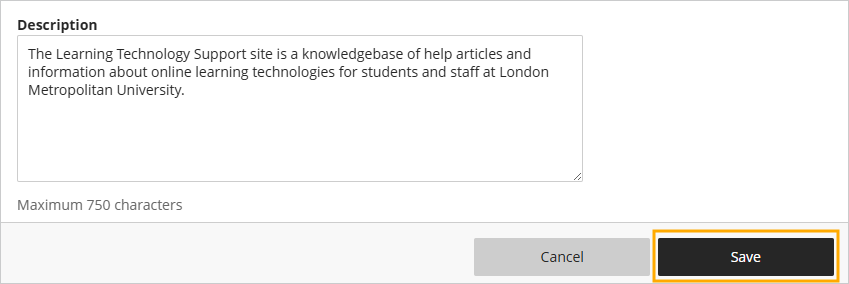
Optionally, add a description
- Click on ‘Save’
Managing lists of weblinks
Long lists of weblinks do not resolve well in the student view when added to a learning module inside a module on Weblearn. If you would like to publish long lists of weblinks you should consider if they should be:
- Added as a section in the Reading List
- Added to an Ultra Document
Reading List Sections
The Reading List allows list owners to add digital resources and websites to the list and create ‘Sections’ so you can add a link in Weblearn directly to that section.
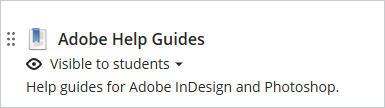
When the student opens the the Reading List section link they will be able to view and access all the digital resources which were added to the section.

To find out more about using the Reading List see the LibGuides help page
Weblinks on Ultra Documents
Adding weblinks to an ultra document allows you to include additional contextual information about the website and group the weblinks under headings where appropriate.

Module Links (links to content items within modules)
A module link allows you to add a link to an existing content item or tool in another location within a module. For example, if you a using a weekly journal, you can set up the journal and then add a link to that journal in each weekly learning module.
To create a module link:
- Click on the Add Content (cross icon) option in the location you want to add the link and select ‘Create’
- On the Create Item panel, select ‘Link’
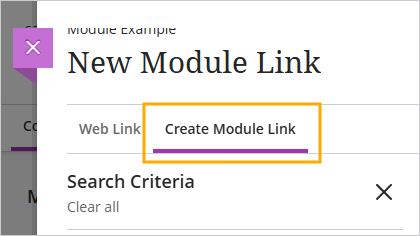
- Click on ‘Create Module Link’
- Under the Categories section, select the type of content you would like to link to and then click on ‘Search’
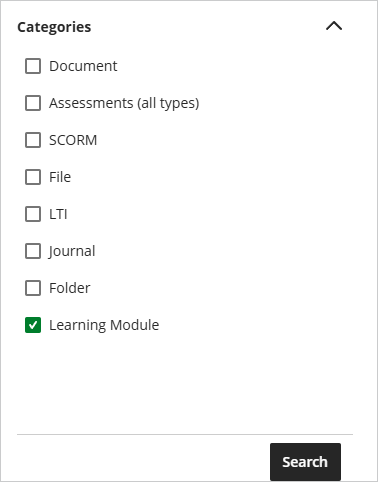
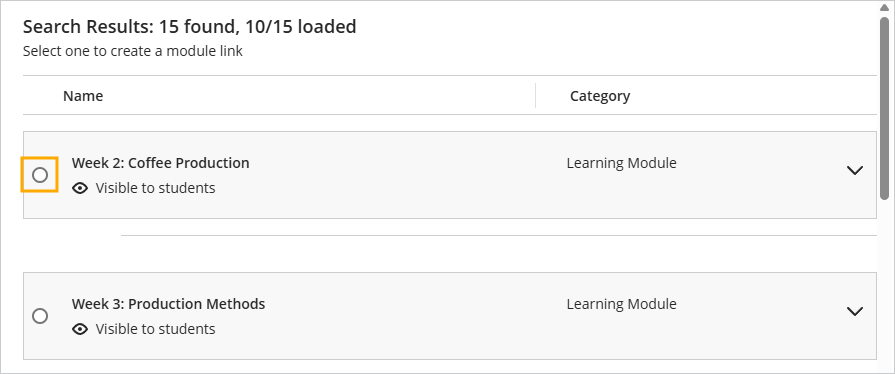
All items of content within the selected category will be displayed.
- Select the content item you would like to link to
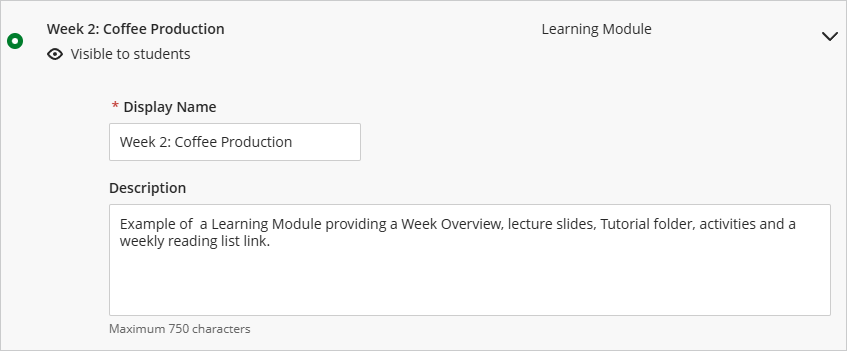
Optionally, update the Display Name and/or Description
- Click on ‘Save’

A link to the content will be displayed in the module.
Note: Linked content will always show a link icon in the top left of the content item.
