
The announcement tool is used to send communications to all users who are enrolled on a module or organisation.
When an announcement is posted it will generate a notification which is visible on the activity stream and in the module. An important announcement can also be sent via email so that users will receive a copy to their university email account within minutes of it being posted.
Create a new Announcement
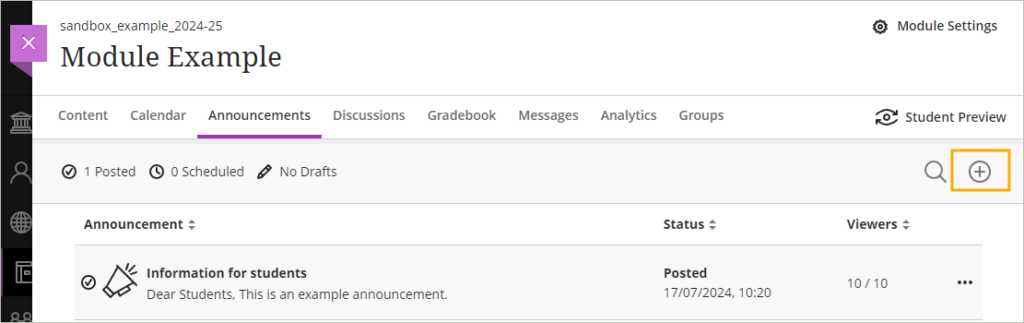
The Announcements tool can be accessed from the ‘Announcements’ tab at the top of the module.

- To create an announcement, open the Announcements tab and then click on the Plus sign (+) on the announcements page
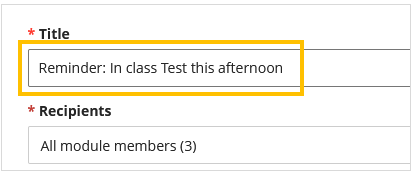
- Enter a ‘Title’ for the announcement
Note: the recipients have been preselected and cannot be changed.
- Enter the announcement details in the ‘Message’ field

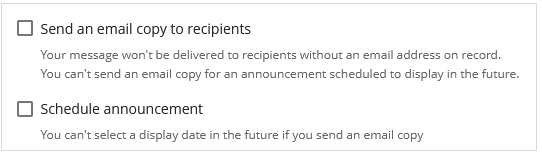
Optionally, choose to send a copy of the announcement via email or schedule the announcement to be automatically sent on a set time/date
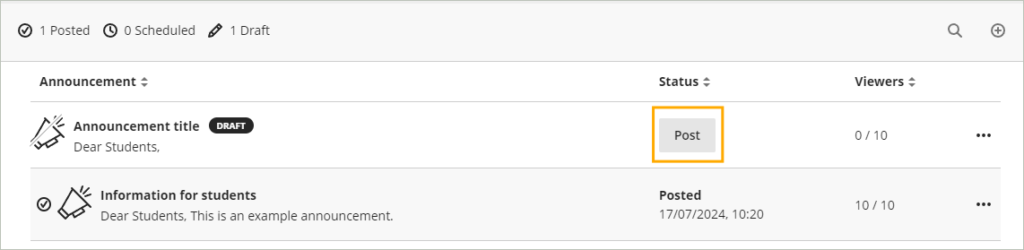
- Choose whether to ‘Post’ the announcement immediately, or ‘Save Draft.

Announcements which have been posed will be immediately available to students in the module. If you have saved the announcement as draft you can return tot he announcements page at anytime and select ‘Post’.
Note: if you have chosen to schedule the announcement it will automatically post on the scheduled date and time.
View an Announcement
Activity Stream
As soon as an announcement is sent a notification will appear in the Activity Stream under the ‘Today’ section.
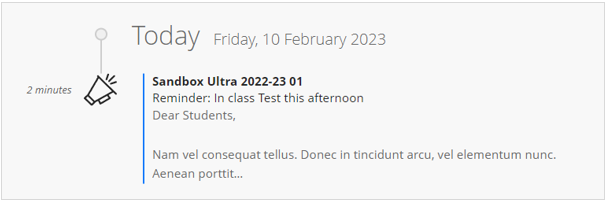
If a user clicks on the announcement title they will be take directly to the announcement where they can view the full details.
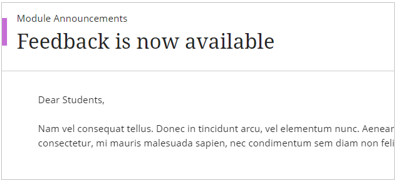
If they click on the title of the module, they will be taken to the module home page where they will see the announcement notification dialogue box with a preview of the announcement details displayed.

The user can choose to ‘View all announcements’ or disregard the announcement by clicking on the close icon.
Module Page
When a user first enters enters a module after an announcement has been sent they will see the announcement notification dialogue box with a preview of the announcement details displayed.
The user can choose to ‘View all announcements’ or disregard the announcement by clicking on the close icon.
If the option to ‘Send an email copy to recipients’ has been selected all users on the module will receive a copy of the announcement sent to their university email account.
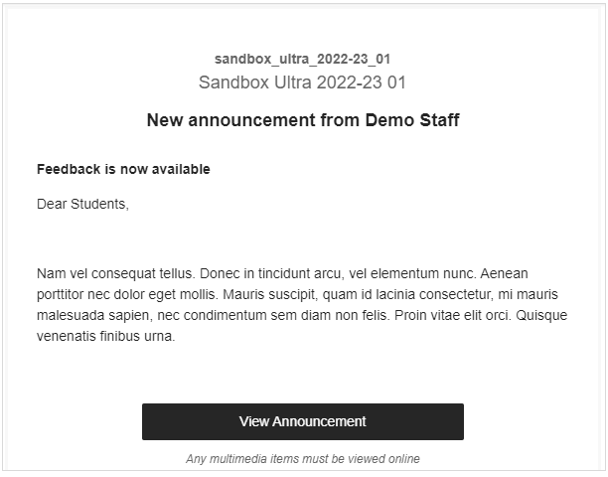
The email will include the module code, title and who sent the announcement along with the announcement details.
Note: images are not displayed in the email. Any images added to an announcement can only be viewed when opening the announcement in the full view within the module.
Who viewed the Announcement?
The ‘Viewers’ column on the announcements page allows you to see how many users have acknowledged the announcement notification inside Weblearn.

What counts as a view?
To be counted as a viewer a user must have interacted with the announcement inside Weblearn in one of the following ways:
- Opened the announcement in the full view from the activity stream
- Selected ‘View all announcements’ from the announcement notification dialogue in the module
- Closed the announcement notification dialogue in the module – although the user may not have viewed the full details of the announcement they are counted as having acknowledged the announcement by interacting with it
Note: viewing the announcement details in an email is not counted.