
Folders and learning modules provide the overall structure for the content. If you are using a module or course site then you should refer to the template guidelines.
A folder appears with a folder icon next to the title and progress tracking is indicated by a circle next to the folder icon.
A learning module looks distinctly different to a folder and it includes additional navigation options for students. The progress tracking information conveyed to students shows exactly how much of the content the student has accessed.

The comparison table below displays the different options available for folders and learning modules.
| Option | Learning Module | Folder |
|---|---|---|
| Set release conditions by date and/or performance | Yes | Yes |
| Set release conditions by user or groups | Yes | Yes |
| Force sequential access to content | Yes | No |
| Add sub folder | Yes | Yes |
| Add sub learning module | No | No |
| Add thumbnail image | Yes | No |
Create a new Folder or Learning Module
- Click on the Plus sign (+) in the location where you want to create the folder or learning module

Note: a folder can be created within a folder or learning module, but a learning module can only be created on the top level of the main content panel.
- Select ‘Create’

- Select ‘Folder’ or ‘Learning module’

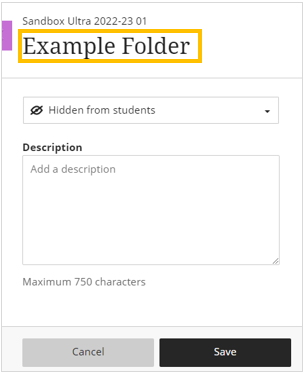
- Enter a Name which will be displayed to students
- Click on Save to to create the folder
Making Content Available
All new content is hidden from students by default. Once new content is made visible to students, all students on the module will receive a notification letting them know that there is new content available for them to access.
When an item of content is hidden from students it will appear with a ‘Hidden from students’ message underneath the title.
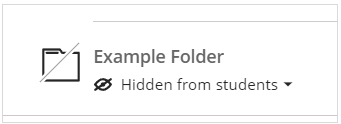
To make the content available, click on the availability options menu underneath the content title and select ‘Visible to students’, or choose the ‘Release conditions’ option to set release conditions.
Find out more about releasing content: Release Content

Multiple items of content can be made visible to students at the same time by using the ‘Batch edit’.