
The University is committed to providing inclusive materials to benefit all students. Consequently, all material created in or uploaded to Weblearn should be designed with accessibility in mind.
Accessibility THRIVES
‘Accessibility THRIVES‘ is an Open Educational Resource (OER) developed by the Centre for Educational Development (CED) at Queens University Belfast to help staff apply the key accessibility principles when creating digital content.
The Accessibility THRIVES resource has been adapted for London Met use so that the accessibility principles can be easily applied to Weblearn content.


Tables should only be used for tabular data consisting of rows and columns of inter-related facts or figures. Do not use tables to position images relative to blocks of lengthy text.
Each table must have a Header row to ensure screen readers can interpret the information correctly.
The Create accessible tables help page provides guidance on creating accessible tables in Microsoft Word.

Add table Headers using the Weblearn content editor.
Use tables to convey tabula information.
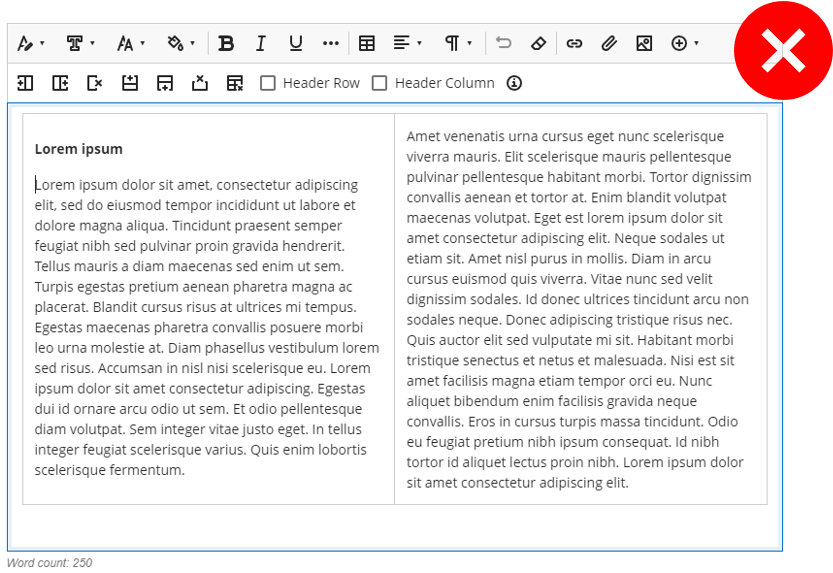
Do not use tables to position blocks of lengthy text or for layout purposes.
Do not merge or split table cells.

Hyperlinks must be long enough to make it easy for users with low vision or mobility to click. Use multiple words to create a hyperlink but avoid using an entire sentence.
Include additional information for links that will download a file (PDF file) so assistive technology users know they need to access the file in a separate window or application.
The Accessible Weblinks help page provides guidance on how to structure weblinks.
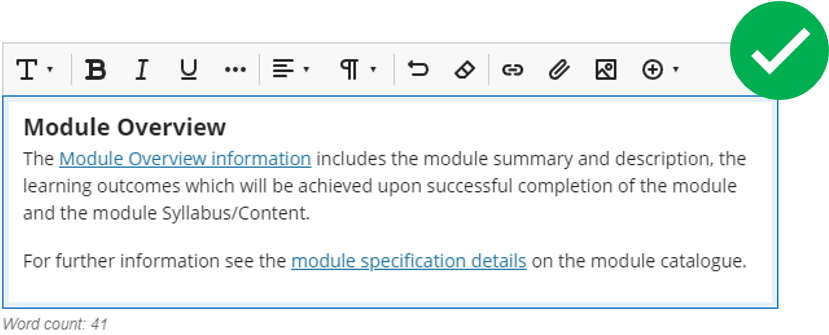
Create links which span multiple words.
Make sure the link text is concise, meaningful and can be read out of context.
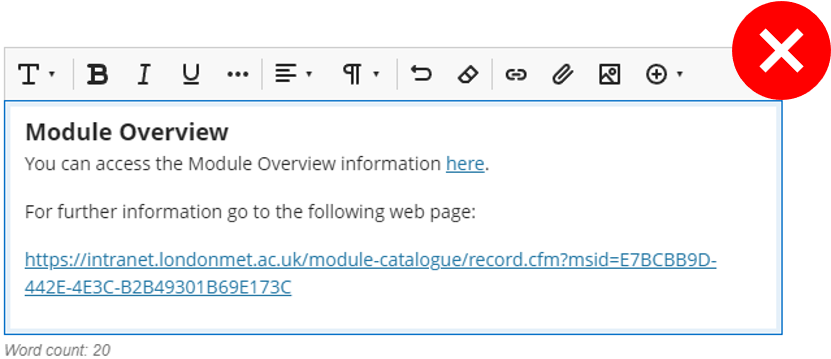
Do not add links to small, single words.
Do not use “Click Here” as link text.
Do not paste the entire weblink into content.

All published recordings must be captioned or provide a transcript to allow hearing impaired users to follow spoken content.
Lecture recordings and videos shared on Weblearn modules must be stored on Panopto which will auto-caption all recordings.
The Panopto help page explains how to edit captions.

Create or upload all recordings in Panopto.
Update the ‘Name’ of videos published to students.
Check/edit the auto-generated captions on Panopto.
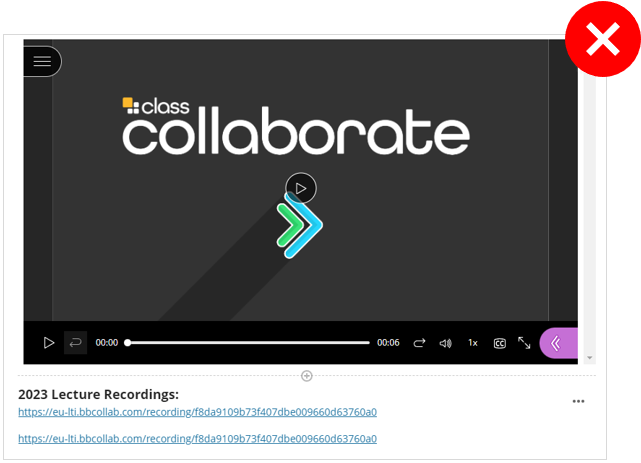
Do not embed or link to old videos which do not have captions.
Do not use 3rd party videos which do not have captions.

In order to keep text legible, do not add a variety of text-decoration such as italics, highlighting, all caps or underlining. ‘Bold’ formatting should be the only variation used for emphasis. Left-align text consistently to the left so that the starting position of each new line is predictable.
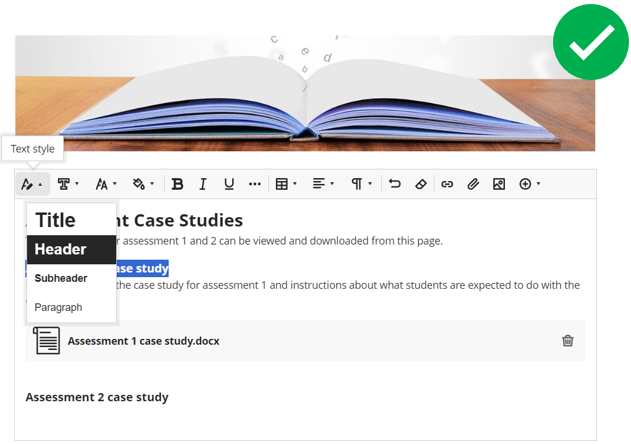
Create headings properly, by formatting with the appropriate heading style.
Update the ‘Display name’ of any uploaded files.
Use clear and concise language which can be understood by your target audience.

Do not use colour or styles to convey meaning
Do not use all capitals.
Do not use images depicting text where true text can be used.
Do not upload scanned documents which are not OCRed

Add alternative descriptions (“alt tags”) on all images for the benefit of visually impaired readers using assistive technology. Similarly, provide text-only alternatives to diagrams or text-based images.
The Accessible images help page provides information about writing alternative text and instructions on how to add the text to images.
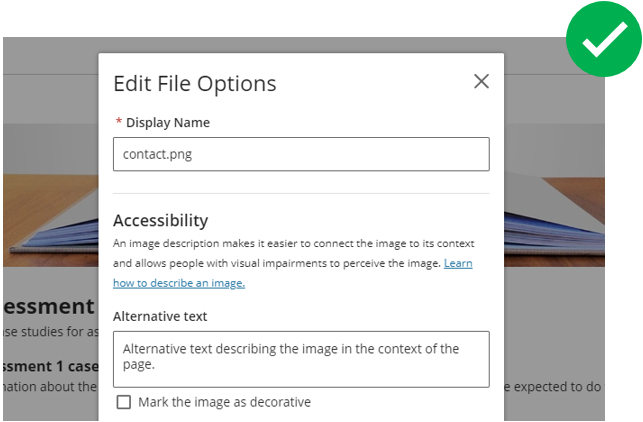
Always enter alternative text each time you upload an image to Weblearn or, if the image does not convey meaning, mark it as decorative.
Use the WebAIM Contrast Checker to make sure you are using accessible colour contrast ratios.
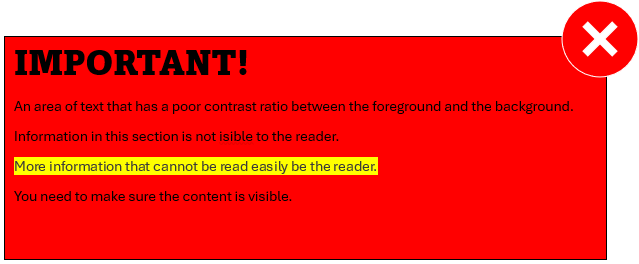
Do not rely on colour alone for emphasising or classifying content.
Do not leave the image Alternative Text field with the default filename when uploading an image to Weblearn.

Weblearn has a built-in accessibility checker called Ally. Ally will generate an accessibility report for the module that will gauge the accessibility of content and assist in making content more accessible.
The Weblearn Accessibility Checker help page describes how to identify and fix accessibility issues on Weblearn.
The Microsoft Office Files and PDF Files help pages describe how to identify and fix accessibility issues in Microsoft Office and Adobe Acrobat.
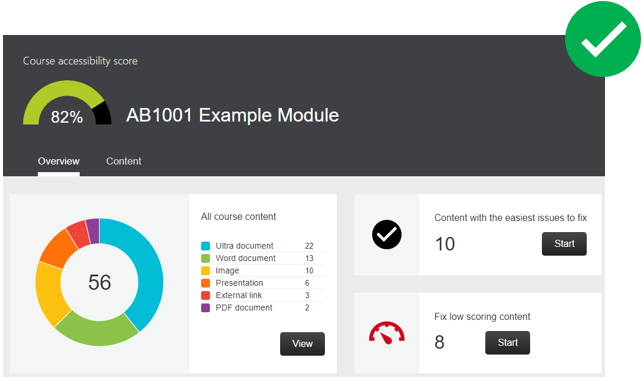
Use Ally to check the accessibility of content on Weblearn.
Use the Microsoft Office accessibility checker before uploading office files to Weblearn.
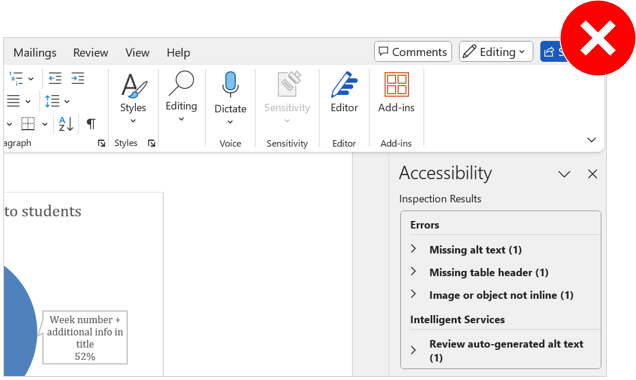
Do not upload new PowerPoint, Word or PDF files to Weblearn before using the built-in accessibility checker first.
Do not ignore accessibility issues identified as ‘Severe’ by Ally as this is potentially harmful content.

The Weblearn Template has been created to provide a consistent user experience to students that clearly sign-posts essential information.
Navigating Weblearn – even clicking on a single link – can be effortful for users with limited mobility. Make the location of materials predictable by using a consistent structure and informative naming of material. Observe the Institution module template, so that users will be familiar with the structure.
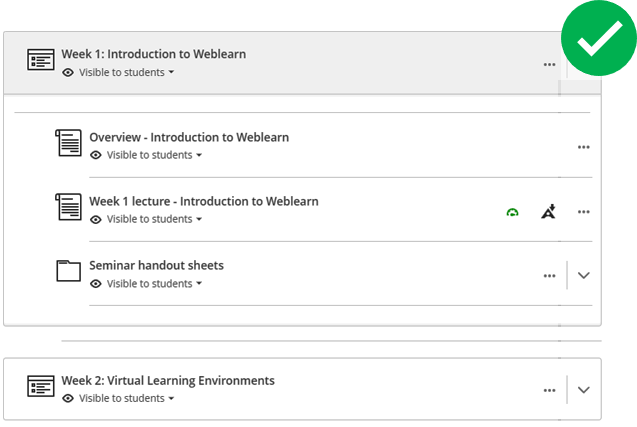
Add descriptive titles to the weekly learning modules.
Use clear naming and provide context to material.
Organise the material into a logical structure.
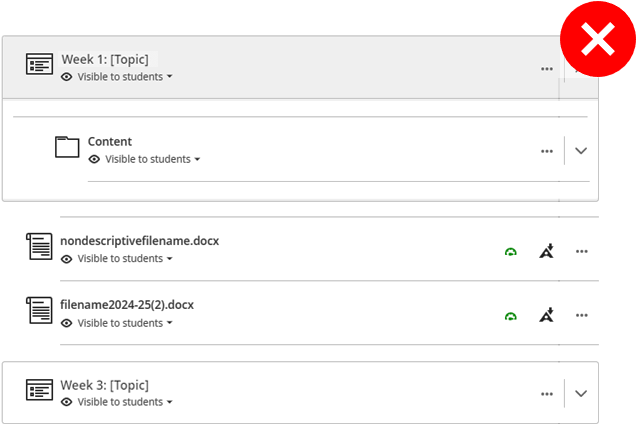
Do not add unnecessary folder levels.
Do not upload material to arbitrary or random locations.
Do not give ambiguous names to files or folders.