
Images can be added to an Ultra Document using either the ‘Image’ content block or the content editor. Ultra Documents provide three options to add images:
- Upload from device
- Stock images from Unsplash
- Generate image

Open the overview video in a new window: Generate images
Uploading images
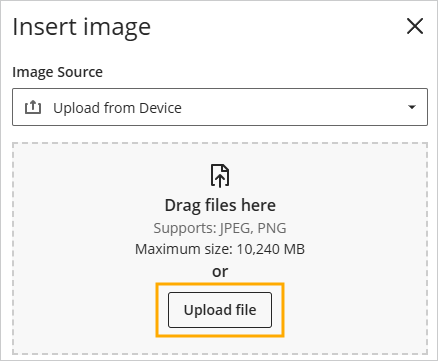
- To upload an image file onto an Ultra Document, click on the ‘Image’ content block, or use the image option in the content editor, and then click on ‘Upload file’
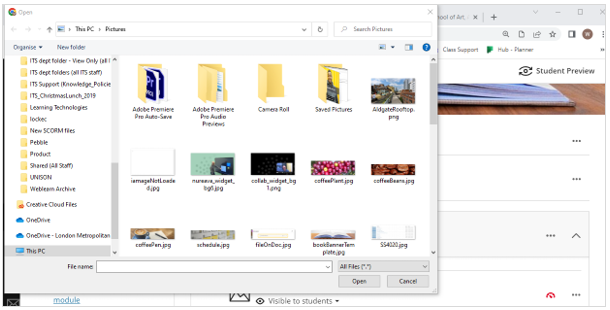
- Use the file explorer on your computer to locate and select the image file
- Update the the file options
Note: images must include Alternative Text or be marked as decorative to ensure that you are adding accessible images.

- Click on ‘Save’ to insert the image.
Stock image from Unsplash
Unsplash is a website that provides access to free images which can be added directly to modules inside Weblearn.
- To upload an image file onto an Ultra Document, click on the ‘Image’ content block, or use the image option in the content editor
- Select the ‘Stock images from Unsplash’ option from the Image Source drop down menu.
The search field will be automatically populated with key words from the title of the document you are adding the image to.
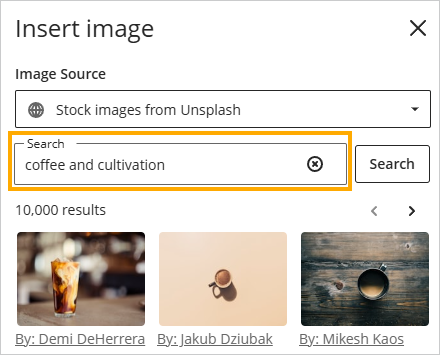
- Edit the search field and enter relevant keywords and prompts and then click on ‘Search’
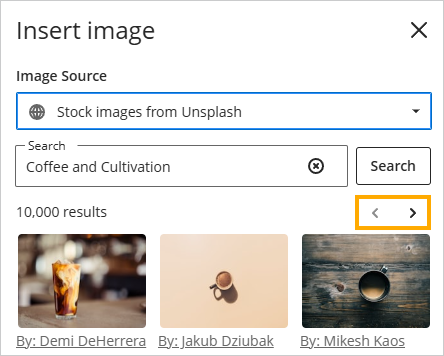
Note: Use the pagination to browse through the search results
- Once you have found a suitable image, click on the image thumbnail and the select ‘Next’
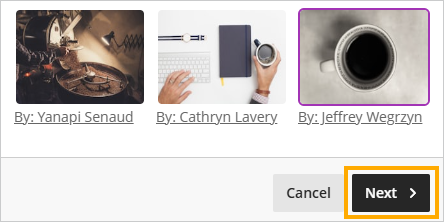
Optionally, edit the image view settings and the image options.
- Click on ‘Save’ to insert the image.
Generate images
The Generate image option uses the Blackboard AI design assistant to create images based on keywords and prompts added to the search field.
- Select the ‘Generate Image’ option from the Image Source drop down menu.
- Enter some text to describe the image you would like generated into the ‘Describe an image’ field
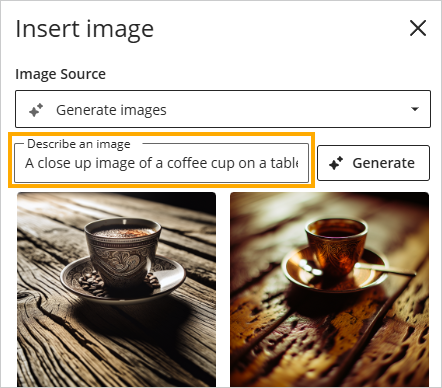
- Once you have generated a suitable image, click on the image thumbnail and the select ‘Next’

Optionally, edit the image view settings and the image options.
- Click on ‘Save’ to insert the image.
Copyright free images and icons
Copyright free images
These websites allow you to use images without seeking permission of the creator, so you are free to use and adapt them as desired.
Copyright free icons
The Flaticon website has 8,000+ royalty free icons.