All existing courses have a space on Weblearn called a Course Site which is available via the Organisations page. The course team can use the module and course site request form to add themselves to their course site.
Course site template
Course Sites are created from a template. The template consists of three sections that were created using a ‘Learning Module’
- About your Course
- Help and Support
- Career and Employability
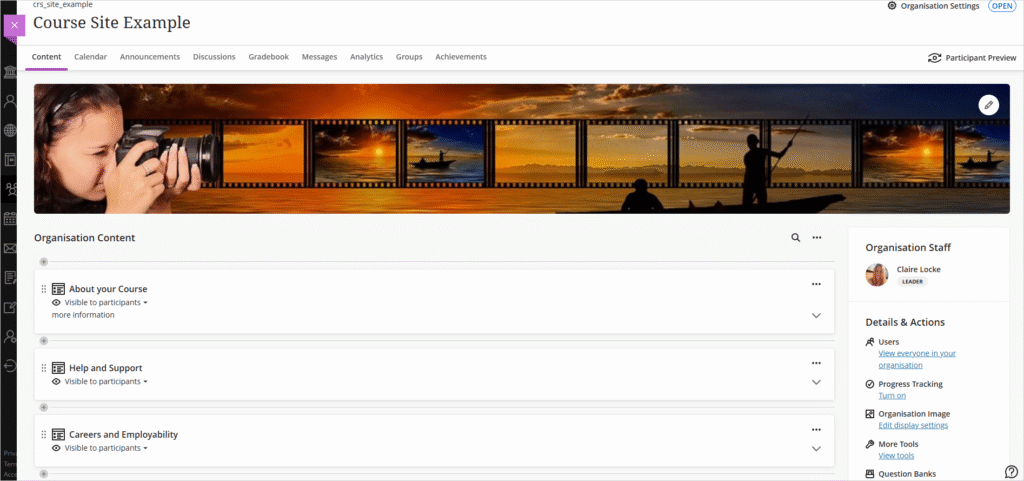
Each section contains centrally maintained pages that provide some default content for students.
Course Leaders can add course specific information in each section, such as information about subject specific job fairs in the ‘Careers and Employability’ section or links to professional bodies in the ‘About your Course’ section.
Default links
About your course section
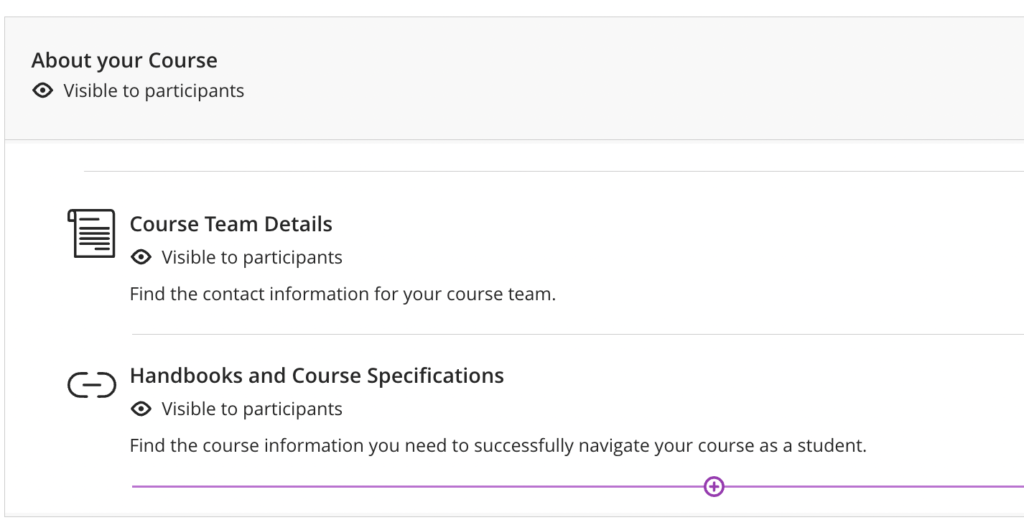
This section contains an Ultra document called ‘Course Team Details’ and one generic link.
‘Course Team Details’ needs to be updated by Course leaders to add contact details of the course team, such as teaching staff, academic mentors, technicians, subject librarians and student reps.
Help and Support section
The default links in this section point to a number of support services available to students.
- Academic Support
- University support services
- University life
- IT essentials for students
- Rules and Regulations

Careers and Employability
This sections contains only one default link that points to a large number of resources curated by the Careers and Employability service.

Updating Course Sites
The Course Site template uses Learning Modules to group related information.
You can add addtional content in any location in the learning module.
- Click on the section header to expand the learning module and view the content
- Move your mouse to the location where you want to add content
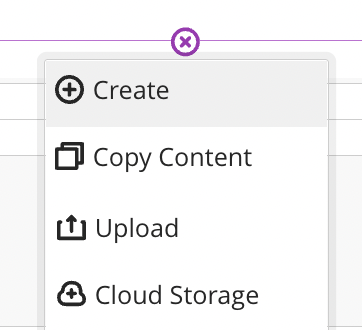
- Click on the Plus sign (+) that will appear and create content or upload a file