
The messages tool allows instructors to target communications to specific types of users on a module or organisation. A message can be sent to:
- All module members
- All instructors
- All students
- Selected members
- Members who have been assigned to a module group
Sent messages are stored in the module on the messages page. Only the message sender and the message recipients can view the message – instructors cannot see messages sent by other instructors unless they have been added as a recipient.
Students are able to reply to messages and send messages to staff only.
See the student help page: Messages
Access a Message
When a new message is sent an alert will appear on the main Weblearn menu for all of the message recipients.

The alert will also be displayed at the top of your module next to the ‘Messages’ tab.

A copy of the message will be sent to your London Met email account.
To open a message, click on the ‘Messages’ link on the main menu and then select the module which has an ‘Unread message’ indicator next to the title.

The Messages page will open in the module and display all messages which have been sent to the recipient from the module.
Once a message has been opened, the alert will disappear from the main menu. To access previous messages, open the module where the message was sent from and select the ‘Messages’ option from the top navigation menu.
Send a Message
A message can be sent from
- Messages page
- Groups page
- Gradebook
- Progress Tracking
To send a message from the Messages page:
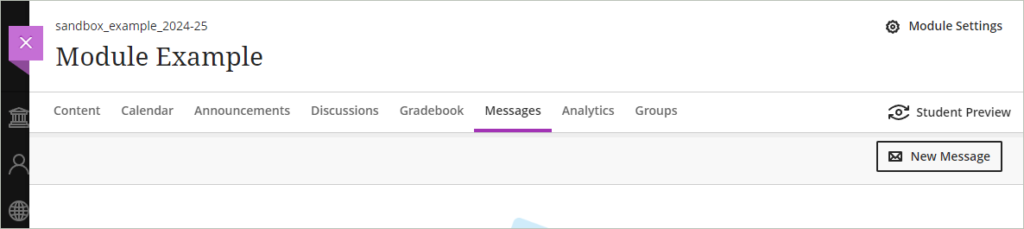
- Inside the module, click on the ‘Messages’ option on the top navigation menu
- Click on the ‘New Message’ button
- Choose who to send the message to by selecting the ‘Recipients’ box and selecting the user(s) or group(s) from the dropdown list
Tip: start typing the name in the recipients box to search for users or groups

If you would like students to be able to reply to the message, leave the ‘Allow replies to this message’ option selected
- Enter the message content into the ‘Message’ textbox

- Click on the ‘Send’ button to send the message.
Update the Message Options
Instructors will have the flexibility to customise messaging options within their modules. Where appropriate, they can enable student-to-student messaging, allowing learners to communicate with each other directly through the module.
| Option | Recommended for |
|---|---|
| Learners can message anyone in their module | Allow students to message anyone in the module |
| Learners can only message staff and learners in their groups | Allow students to message staff and other students in their groups |
| Learners can only message staff | Allow students to message staff only |
| Learners can only reply to messages | Do not allow students to send messages in the module. Students will only be able to reply to staff messages. |
To update the message options, click on ‘Module Settings’

Select the preferred message option
