The batch edit option allows you to edit the visibility or delete multiple items of content in bulk.
Blackboard Help Page: Batch Edit
Access Batch Edit
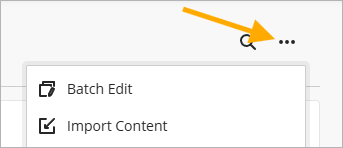
- Select the three dots to open ‘More Options’ at the top of the Module Content page
- Select ‘Batch Edit’ from the list of content options
Hiding or making content visible
- Select all items you want to edit by clicking the checkbox next to the item title
Note: if you select a folder or learning module all content inside is automatically selected
- Click on the ‘Edit Visibility’ button

- On the ‘Edit Visibility Setting’ panel, choose either ‘Visible to students’ or ‘Hidden from students’
- Select ‘Save Visibility’ to confirm the change

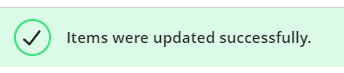
A confirmation message will appear at the top of the screen and content items will show their new status in the Visibility column.

Deleting Content in Bulk
Warning
Deleted cannot cannot be restored – you must make sure that you are deleting from the correct module.
- Select all of the content modules you want to delete by clicking the checkbox next to the item title
Selecting a folder will delete all content within the folder
- Click on the ‘Delete items’ button

- Click on ‘Delete’ again to confirm that you want to permanently delete the items

A success message will be displayed at the top of the screen once the items have been deleted